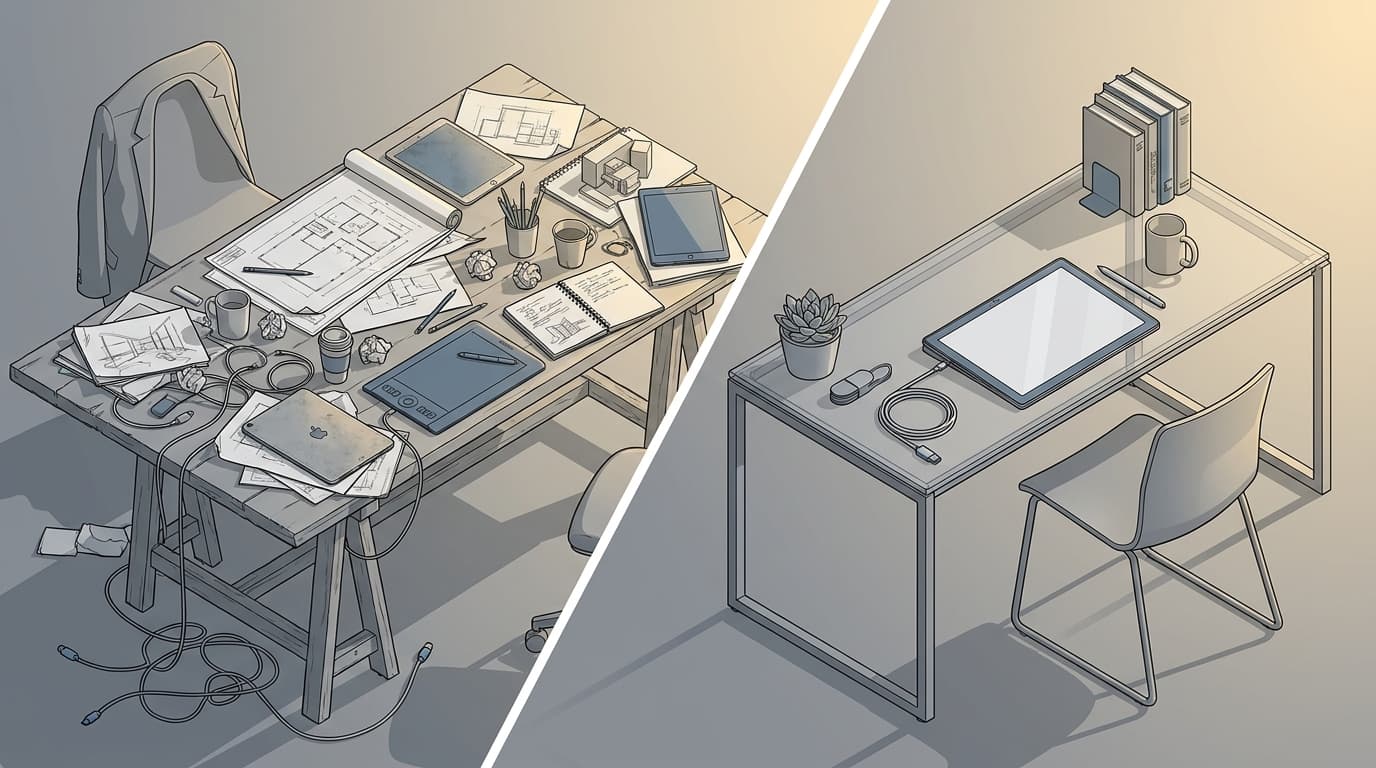
Six tablets. Three genuinely different jobs. And a market that wants to sell you one device to do all of them, which is roughly as sensible as buying one pair of shoes for a wedding, a building site, and a marathon.
12 min read
Best tablets for architects and designers: sketching, site notes, and client presentations compared
Free Lessons
Watch real ArchAdemia lessons, free
Free Lessons
Watch real ArchAdemia lessons, free
11 full lessons from paid courses — no account needed
Watch a free lessonThe Verdict First: What You Should Actually Buy
The best tablet for architects in 2026 is the 13-inch iPad Pro (M4), and it isn't particularly close. It balances Apple Pencil Pro precision for concept sketching, enough portability to carry between studio and site, and a display sharp enough that you won't wince showing a render to a client. If you only buy one tablet this year, this is it.
There's an immediate exception, though, and it matters. If you need to run full desktop Revit or AutoCAD on the same device — not a companion app, the actual software — the Microsoft Surface Pro 11 is the better pick. No iPad, however powerful the M4 chip is, runs desktop BIM software. That's not an Apple failing, it's an operating system decision, and no amount of marketing copy changes it.
Third callout, for the students reading this with one eye on their bank balance: the iPad Air 11-inch (M2) at roughly £599 does about 90% of what the Pro does for sketching and note-taking, at two-thirds of the price.
This isn't a one-size-fits-all recommendation, and the rest of this article is built around that fact. Roles matter. A BIM manager and an architecture student have almost nothing in common in terms of tablet needs, despite both technically being "architects with an iPad." There's a full comparison table below, and this is a 2026 update — meaning it reflects the current M4 and Snapdragon X Elite chip generation, not last year's models with a new coat of paint.
How We Actually Tested These (Not a Spec Sheet Copy-Paste)
Pen latency and pressure sensitivity matter more than processor speed when choosing a tablet for architectural sketching, because most sketching apps simply aren't CPU-intensive enough to expose the difference between a fast chip and a very fast chip. So that's where we focused.
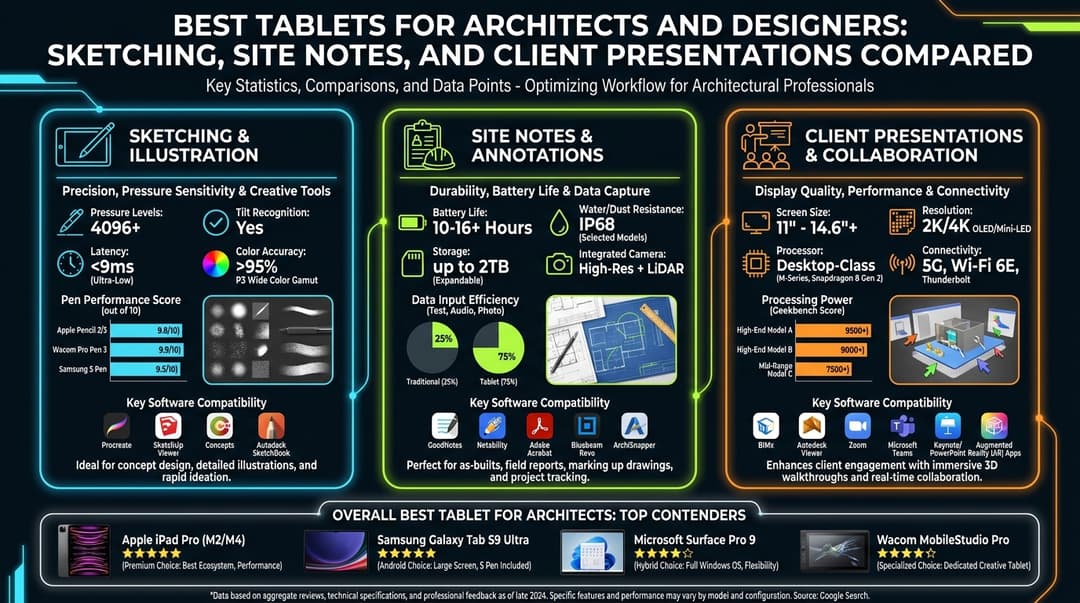
We tested across three real use cases, because that's how architects actually use tablets — not as a single workflow but as three separate jobs wearing the same aluminium body. Freehand concept sketching, the kind you'd do in a first design meeting or scribbling over a section detail. On-site note taking and markup, where glare, gloves, and battery anxiety change everything. And pitching to a client, where the tablet becomes a presentation device as much as a working tool.
The criteria were pen latency and pressure sensitivity, screen size against portability, battery life across a full day on site (not a lab test — an actual site visit), software compatibility across Procreate, Morpholio Trace, Concepts, FreeForm, and SketchBook, and price.
Here's the honest bit most reviews skip: raw CPU benchmarks rarely bottleneck a sketching workflow. Nobody has ever complained that their tablet was too slow to draw a line. The bottleneck is always the pen, the screen, or the software — not the processor sitting underneath pretending to be the star of the show.
The Full Comparison Table
No single tablet wins every category, which is precisely why this table exists — so you can match spec to task rather than buying on brand loyalty.
| Tablet | Price (GBP) | Display | Pen Support | Battery Life | Best For | Weight |
|---|---|---|---|---|---|---|
| iPad Pro 13" (M4) | £1,299 | 13" Ultra Retina XDR, 1600 nits peak | Apple Pencil Pro | ~10 hrs | Sketching + client presentations | 579g |
| iPad Air 11" (M2) | £599 | 11" Liquid Retina, 500 nits | Apple Pencil Pro | ~10 hrs | Students, budget sketching | 462g |
| Microsoft Surface Pro 11 | £1,099 | 13" PixelSense, 600 nits | Slim Pen 2 | ~14 hrs (light use) | Desktop Revit/AutoCAD on the go | 895g |
| Samsung Galaxy Tab S10 Ultra | £1,149 | 14.6" AMOLED | S Pen (bundled) | ~13 hrs | Android loyalists, note-taking | 718g |
| reMarkable Paper Pro | £579 | 10.9" colour e-ink | Marker Plus | ~2 weeks | Distraction-free site notes | 405g |
| Wacom Movink 13 | £999 | 13.3" OLED display tablet | Wacom Pro Pen 3 | N/A (tethered) | Archviz render touch-ups | 370g |
Two of these are deliberately unconventional picks. The reMarkable Paper Pro is for the note-taking purist — it's not trying to be a general tablet and that restraint is exactly its selling point. The Wacom Movink 13 is a display tablet, not a standalone device; it needs a laptop tethered to it, which makes it a niche pick for archviz artists rather than a general recommendation for anyone reading this on a lunch break wondering what to buy before term starts.
Sketching: Where the iPad Still Wins the Fight
The iPad Pro M4 paired with the Apple Pencil Pro remains the best sketching setup for architects in 2026, and the gap over Android alternatives is about software, not hardware. Latency on the Pencil Pro is near-zero, pressure sensitivity is genuinely good enough to replicate the feel of a soft pencil versus a hard line, and tilt shading works the way your hand expects it to. It stops feeling like drawing on glass after about a week.
Morpholio Trace is the closest thing architecture has to an industry-standard sketching app, and it's iOS and iPadOS only. The ability to overlay scale-accurate concept lines on top of a site photo or an existing drawing is something most architects use weekly, not occasionally, and it's a genuine workflow tool rather than a gimmick.
The Samsung Galaxy Tab S10 Ultra is the best Android tablet for architects who are already committed to that ecosystem, and the S Pen hardware is genuinely competitive — pressure sensitivity and palm rejection are both solid. The problem isn't the pen. It's that Procreate doesn't exist on Android, and most of the sketching apps architects actually rely on were built iOS-first and ported later, if at all. You're not choosing worse hardware. You're choosing a smaller shelf of software.
The Wacom Movink 13 deserves a mention here specifically because it's not for this use case. It's a display tablet tethered to a laptop, built for people already sat at a workstation who want pen precision without buying a full Cintiq. If you're stood in a site meeting wanting to sketch a quick massing option, it's the wrong tool entirely — but for the archviz crowd doing detailed touch-ups on a render, it's excellent, and we'll come back to that.
The verdict on sketching is blunt: don't buy an Android tablet for this use case unless you have a specific reason to. The software gap is real, and no spec sheet closes it.
If sketching is a skill you're actively building rather than just a device decision, it's worth pairing whatever tablet you land on with proper grounding in how architects actually communicate design intent — our Presentation course covers a lot of the same visual thinking that makes tablet sketches land with a client rather than just looking busy.
Site Notes: The Tablet That Survives a Muddy Boot in the Door
On site, the priorities flip entirely — battery life, glare, durability, and annotation speed matter more than sketching fidelity, and the tablet that wins here is not the one that wins in the studio. The reMarkable Paper Pro has a colour e-ink display that stays perfectly readable in direct sunlight and a battery that lasts roughly two weeks on a single charge, both of which make it objectively better outdoors than any LCD or OLED tablet on this list, iPad included.
That's not a small claim. Stand on a site at midday with an iPad Pro and you're squinting past your own reflection half the time. The reMarkable simply doesn't have that problem, because it's not fighting glare — it's designed around it.
The iPad Air M2 is the practical middle ground for site use. It's light enough to carry all day without your bag strap becoming a personal grievance, and the Apple Pencil's hover feature is genuinely useful for quick markups — you can preview where a line will land before committing, which matters when you're annotating a drawing balanced on a site hoarding in the wind.
The Surface Pro 11 is the weaker choice specifically on site, not because it's a bad device but because it's the wrong device for this context. Battery life drops noticeably under heavy use, and it's a more fragile-feeling piece of kit in a hi-vis, dust, and scaffolding environment than either the iPad or the reMarkable.
One practical tip that matters more than any spec on this list: a rugged case does more for your tablet's site survival rate than the model you choose. Doesn't matter which brand — just buy one before the first coffee spill, not after.
Client Presentations: The Tablet That Doesn't Embarrass You in the Room
Client presentations are a different job entirely from sketching or site notes, and the winning criteria are screen brightness, colour accuracy, and how easily the device connects to a big screen — not pen feel. The iPad Pro M4 is the best tablet for this specific use case, largely thanks to its mini-LED display and native AirPlay support, which lets you mirror to almost any modern meeting room screen without fumbling for the right cable while a client watches.
The colour claim is worth stating precisely because it's testable: the iPad Pro M4's display covers 100% of the P3 colour gamut, which is directly relevant when you're walking a client through a render and want the colours on screen to match what they'll see built. A washed-out or oversaturated render on a cheap display undermines confidence in the work itself, even when the design is right.
The Surface Pro 11 has a genuine advantage here that shouldn't be dismissed — it can run full desktop software live in the meeting. Showing a client a real-time Revit model edit, adjusting a window position or a material on the spot, lands completely differently than a pre-rendered walkthrough. It signals control over the design in a way a static image never will.
Worth a specific warning: don't buy the Galaxy Tab S10 Ultra for this use case, even though it's a genuinely good device overall. Screen mirroring to client AV setups — which are very often Apple TV or AirPlay-enabled displays in meeting rooms — is noticeably clunkier on Android. You don't want to be the person fiddling with a dongle while the client checks their phone.
Whatever tablet ends up in your bag, the sketches and site markups you produce on it are only as useful as where they end up afterwards. A brilliant concept sketch buried in your camera roll does nothing for your career — the same sketch, curated properly into a live portfolio on The Drawing Board, is what actually gets you shortlisted.
Match the Tablet to the Job, Not the Job Title
There is no single "architect's tablet" because there's no single architect's job — the right device depends entirely on where you sit in the process, and here's the breakdown by role.
Architecture Student — the iPad Air 11-inch (M2) at approximately £599 is the right call. It covers sketching, note-taking, and reading PDFs through an entire degree without the premium price tag of the Pro, and frankly most students don't need the extra display brightness or the bigger screen until they're presenting more formally.
Junior Architect — the iPad Pro 13-inch (M4) earns its higher price here. You're straddling studio sketching and needing to look sharp presenting to seniors or clients earlier than you'd expect, and this is the device that does both convincingly.
Archviz Artist — the Wacom Movink 13 paired with a proper desktop workstation beats any standalone tablet for detailed render touch-ups. Precision pen input tethered to real GPU power matters more here than portability. If you're building out a render pipeline properly, it's worth backing that hardware decision with the workflow itself — our Enscape Complete Guide and Lumion courses cover the software side of that stack.
BIM Manager — the Surface Pro 11 is the only device on this list that runs actual Revit natively, which makes it genuinely useful for quick model checks away from the desk rather than a novelty. Pair the hardware decision with tightening up your actual coordination workflow through our Revit BIM Collaboration course.
Project-Running Architect — the iPad Pro 13-inch (M4) again, and for a specific reason: versatility. Site, studio, and client meetings in one device without carrying a laptop everywhere is the entire value proposition, and at this stage in your career your time is worth more than the money you'd save going cheaper.
Where This Fits Into a Bigger Workflow
A tablet is one part of a stack, not the whole stack, and treating it as the finish line is where a lot of architects waste money on the wrong upgrade. The sketch you make on site needs to end up somewhere — layered into a set of drawings, folded into a presentation, or shown to a client the following week. None of that happens automatically just because you own good hardware.
The tablet is the capture device. What happens after capture — how you organise, present, and eventually package that work into something that gets you hired or gets a project approved — depends on the rest of your workflow, not the tablet's spec sheet. That's the distinction that separates architects who buy an iPad Pro and use it for Instagram sketches from architects who buy the same device and turn it into genuine project output.
FAQ
What is the best tablet for architects in 2026?
The 13-inch iPad Pro (M4) is the best overall tablet for architects in 2026, combining Apple Pencil Pro precision, a 100% P3 colour gamut display, and native AirPlay support for client presentations. It's the strongest all-rounder for architects who sketch, present, and move between studio and site.
Can I run Revit on an iPad?
No, the iPad cannot run full desktop Revit — Autodesk does not offer a native iPadOS version of the software. Architects who need Revit on a tablet-style device should choose the Microsoft Surface Pro 11 instead, which runs the full Windows desktop application.
Is the iPad Air good enough for architecture students?
Yes, the iPad Air 11-inch (M2) at roughly £599 covers around 90% of the sketching and note-taking capability of the more expensive iPad Pro. It's the best budget tablet for architecture students who don't yet need the brighter mini-LED display or larger 13-inch screen.
What's the best tablet for taking notes on a construction site?
The reMarkable Paper Pro is the best tablet for site note-taking, thanks to its colour e-ink display that stays readable in direct sunlight and a battery life of roughly two weeks. For architects who also want to sketch on site, the iPad Air 11-inch (M2) is a strong lightweight alternative.
Should archviz artists buy an iPad or a display tablet like the Wacom Movink?
Archviz artists doing detailed render touch-ups are better served by a display tablet like the Wacom Movink 13 tethered to a desktop workstation, since it offers greater pen precision for fine editing work. A standalone tablet like the iPad Pro is better suited to concept sketching than pixel-level render corrections.
Is Procreate available on Android tablets?
No, Procreate is exclusive to iOS and iPadOS and has no Android version as of 2026. This is the single biggest software limitation for architects considering an Android tablet like the Samsung Galaxy Tab S10 Ultra for sketching work.
Does screen size matter more than pen quality for architectural sketching?
No, pen latency and pressure sensitivity matter more than screen size for architectural sketching, since most sketching apps aren't demanding on processing power but are highly sensitive to how the pen responds. A smaller tablet with excellent pen response, like the iPad Air, will outperform a larger tablet with a mediocre stylus.
What tablet is best for presenting renders to clients?
The iPad Pro 13-inch (M4) is the best tablet for client presentations involving renders, due to its 100% P3 colour gamut display and seamless AirPlay mirroring to most modern meeting room screens. The Surface Pro 11 is a strong alternative when you need to demonstrate live software edits rather than pre-rendered visuals.
Buy the tablet that matches the job you actually do most weeks, not the one with the best marketing photos. If that's sketching and client work, get the iPad Pro. If it's Revit on the move, get the Surface. And whatever you sketch on it, make sure it ends up somewhere that actually works for you — starting with a portfolio that does the work justice on The Drawing Board.

Written by
About the team