The Verdict: Best Drawing Tablet for Architects Right Now
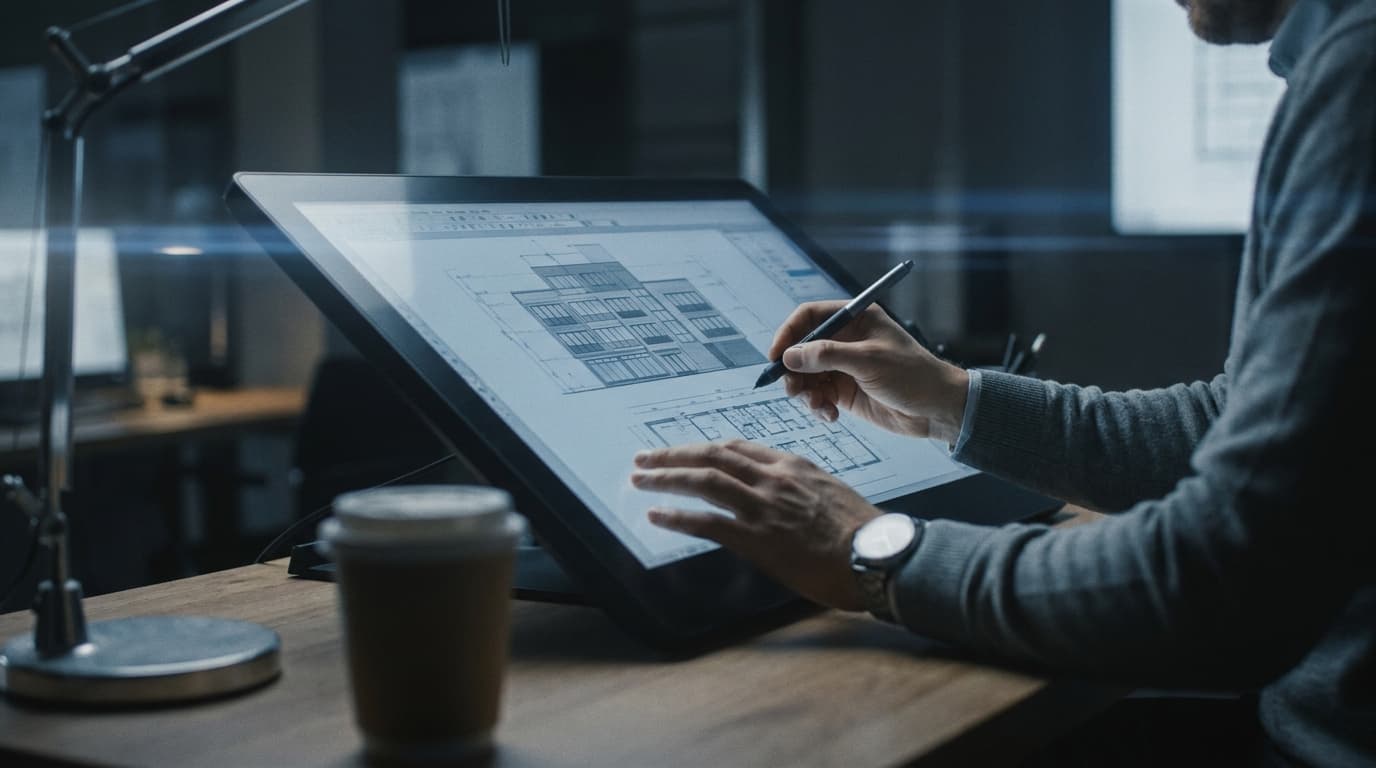
The best drawing tablet for architects in 2026 is the Wacom Cintiq Pro 22, offering a 4K display, 99% Adobe RGB colour accuracy, and pressure-sensitive pen input that works directly inside Revit, SketchUp, and Photoshop. If you're studio-based and spend your day redlining drawings, sketching over massing studies, or grading renders, this is the tablet that earns its keep.
If you're not chained to a desk, the Apple iPad Pro 13-inch (M4) is the best portable alternative. At 579g and with genuine all-day battery life, it handles site sketching, PDF markup, and client-facing presentations without you lugging a second screen around. Pair it with the Apple Pencil Pro and apps like Morpholio Trace, and you've got a sketching rig that fits in a tote bag.
Budget-conscious? The XP-Pen Artist 16 Pro gets you into a proper pen display for under £400, with a 15.6-inch screen and 8,192 levels of pressure sensitivity. It won't match Wacom's colour accuracy, but it will absolutely get you through university and your first couple of jobs.
One-line reasoning behind all three picks: screen-based tablets beat pen-only tablets for architects because you need to draw directly on the drawing, not stare at a monitor while scribbling on a separate slab of plastic. Everything below breaks down why, and which one fits your specific role.
Why a Mouse and a Wacom Intuos Are Holding Your Sketching Back
Pen-only tablets — the kind with no built-in screen — create a disconnect between hand and eye that slows down concept sketching. That's why screen tablets have become the default choice for architects since roughly 2022, when prices finally dropped enough to make them viable outside dedicated illustration studios.
There are three distinct categories here, and conflating them is where most buying decisions go wrong. A pen tablet (Wacom Intuos is the classic example) is a flat surface with no display — you draw on the tablet while watching the cursor move on your monitor. A pen display (Wacom Cintiq, Huion Kamvas) puts the screen and the drawing surface in the same place — you look at the line as it appears under the nib. A tablet-computer (iPad, Surface Pro) does the same thing but is also a standalone computer, no separate workstation required.
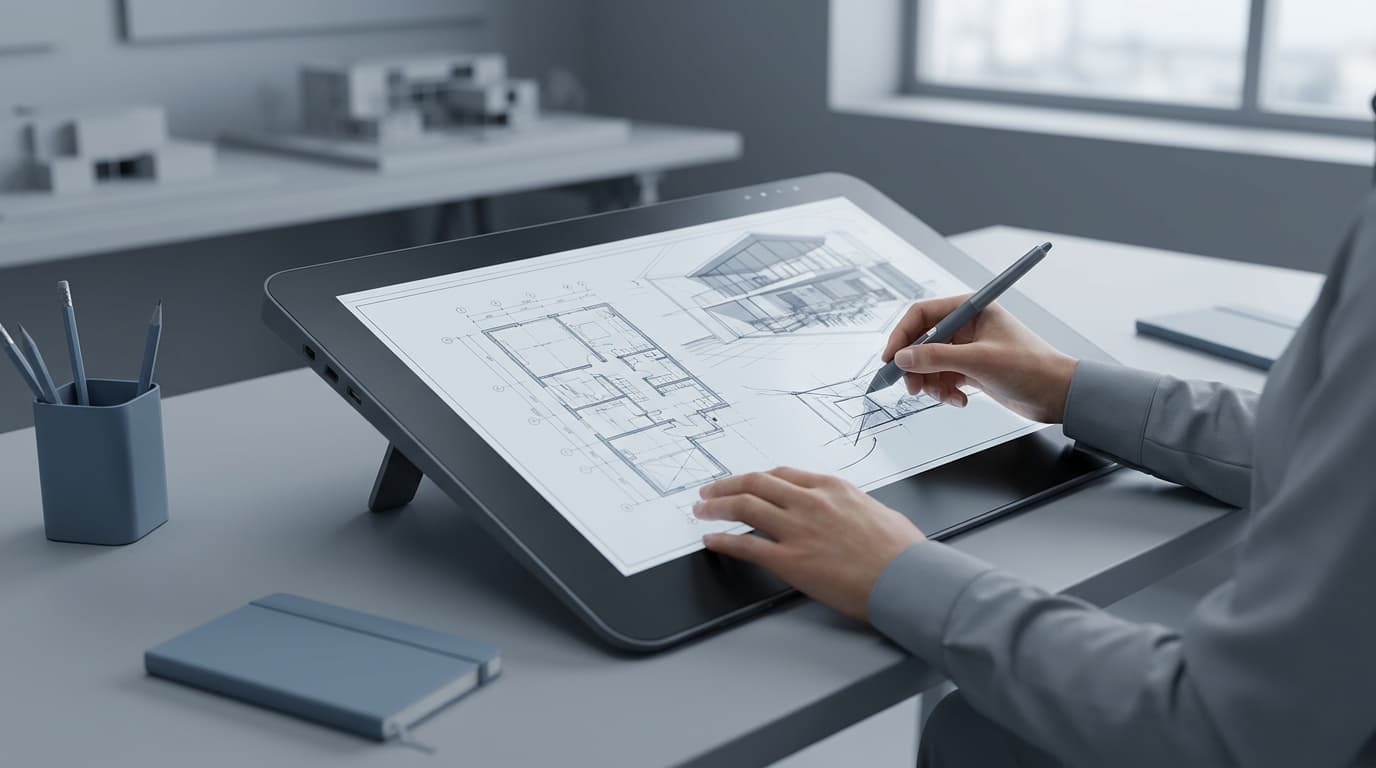
For most creative professions, an Intuos is fine. Photo retouchers and character illustrators spend years mastering the hand-eye split because it barely matters for their workflow — they're not tracing over an existing drawing. Architects are different. You're not creating from a blank canvas most of the time. You're sketching over a site photo to test a massing option. You're redlining a PDF a contractor sent at 4pm on a Friday. You're annotating a floor plan mid-meeting while a client points at something on screen. All of these tasks want direct contact between pen and drawing. Looking at your hand on a tablet while your eyes track a cursor three feet away on a monitor is a workflow tax you don't need to pay in 2026.
None of this makes the Intuos useless — it's cheap, near-indestructible, and perfectly serviceable for basic Photoshop cleanup or InDesign layout tweaks. But if concept sketching and redlining are core to your day, it's the wrong tool for the job, full stop.
The Contenders: Full Comparison Table
Seven tablets cover essentially every use case an architect will run into, from fixed studio setups to site-visit sketching. Pricing below reflects UK retail as of August 2026.
Tablet
Screen Size
Resolution
Pressure Sensitivity
OS/Software
Portability
Price (GBP)
Best For
TabletWacom Cintiq Pro 22
Screen Size21.5"
Resolution4K UHD
Pressure Sensitivity8,192 levels
OS/SoftwareConnects to Win/Mac
PortabilityDesk-bound
Price (GBP)~£1,800
Best ForStudio concept work, redlines
TabletWacom Cintiq 16
Screen Size15.6"
ResolutionFull HD
Pressure Sensitivity8,192 levels
OS/SoftwareConnects to Win/Mac
PortabilitySemi-portable
Price (GBP)~£900
Best ForSmaller studio desks
TabletiPad Pro 13" (M4)
Screen Size13"
ResolutionTandem OLED
Pressure SensitivityApple Pencil Pro (no stated level)
OS/SoftwareiPadOS
PortabilityFully portable, 579g
Price (GBP)~£1,300
Best ForSite visits, client meetings
TabletiPad Air 11" (M2)
Screen Size11"
ResolutionLiquid Retina
Pressure SensitivityApple Pencil Pro compatible
OS/SoftwareiPadOS
PortabilityFully portable, 462g
Price (GBP)~£700
Best ForStudents, general sketching
TabletXP-Pen Artist 16 Pro
Screen Size15.6"
ResolutionQHD
Pressure Sensitivity8,192 levels
OS/SoftwareConnects to Win/Mac
PortabilitySemi-portable
Price (GBP)Under £400
Best ForBudget entry point
TabletHuion Kamvas Pro 16 (2026)
Screen Size15.6"
Resolution4K
Pressure Sensitivity8,192 levels
OS/SoftwareConnects to Win/Mac
PortabilitySemi-portable
Price (GBP)~£650
Best ForValue-for-money screen tablet
TabletMicrosoft Surface Pro 11
Screen Size13"
Resolution2880×1920
Pressure SensitivitySurface Pen (4,096 levels)
OS/SoftwareFull Windows
PortabilityFully portable, 895g
Price (GBP)~£1,000 (incl. keyboard)
Best ForRunning Revit/Navisworks natively
The standout here for value is the Huion Kamvas Pro 16. The Wacom Cintiq Pro 22 costs approximately £1,800 in 2026, while the Huion Kamvas Pro 16 offers similar 4K resolution and pen pressure specs for around £650, making it the best value screen tablet for architects on a tighter budget. You're trading Wacom's colour calibration and build quality for a genuinely usable 4K pen display at a third of the price — for most junior architects, that trade makes sense.
Screen or Slate: Which One Actually Fits Your Desk
Architects working primarily in a fixed studio setup should choose a screen tablet like the Cintiq that connects to their main workstation, while architects who move between site, studio, and client meetings should choose a standalone tablet-computer like the iPad Pro. This isn't a hierarchy — it's a genuinely different job requirement.
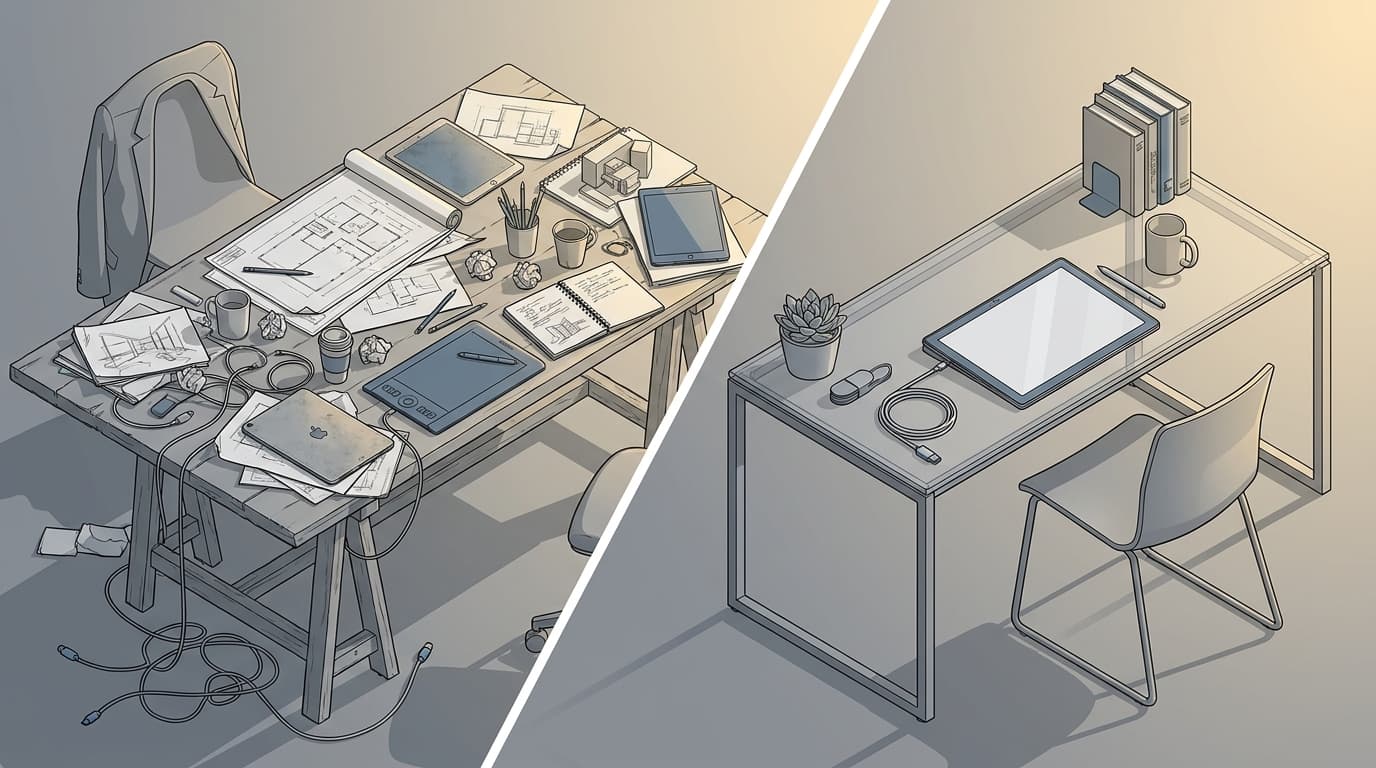
A Cintiq is a peripheral. It needs a desk, a spare USB-C or HDMI port, and — critically — space. The Cintiq Pro 22 is a 22-inch monitor you're propping up at an angle in front of your existing dual-monitor Revit rig, which means you need either a genuinely large desk or the willingness to swap your second monitor out entirely. If you're running Revit on one screen and sketching design options on the Cintiq, that's a three-screen-equivalent setup crammed into a studio desk. It works, but measure your desk before you order one.
The iPad's advantage is the opposite of all that. No cables, no drivers, six-figure battery life by comparison (Apple quotes up to 10 hours of continuous use), and an ecosystem of apps built specifically for architectural workflows — Procreate for concept sketching, Morpholio Trace for tracing over site photos and PDFs, Concepts for quick vector diagramming. You can sketch a massing study on a train, mark up a contractor's RFI on site, and present a client deck in the same afternoon, all on one device that weighs about the same as a hardback book.
The Surface Pro 11 sits in the middle, and it's worth calling out specifically because it solves a problem neither the Cintiq nor the iPad can. The Microsoft Surface Pro 11 is the only tablet in this category that runs full desktop Revit and AutoCAD natively, because it uses Windows rather than iPadOS or Android. That matters enormously if your redlining involves actually opening the Revit model and sketching over a live 3D view rather than exporting a flat PDF first. For BIM coordination work specifically, this is a genuine differentiator, not a marketing line.
Best Drawing Tablet by Role: Student, Junior, Archviz, BIM Manager, Project Architect
Architecture Students
The best drawing tablet for architecture students is the iPad Air 11-inch (M2), priced around £700, because it doubles as a note-taking device and portfolio-sketching tool across a full degree. You're not just sketching with it — you're taking lecture notes, reading PDFs, and building portfolio layouts, which the iPad handles as a genuine laptop-replacement in a way a dedicated pen display never will. Buy once, use for five years.
Junior Architects
The Huion Kamvas Pro 16 balances pen-display precision for Photoshop and InDesign presentation work with a price point a junior salary can actually justify. You get 4K resolution and full pressure sensitivity for around £650 — enough to produce genuinely polished presentation graphics without asking the practice to expense a £1,800 Cintiq for your first year.
Archviz Artists
The Wacom Cintiq Pro 22 is the right call here, purely for colour-accurate 4K post-production work on renders. If you're colour-grading a V-Ray output or fine-tuning a Lumion still before it goes into a client deck, 99% Adobe RGB coverage isn't a nice-to-have, it's the difference between a render that matches your monitor and one that looks washed out on the client's laptop. Pair it with a proper GPU workstation — this tablet is a display and input device, not a renderer.
BIM Managers
The Microsoft Surface Pro 11 is the pick, because it runs Revit and Navisworks natively, allowing direct redlines during clash detection meetings without file conversion. If your job involves sitting in a coordination meeting flagging clashes live inside Navisworks, exporting to a PDF and marking it up on an iPad afterwards is a wasted step. The Surface lets you annotate the actual model.
Project-Running Architects
The iPad Pro 13-inch (M4) wins here for portability across site visits, client meetings, and quick markups on PDFs sent from the office. You're not doing deep modelling work — you're reviewing, annotating, and communicating. The iPad's weight and battery life mean it's the one device you'll actually remember to bring to a site visit.
Stylus Wars: Apple Pencil Pro vs Wacom Pro Pen vs Huion PenTech
The Apple Pencil Pro has approximately 9ms of latency, making it the most responsive stylus for real-time architectural sketching among mainstream tablet pens in 2026. That number matters more than it sounds — anything above roughly 20ms starts to feel like the line is dragging half a beat behind your hand, which is exactly the disconnect screen tablets were supposed to solve.
Pressure sensitivity is where the Wacom Pro Pen 3 and Huion PenTech 3.0 both claim 8,192 levels, effectively matching each other on paper. Apple doesn't publish a stated pressure level for the Pencil Pro, but in practice it feels excellent — the barrel roll and squeeze gesture add functional shortcuts (changing brush angle, opening a tool menu) that neither Wacom nor Huion currently replicate on their styluses.
The detail that actually changes your daily workflow is battery. Both the Wacom Pro Pen 3 and Huion PenTech 3.0 are entirely battery-free, using electromagnetic resonance to draw power from the tablet itself. That means you will never, ever have a pen die mid-sketch during a long concept design session — a genuinely underrated feature when you're three hours into option testing and the last thing you want is a "10% battery" notification. Apple Pencil Pro does need charging, though its battery life is long enough that this rarely bites in practice.
Palm rejection is close to a solved problem across all three now — rest your hand on any of these screens and none will register a stray mark. Huion's has historically lagged slightly behind Wacom and Apple in fast, aggressive sketching, but the 2026 PenTech firmware has closed most of that gap.
What Actually Matters When You're Redlining a Drawing at 11pm
For digital redlining and markup work, screen accuracy and pen latency matter more than raw processing power, because the task is precision annotation, not rendering. Nobody needs an RTX 4090 to circle a clash on a Revit section. What you need is a pen that registers exactly where you intend it to, on a screen bright and accurate enough to read fine linework without eye strain, at whatever hour you're actually doing this work.
The real workflow looks like this: a contractor RFI lands in your inbox at 6pm, you open the drawing, you need to mark up three dimension conflicts and send it back before the site team starts at 7am. That's not a job for a 40-inch calibrated studio monitor and a separate stylus tablet — it's a job for whatever screen tablet is already open on your desk or, increasingly, whatever iPad is already on your kitchen table. Latency, contrast, and how naturally the pen tip meets the glass decide whether that task takes five minutes or twenty-five.
This is also where portfolio presentation and redlining start to overlap more than people expect. The same pen-display precision that makes a good redline tool makes for genuinely sharp presentation graphics — clean linework, confident annotation, work that looks considered rather than scrappy. If you're building out sketches and marked-up drawings for your own portfolio, the Drawing Board is built specifically to take that kind of hand-drawn, annotated work and present it the way a hiring panel actually wants to see it — not buried in a generic PDF.
Your redlining tablet doesn't need to be your rendering rig, your BIM machine, or your portfolio software all at once — but it does need to get out of the way of the actual thinking. That's the whole argument for screen contact over cursor-chasing, and it's the reason every tablet recommended above earns its place by making the pen disappear and the drawing take over.
FAQ: Drawing Tablets for Architects
What is the best drawing tablet for architects in 2026?
The Wacom Cintiq Pro 22 is the best overall drawing tablet for architects in 2026, offering a 4K display, 99% Adobe RGB colour accuracy, and direct pen input inside Revit, SketchUp, and Photoshop. For portability, the iPad Pro 13-inch (M4) is the best alternative for site visits and client meetings.
Is an iPad good enough for architectural sketching?
Yes, the iPad Pro 13-inch (M4) paired with the Apple Pencil Pro is genuinely good enough for architectural concept sketching, PDF redlines, and site photo annotation via apps like Morpholio Trace and Procreate. It cannot run desktop Revit or AutoCAD natively, so it's best suited to sketching and markup rather than full BIM modelling.
Should architects buy a Wacom Cintiq or a Wacom Intuos?
Architects should buy a Cintiq (a pen display) over an Intuos (a pen-only tablet) because architectural work involves drawing directly over existing drawings, site photos, and PDFs, which requires looking at the pen tip and the line simultaneously. An Intuos remains adequate for basic photo retouching or InDesign layout tweaks, but not for core sketching and redlining work.
Can the Microsoft Surface Pro run Revit?
Yes, the Microsoft Surface Pro 11 runs full desktop versions of Revit, AutoCAD, and Navisworks natively because it uses Windows rather than iPadOS or Android. This makes it the only tablet in this category suited to direct in-model redlining during BIM coordination meetings.
What is the best budget drawing tablet for architecture students?
The XP-Pen Artist 16 Pro is the best budget screen tablet for architecture students, priced under £400 with a 15.6-inch display and 8,192 levels of pen pressure. For students who want a more portable, multi-purpose device, the iPad Air 11-inch (M2) at around £700 is the stronger long-term investment.
Does pen latency actually matter for architectural sketching?
Yes, pen latency directly affects how natural sketching feels, because anything above roughly 20ms creates a noticeable lag between hand movement and the line appearing on screen. The Apple Pencil Pro's approximate 9ms latency is currently among the lowest of mainstream architectural drawing tools.
Do battery-free styluses matter for long design sessions?
Yes, battery-free styluses like the Wacom Pro Pen 3 and Huion PenTech 3.0 never need charging mid-sketch, which removes a genuine interruption risk during long concept design sessions. Apple Pencil Pro requires charging but typically lasts long enough to avoid this issue in daily use.
Buy for the workflow you actually have, not the one you imagine you'll grow into. A student sketching lecture notes and massing studies doesn't need a £1,800 Cintiq any more than a BIM manager running clash detection needs an iPad that can't open Navisworks. Match the tablet to the task in front of you, and the pen genuinely does disappear — which is the entire point.