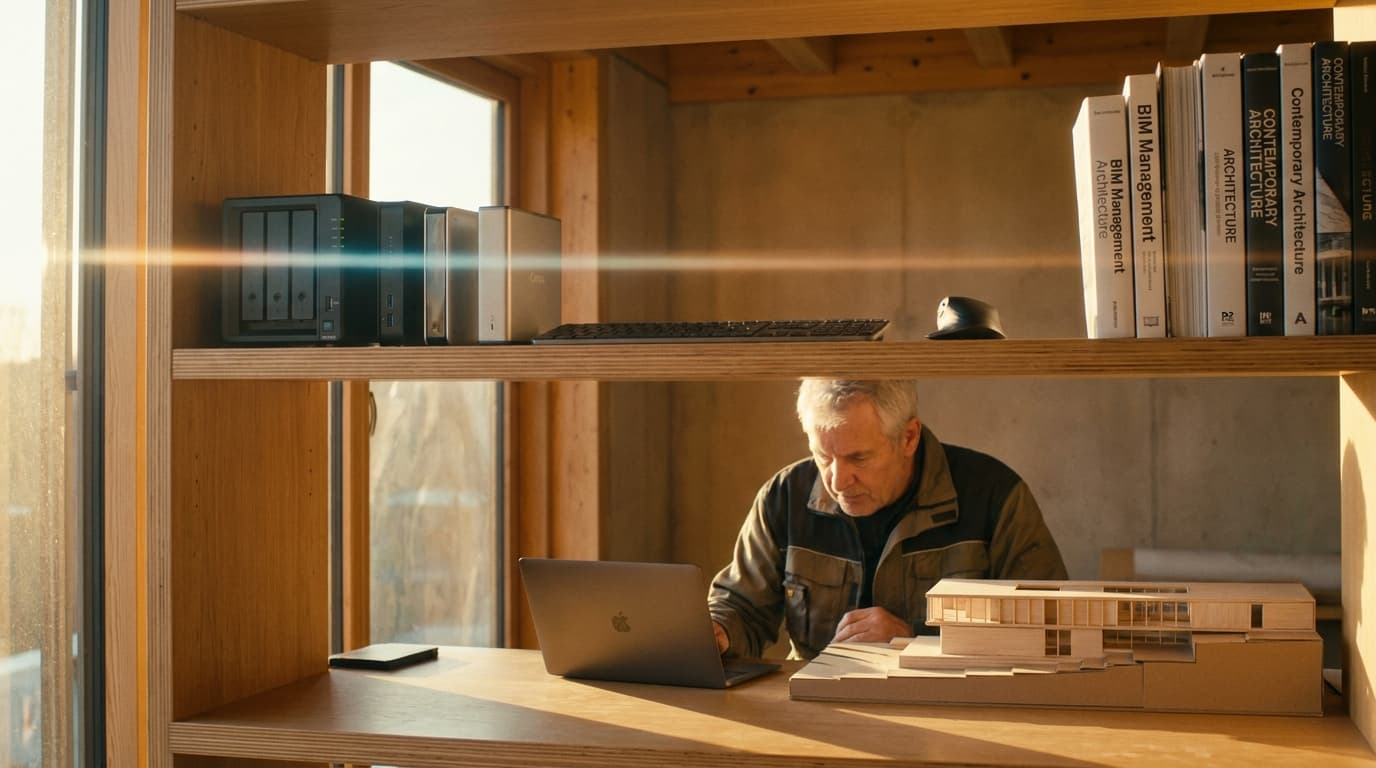
The best storage for architects working on Revit files over 200MB is a NAS system like the Synology DS923+, which supports multi-user worksharing without the file corruption risk of cloud-synced folders. If you're working solo or bouncing between site and studio, the Samsung T9 portable SSD does the job instead — 2,000MB/s transfer speeds in something that fits in a laptop bag pocket.
That's a split answer, and I'm not going to pretend otherwise. This isn't a single-hero-product review because storage for architects isn't a single-use-case problem. A student working alone on a thesis project has completely different needs to a five-person team sharing a central model with structural and MEP links. Buying the wrong one doesn't just waste money — it actively creates the problem you were trying to solve.
Here's the bit that catches people out: a 300MB Revit central model with fifteen linked files does not behave like a benchmark test on your laptop's internal SSD. Sequential read/write speeds on a spec sheet tell you almost nothing about what happens when three people are worksharing off the same file over a network, or when Revit needs to synchronise with central while a structural link is being updated in another window. Storage for BIM work is a different animal to storage for photos, video, or general files, and most of the advice out there doesn't make that distinction.
Revit central models grow because every family, link, and backup version compounds — a project that started at 80MB two years ago can easily be over a gigabyte by construction stage. This isn't a hardware failure on your part; it's just what happens when a live BIM model accumulates content over a project lifecycle.
The maths nobody warns you about
A typical mid-size commercial Revit project with linked structural and MEP models can exceed 1GB in central file size, which is large enough to cause noticeable lag on standard 5400rpm hard drives. Add a point cloud from a site survey — even a lightly processed one — and you're looking at several additional gigabytes sitting alongside the model. Nobody tells you this when you're a student working on a 40MB house project. Then you get into practice, join a live commercial job, and suddenly synchronising with central takes ninety seconds instead of five.
The maths is simple and nobody does it in advance: central model, plus structural link, plus MEP link, plus landscape link, plus however many local backup copies Revit is quietly keeping on your machine. Multiply that by every team member's local cache and you understand why studio servers fill up faster than anyone budgets for.
Worksharing turns storage into a networking problem
This is the part that trips up practices moving from solo work to team-based BIM. Once you're worksharing, storage isn't just about capacity or speed anymore — it's about how reliably multiple people can read and write to the same file at once without stepping on each other.
Cloud sync tools like Dropbox and OneDrive are not suitable for live Revit worksharing because they can corrupt the central model when multiple users save simultaneously. This is the actual failure mode behind most of the "my Revit file won't open" panic messages I get from readers. Someone put the central model in a synced Dropbox folder because it seemed sensible — after all, it "backs up automatically" — and then two people synchronised at the same moment while Dropbox was mid-upload. Best case, you lose an hour. Worst case, you lose the model.
The fix is understanding the split: local or portable storage solves speed and personal backup. NAS solves multi-user access and version control. They're not competing solutions, they're solving different problems, and most studio storage disasters happen because someone tried to make one do the other's job.
External SSDs: The Fast Answer for Solo Work and Site Visits
The Samsung T9 portable SSD is the best external drive for architects who need fast Revit file transfers between office and site, offering read speeds up to 2,000MB/s in a rugged, pocket-sized enclosure. For anyone still using a USB hard drive from 2019, this is the single cheapest performance upgrade you can make to your workflow.
What actually matters: read/write speed vs capacity
Capacity gets all the marketing attention, but for BIM work, sustained read/write speed is what you actually feel day to day. A spinning HDD tops out around 150-160MB/s under good conditions and degrades badly with fragmented files — which is exactly what a Revit central model becomes over months of use. An NVMe-based portable SSD sits in a different league entirely, often 10-15x faster on sequential transfers, and it's this speed that determines whether opening a linked point cloud feels instant or feels like a coffee break.
If you're a student or early-career architect and you're only going to buy one piece of storage hardware this year, buy an NVMe SSD over a traditional HDD. It's not a marginal difference — it changes how usable large files feel in daily practice.
The three drives worth your money
Samsung T9 — the benchmark for a reason. 2,000MB/s read speeds, available from 1TB up to 4TB, and small enough to disappear into a coat pocket. I've had one rattling around a site bag for the better part of a year and it's shrugged off drops onto concrete that would have killed a mechanical drive outright.
SanDisk Extreme Pro v2 — the value pick, particularly for students. IP65 rated against dust and water, which matters more than people think when you're pulling a laptop out on a muddy site visit with your storage drive clipped to the bag strap.
Crucial X10 Pro — built for people moving genuinely large sequential files, like archviz renders or raw point cloud captures, rather than the smaller, fragmented read/write patterns of a Revit central model. Slightly cheaper per gigabyte than the T9 at higher capacities.
Drop-resistance and IP ratings aren't a gimmick here. If you're on-site with a laptop, a tablet, and a drive full of the only copy of today's survey data, a rugged enclosure is the difference between an inconvenience and a genuinely bad day.
Comparison Table: External SSDs for Architects
Drive
Capacity Options
Max Speed
Approx. Price (GBP)
Durability
Best For
DriveSamsung T9
Capacity Options1TB–4TB
Max Speed2,000MB/s
Approx. Price (GBP)£90 (1TB) – £280 (4TB)
DurabilityShock-resistant, no IP rating
Best ForSite/studio portability
DriveSanDisk Extreme Pro v2
Capacity Options1TB–4TB
Max Speed2,000MB/s
Approx. Price (GBP)£110 (1TB)
DurabilityIP65 dust/water resistant
Best ForBudget-conscious students
DriveCrucial X10 Pro
Capacity Options1TB–4TB
Max Speed2,100MB/s
Approx. Price (GBP)£100 (1TB)
DurabilityAluminium housing, heat-resistant
Best ForLarge sequential archviz files
DriveLaCie Rugged SSD Pro
Capacity Options1TB–4TB
Max Speed2,800MB/s
Approx. Price (GBP)£180 (1TB)
DurabilityIP54, crush and drop resistant
Best ForExtreme site conditions
NAS Systems: The Only Real Fix for Studio-Wide File Chaos
The Synology DS923+ is the best NAS system for architecture studios running shared Revit central models, supporting up to four drive bays and expandable RAM for smooth multi-user access across a small team. A shared drive sitting on someone's desktop is not a backup strategy — it's a single point of failure with a login screen.
Why a shared drive on someone's desk isn't a backup strategy
Every studio has had this conversation: "the model's on Sarah's machine, just ask her for access." That's not infrastructure, that's hope. If Sarah's laptop dies, if her drive corrupts, if she leaves the practice with two weeks' notice and a grudge — the studio's most valuable asset just became a liability.
RAID 1 or RAID 5 configuration is essential for any studio storing live project files, because it protects against total data loss if a single drive fails mid-project. RAID isn't extra storage space, and it's not a backup on its own — it's redundancy. In plain English: your data is written across multiple physical drives simultaneously, so if one drive dies, the NAS keeps running and you swap the dead drive without losing anything. RAID 5 needs a minimum of three drives and gives you a good balance of redundancy and usable capacity for a small studio; RAID 1 is simpler, using two drives as direct mirrors of each other.
The two NAS boxes worth actually buying
Synology DS923+ — four bays, expandable to 32GB RAM, and genuinely painless setup through Synology's software, which matters if nobody in your studio wants to become the unpaid IT manager. This is the box I'd point most 3-8 person studios towards without hesitation.
QNAP TS-464 — comparable specs, slightly more configurable if you've got someone technical who wants to tune the network side, and generally a touch cheaper diskless. QNAP's software is more powerful but less friendly — fine if you enjoy that sort of thing, frustrating if you don't.
Worth noting: even studios running Autodesk Construction Cloud or BIM Collaborate still benefit from local NAS infrastructure. Autodesk's own guidance on network setups for hybrid ACC workflows treats local caching as part of a healthy pipeline, not a redundant leftover — large linked files and point clouds still move faster off a local NAS than pulled fresh from the cloud every time. If your studio is building out proper BIM workflows for the first time, our Revit BIM Collaboration course covers exactly where worksharing infrastructure like this fits into a live project pipeline.
Comparison Table: NAS Systems for Architecture Studios
NAS
Bays
Max RAM
RAID Support
Approx. Price (Diskless, GBP)
Best For
NASSynology DS923+
Bays4
Max RAM32GB
RAID SupportRAID 0/1/5/6/10
Approx. Price (Diskless, GBP)£480
Best ForSmall studios (3-8 people)
NASQNAP TS-464
Bays4
Max RAM8GB (expandable)
RAID SupportRAID 0/1/5/6/10
Approx. Price (Diskless, GBP)£420
Best ForTechnical teams wanting more control
NASSynology DS1522+
Bays5
Max RAM32GB
RAID SupportRAID 0/1/5/6/10
Approx. Price (Diskless, GBP)£650
Best ForBIM Managers, federated models
NASTerraMaster F4-423
Bays4
Max RAM16GB
RAID SupportRAID 0/1/5/6/10
Approx. Price (Diskless, GBP)£330
Best ForBudget studios, basic redundancy
The Cloud Isn't Storage, It's a Trap Dressed as Convenience
Autodesk Construction Cloud (ACC) is built for BIM collaboration, not as a replacement for local backup, and studios relying on it exclusively risk downtime if internet connectivity drops during live worksharing. Consumer cloud storage is a different, worse problem — Dropbox and Google Drive were built for documents and photos, not live multi-user database files, which is exactly what a Revit central model is.
Where BIM Collaborate and ACC actually fit
ACC and BIM Collaborate Pro genuinely solve the problem of distributed teams working on the same model — that's a legitimate use case and it works well when it's set up properly. But it's a collaboration layer, not a storage strategy. Treating it as your only copy of the project is the same mistake as treating a synced Dropbox folder as a backup: convenient right up until the moment it isn't.
Why you still need local or NAS backup even with cloud tools
The 3-2-1 backup rule — three copies of data, on two different media types, with one stored offsite — is the minimum standard any architecture studio should apply to live project files. Most studios ignore this entirely until they lose a project, at which point everyone suddenly becomes very interested in backup strategy for about a week.
Somewhere right now, an intern is about to overwrite a central model backup folder because nobody explained the naming convention. It happens constantly, and it's almost never malicious — it's a process failure, not a person failure. A NAS with proper RAID and scheduled backups to a second location removes the opportunity for that mistake to become catastrophic.
If you're setting up project infrastructure for the first time — file naming, folder structures, backup scheduling — the project trackers inside the ArchAdemia Toolkit are worth building into your studio's standard setup before the chaos starts, not after.
Best Storage by Role: Match the Kit to the Job
The best storage setup depends entirely on what you actually do day to day — a student and a BIM Manager have almost nothing in common in terms of storage needs, despite both technically "using Revit."
Architecture Student — a SanDisk Extreme Pro v2 1TB drive, under £120, IP65 rated to survive being thrown in a bag with a water bottle. That's enough capacity for a full degree's worth of Revit, Rhino, and rendering files, and durable enough to survive three years of studio life.
Junior Architect — a Samsung T9 2TB for portability between home, studio, and site, relying on the practice's existing NAS or server for source files rather than trying to hold everything locally. You're not responsible for infrastructure yet — don't try to be.
Archviz Artist — a Crucial X10 Pro or LaCie Rugged SSD Pro for shuttling large rendered sequences, textures, and point clouds between your workstation and a render farm or client machine. Sequential transfer speed matters more here than random read/write, since you're moving big single files rather than fragmented BIM data. If rendering workflow is where you're spending most of your time, it's worth pairing solid storage with proper technique — our Enscape Complete Guide and V-Ray for 3ds Max courses both cover file management alongside the render settings that actually matter.
BIM Manager — the best storage setup for a BIM Manager coordinating multiple linked models is a 5-bay NAS like the Synology DS1522+ running RAID 5, which balances redundancy with enough capacity for federated model coordination. This is not a role where you cut corners on infrastructure — a failure here doesn't cost one person a day, it costs the whole team.
Project-Running Architect — a Samsung T9 for site visits and client presentations, paired with the studio's NAS for source files. Versatility is the requirement here: you need something that works equally well plugged into a laptop in a client meeting and thrown in a bag on a site inspection.
FAQ
What's the best external drive for Revit files over 500MB?
The Samsung T9 portable SSD is the best external drive for Revit files over 500MB, delivering sustained read speeds of up to 2,000MB/s that keep large central models and linked files responsive during transfer. Avoid spinning HDDs entirely at this file size — the performance gap causes real, measurable delays in daily work.
Do I need a NAS if I already use Autodesk Construction Cloud?
Yes — ACC is a collaboration platform, not a backup solution, and studios need local or NAS storage to maintain the 3-2-1 backup principle. If internet connectivity drops during live worksharing, having local infrastructure prevents total downtime.
Is Dropbox safe for storing a live Revit central model?
No. Dropbox and similar consumer cloud sync tools can corrupt live Revit central models because simultaneous saves from multiple users conflict with the sync process. Use a proper NAS with worksharing permissions, or Autodesk's own cloud collaboration tools, instead.
What is RAID and do small studios actually need it?
RAID (Redundant Array of Independent Disks) writes data across multiple physical drives so a single drive failure doesn't cause total data loss. Any studio storing live, unrecoverable project files should run RAID 1 or RAID 5 on their NAS, even at just three or four people.
How much storage does a typical Revit project actually need?
A mid-size commercial Revit project with linked structural and MEP models can exceed 1GB for the central file alone, before accounting for point clouds, backups, and exported deliverables. Budgeting 5-10GB of total project storage per mid-size job, including backups and links, is a realistic minimum for planning purposes.
Is a NAS overkill for a solo architect or freelancer?
For a genuine one-person operation without worksharing needs, a NAS may be more infrastructure than necessary — a good external SSD paired with a proper cloud backup is often sufficient. Once you bring on a second person working from the same files, a NAS becomes the more sensible investment.
What's the difference between RAID 1 and RAID 5?
RAID 1 mirrors data across two drives, giving simple redundancy at the cost of half your total capacity. RAID 5 needs a minimum of three drives and stripes data with parity, giving better usable capacity while still protecting against a single drive failure.
Buy the drive that matches the job you actually do, not the one with the biggest number on the box. A student doesn't need a NAS, and a five-person studio worksharing a federated model shouldn't be running it off someone's desktop hard drive with fingers crossed. Get the fundamentals right — fast local storage for movement, proper redundant infrastructure for shared work, and a genuine backup plan that doesn't rely on Dropbox behaving itself — and the hardware stops being something you think about at all. Which, frankly, is the entire point.