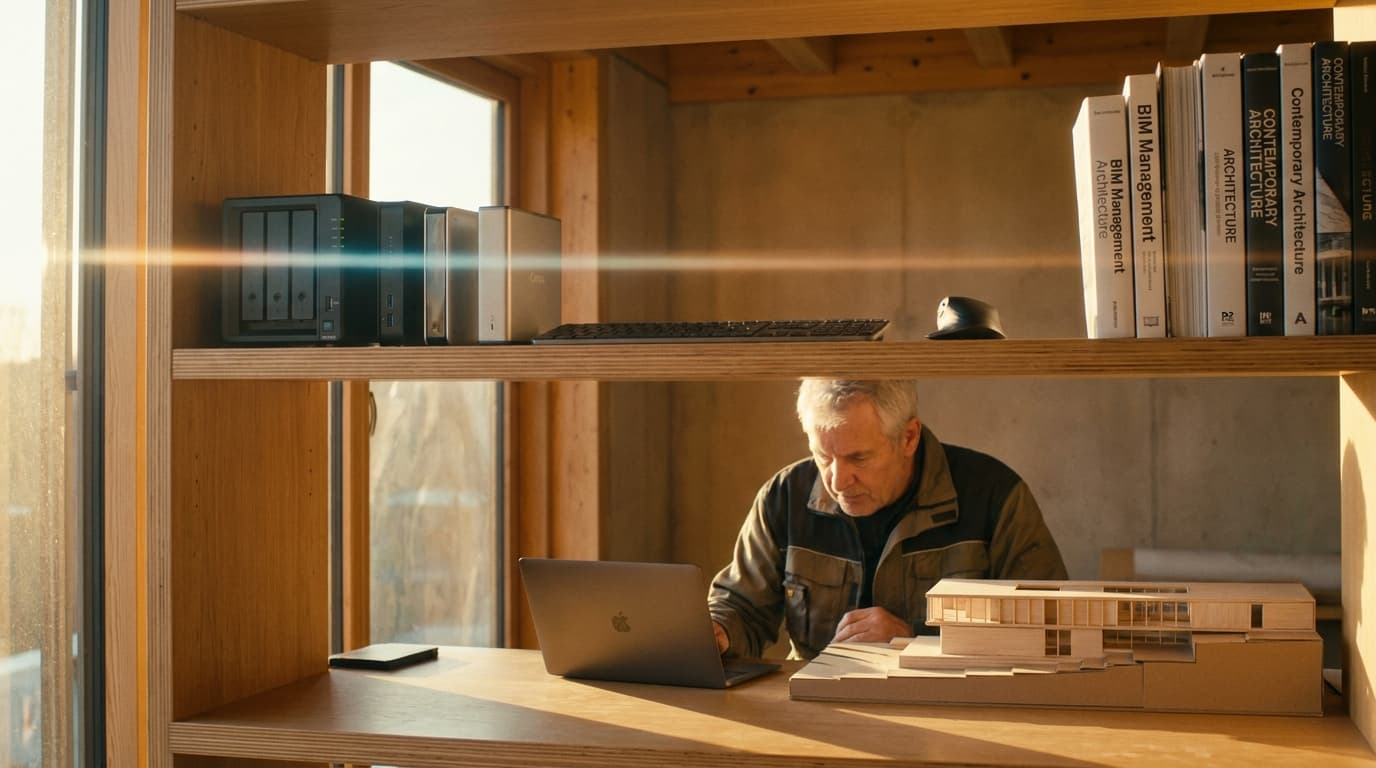
The best overall storage setup for architects managing BIM files in 2026 is a Synology DS923+ NAS paired with a Samsung T9 portable SSD for fieldwork — the NAS handles studio collaboration with proper redundancy, the SSD handles anything that needs to leave the building. For cold, long-term archiving of completed projects, Seagate Exos enterprise drives sat in a drawer (or a second NAS) round out the setup.
Here's the problem nobody explains properly: a Revit central model with structural and MEP links, a point cloud, and a folder of rendering assets routinely hits 8-15GB. Your studio's Dropbox account was not built for that. Consumer cloud sync tools were designed for photos, PDFs, and spreadsheets — not live, multi-user BIM files that need file locking to avoid corruption.
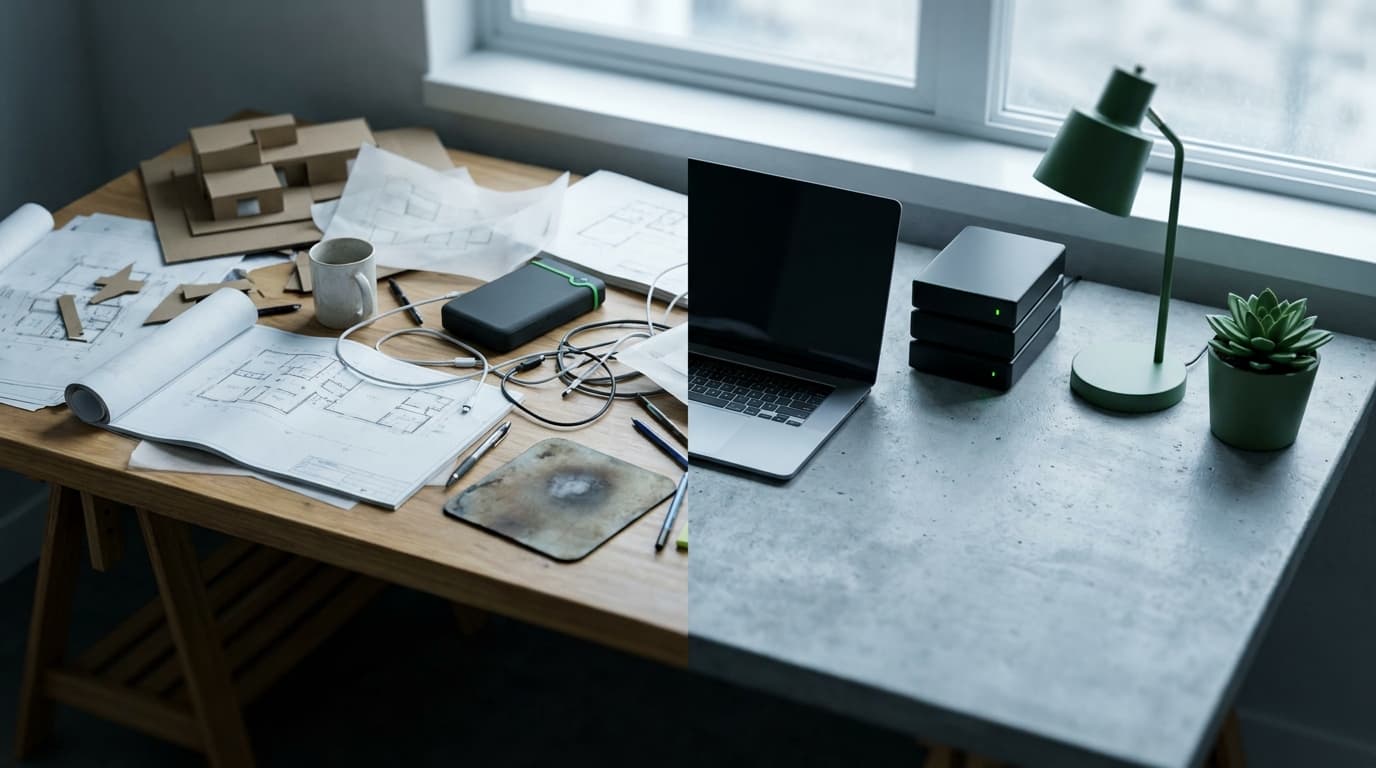
And a single external hard drive? That's not a backup strategy. That's one point of failure with a USB cable attached to it, waiting for the day you knock your coffee over the desk or the drive just dies, as they all eventually do.
This article works through the actual comparison — NAS vs external drive vs cloud — the specific hardware worth your money, and which setup makes sense depending on whether you're a student, a BIM manager, or running your own practice from a laptop bag.
Why Revit and BIM Files Break Normal Storage Logic
A mid-size commercial Revit project with linked models and point cloud data typically reaches 8-15GB, well beyond what consumer cloud sync tools like Dropbox or Google Drive handle reliably for live collaboration. This isn't a capacity problem — it's a speed and integrity problem, and the two get confused constantly.
The Linked Model Problem
A central Revit model rarely lives alone. Bolt on a structural link, an MEP link, a survey point cloud, and a handful of rendering assets, and a project that started life as a 400MB file becomes an 8-15GB monster within a few months. Add a heritage refurbishment with a full laser scan and you can blow past 20GB without anyone noticing until the sync bar hasn't moved in ten minutes.
I've watched a project grind an entire studio's internet connection to a halt because someone tried syncing a point cloud through a consumer cloud folder during a live worksharing session. Nobody could open their model. Nobody could work. The fix wasn't a faster connection — it was moving the whole thing onto proper local infrastructure.
Why Cloud Sync Isn't Enough
Consumer cloud storage services are unsuitable for shared Revit central models because they do not support proper file locking, risking model corruption when multiple users edit simultaneously. Dropbox, Google Drive, and OneDrive are built around eventual consistency — they sync files after the fact, they don't manage live read/write access the way Revit worksharing requires. Two people editing a central model through a synced cloud folder isn't a workflow, it's a corruption event waiting to happen.
This is also why raw storage capacity is the wrong thing to optimise for. Read/write speed and network latency matter more for BIM workflows than how many terabytes you've got sitting idle. A studio running Revit worksharing needs consistent gigabit throughput between workstations and the server, not just a big bucket to dump files into. This is the entire case for NAS as the professional standard, and why practices that skip it end up firefighting corrupted central files the week before a deadline.
If your studio is still finding its feet with worksharing itself, it's worth getting the fundamentals right first — our Revit BIM Collaboration course covers worksharing, central models, and the practical setup that makes hardware decisions like this actually matter.
NAS vs External Drive vs Cloud: The Real Comparison
NAS storage is best for architecture studios running shared Revit models because it provides RAID redundancy and gigabit network speeds unavailable from portable drives or consumer cloud tiers. External SSDs win on portability. Cloud wins on disaster recovery. None of them win at everything, which is exactly why relying on just one is the mistake.
NAS (e.g. Synology)
External SSD/HDD
Consumer Cloud
Typical speed
NAS (e.g. Synology)Up to 1GB/s (10GbE models) over LAN
External SSD/HDDUp to 2,000MB/s (USB-C SSD)
Consumer CloudLimited by upload bandwidth, often 5-20MB/s
Redundancy
NAS (e.g. Synology)Yes — RAID 5/6
External SSD/HDDNone (single drive)
Consumer CloudProvider-dependent, opaque to user
Best for
NAS (e.g. Synology)Studio collaboration, worksharing
External SSD/HDDSite visits, portability, field backup
Consumer CloudOffsite disaster recovery only
File locking for Revit
NAS (e.g. Synology)Yes, with proper server setup
External SSD/HDDN/A (single user)
Consumer CloudNo — corruption risk
3-year cost (studio use)
NAS (e.g. Synology)~£700-900 (NAS + drives)
External SSD/HDD~£150-300 per drive (needs replacing)
Consumer Cloud£180-600+ depending on tier/seats
Portability
NAS (e.g. Synology)None — fixed in studio
External SSD/HDDHigh
Consumer CloudHigh (bandwidth-dependent)
The honest takeaway: NAS is your primary working storage, an external SSD is your mobile working copy, and cloud is your insurance policy — not your daily driver. Treat any of them as a complete solution on its own and you're one hardware failure away from a very bad week.
The NAS Setups Worth Your Studio's Budget
The Synology DS923+ is the best NAS for architecture studios of 5-10 people, offering 4-bay RAID redundancy and expandable memory for under £600 excluding drives. It's not the cheapest option on the market, but it's the one that won't leave you regretting the purchase eighteen months in when your project archive has doubled.
Synology DS923+ — The Studio Standard
This is the one I recommend by default. Four bays, expandable RAM up to 32GB, runs RAID 5 or 6 comfortably, and Synology's DSM software is genuinely pleasant to use — which matters more than it sounds, because the studio member who ends up managing the NAS is rarely a dedicated IT person. It's usually whoever complained loudest about the last file server dying. Diskless, it sits around £550. For a 5-10 person studio running shared Revit models, coordinated MEP files, and a rendering archive, this comfortably covers you.
QNAP TS-464 — The Budget Alternative
Similar spec sheet, often £100-150 cheaper than the Synology equivalent. The hardware is competitive — the difference is software polish. QTS/QuTS is capable but noticeably less refined than DSM, and you'll spend more time in forums working out quirks. Worth it if budget is the deciding factor and someone in the studio is comfortable getting their hands dirty with configuration.
Synology DS1522+ — For Bigger Teams
Five bays instead of four, better suited to studios with 10+ staff or a rendering archive that's grown out of control. Around £750 diskless. The extra bay matters more than it sounds — it gives you room to grow into a larger RAID array without a full migration, which is the kind of problem you want to solve before it happens, not after your DS923+ is at 90% capacity during a live project.
A practical note that gets skipped constantly: pair any of these enclosures with drives actually rated for it. Seagate IronWolf Pro or WD Red Plus drives are built for continuous NAS operation — standard desktop drives aren't, and using them is a false economy that tends to reveal itself at the worst possible moment. RAID 5 is the practical minimum for redundancy without sacrificing too much usable capacity; RAID 6 buys you protection against two simultaneous drive failures if you're running critical archives and can afford the extra drive.
Portable Drives: What Survives a Site Visit
The Samsung T9 is the best portable SSD for architects working with large BIM files on site, offering read speeds up to 2,000MB/s and capacities up to 2TB in a pocket-sized drive. At roughly £150 for the 1TB model, it's the drive I tell every student and junior to just buy and stop overthinking.
Samsung T9 Portable SSD
Fast enough to open a linked Revit model directly off the drive without wanting to throw your laptop through a window. I've used one for years across site visits, client meetings, and the inevitable "can you just send me the file" moments where email attachments were never going to work. Genuinely the best all-rounder on the market right now.
SanDisk Extreme Pro
A solid, slightly cheaper alternative — a touch slower than the T9 but reliable, and a sensible pick for students who don't need the absolute top speed but want something that won't die a term into their course. Around £90-100 for 1TB depending on the sale.
LaCie Rugged for the Clumsy Ones
Drop-resistant and IP54 rated, which matters if your laptop bag has seen more mud than most wellies. If you're the kind of person who's dropped a hard drive down a stairwell (no judgement, it happens), pay the premium. It's cheaper than losing a week's worth of survey data.
Practical advice that applies regardless of studio size: always carry a portable SSD as a working backup, even if your studio runs a full NAS. NAS access means nothing when the office Wi-Fi is down, you're three floors underground on a site visit, or you're working from a client's boardroom with no VPN access. A drive in your bag is a drive that works everywhere.
Best Storage By Role: Stop Buying the Wrong Kit
Architecture students do not need NAS systems; a single 1TB portable SSD such as the SanDisk Extreme Pro, backed up to university cloud storage, is sufficient for coursework and portfolio files. The mistake most people make in this list is buying gear designed for a stage of their career they're not at yet.
Architecture Students
A budget SSD — SanDisk Extreme Pro 1TB at around £90 — covers coursework, model files, and portfolio exports. Back it up to your university's cloud storage for redundancy. No NAS needed at this stage; it's an unnecessary cost and one more thing to maintain.
Junior Architects
Your employer almost certainly runs NAS or server access already. What you need is a personal portable SSD — the Samsung T9 again — for take-home work, personal backup of your own portfolio pieces, and peace of mind when the studio server is being maintained. If you're still building fluency with the file management side of Revit, our Revit Intermediate course covers worksharing and central file discipline properly.
Archviz Artists
Render output and asset libraries eat storage fast — a single archviz project archive can easily exceed 100GB once you include HDRIs, textures, and multiple render passes. A NAS with SSD caching, or a dedicated NVMe external drive for active projects, is the sensible setup here. Speed matters more than capacity when you're pulling assets mid-render.
BIM Managers
The best storage setup for BIM Managers is a Synology NAS running RAID 6 with automated offsite backup replication, protecting coordinated multi-discipline models against both drive failure and site-wide disaster. Synology's Hyper Backup (or a cloud sync layer as a tertiary backup) should be non-negotiable given the number of consultants touching a coordinated model.
Project-Running Architects
You need reliability across site, studio, and client meetings without carrying a rucksack full of hardware. Samsung T9 plus studio NAS access is the practical combo — fast enough to work from directly, small enough to forget it's in your bag.
Worth mentioning here: managing file versions, project trackers, and fee calculations alongside your storage setup gets a lot easier with the ArchAdemia Toolkit — it won't back up your Revit model, but it'll stop the rest of your project admin turning into the same mess.
The Backup Rule Most Architects Ignore Until It's Too Late
The 3-2-1 backup rule for BIM files means keeping three copies of a project across two different media types, with at least one copy stored offsite. Applied practically for architects: your NAS is copy one, a portable SSD working copy is copy two, and cloud or offsite NAS replication is copy three.
The 3-2-1 Rule Applied to BIM
It sounds like overkill until you've lived through the alternative. NAS as primary storage, a portable SSD as your daily working copy (particularly if you're moving between site and studio), and a cloud or secondary NAS replication as genuine disaster recovery — theft, fire, flood, ransomware, take your pick. Synology's Hyper Backup makes the offsite replication piece almost trivially easy to set up once, and then genuinely forget about, which is exactly how backup should work.
What Happens When You Don't
Losing a live central model three days before a planning submission isn't a hypothetical horror story — it's a Tuesday somewhere in the country right now. A dead drive, a ransomware note, a "the NAS was fine yesterday" moment. Best case, you lose a day rebuilding from an old file and everyone hates you slightly less by Friday. Worst case, you're explaining to a client why the submission's late, and if it's genuinely their data you've lost through poor backup practice, you're now having an uncomfortable conversation with your professional indemnity insurer too. PI insurers increasingly ask about data backup practices during renewal — treat this as a business risk, not an IT chore.
FAQ: Storage for Architects and BIM Files
What's the best NAS for a small architecture studio in 2026?
The Synology DS923+ is the best NAS for architecture studios of 5-10 people, offering 4-bay RAID redundancy, expandable RAM, and reliable gigabit network speeds for under £600 excluding drives. It comfortably handles shared Revit central models, linked files, and a moderate rendering archive.
Can I use Dropbox or Google Drive for a shared Revit model?
No. Consumer cloud tools don't support proper file locking for live worksharing, which risks corrupting the central model when multiple people edit simultaneously. Use a NAS or dedicated BIM collaboration platform for live files, and reserve cloud storage for offsite backup only.
What's the best portable SSD for site visits?
The Samsung T9 is the best portable SSD for architects on site, with read speeds up to 2,000MB/s and capacities up to 2TB. It's fast enough to open linked Revit models directly from the drive and small enough to carry daily.
How big do Revit files actually get on a real project?
A mid-size commercial Revit project with linked structural and MEP models plus point cloud data typically reaches 8-15GB. Larger heritage or infrastructure projects with detailed laser scans can exceed 20GB.
What is the 3-2-1 backup rule for architecture firms?
The 3-2-1 rule means keeping three copies of your data, on two different types of media, with one copy stored offsite. For architects, this typically means a NAS as primary storage, a portable SSD as a working copy, and cloud or offsite NAS replication as disaster recovery.
Do I need a NAS as an architecture student?
No. A single 1TB portable SSD such as the SanDisk Extreme Pro, backed up to your university's cloud storage, is sufficient for coursework and portfolio files. NAS systems are studio infrastructure, not personal kit.
What hard drives should go inside a NAS for architecture use?
Use drives rated for continuous operation, such as Seagate IronWolf Pro or WD Red Plus, rather than standard desktop hard drives. Desktop drives aren't built for 24/7 NAS workloads and fail significantly earlier under that kind of continuous use.
Buy the NAS. Buy the portable SSD. Stop treating a single external drive plugged into your laptop as a backup plan, because it isn't one — it's a countdown timer. The studios that get burned by data loss aren't unlucky, they're just running 2015 storage habits on 2026 file sizes. Fix it once, properly, and it stops being something you think about at all — which is exactly the point.