The best monitor for architects in 2026 is the ASUS ProArt PA278CV, a 27-inch QHD panel with 99% sRGB coverage, factory calibration, and a price that hovers around £330. It's not the most exciting screen on this list. It's just the one that does everything a working architect needs without making you pay for features you'll never touch.
If you're a BIM manager drowning in linked models, the runner-up is the LG 40WP95C-W, a 40-inch curved ultrawide that replaces a two-monitor setup with a single 5K2K panel and no bezel gap slicing your Navisworks clash report in half. And if you're a student trying to survive five years of studio crits on a loan, the Dell S2721DS — a 27-inch QHD panel for around £180 — is the best monitor for architecture students who need something that won't die before their thesis does.
I tested six monitors properly for this piece: colour accuracy measured with a colorimeter (reporting actual Delta E values, not marketing claims), real-world sessions in Revit, Rhino, V-Ray and Photoshop, and multi-screen desk trials to see what actually happens when you try to fit two of these things on a standard studio desk. Spoiler: sometimes you can't, and nobody tells you that until you've already ordered the monitor arm.
What follows is the reasoning behind each pick, broken down by what you're actually doing at your desk — because the right monitor for someone rendering interiors all day is a genuinely different purchase to the right monitor for someone toggling between site photos and floor plans.
Colour Accuracy Isn't Optional — It's the Whole Job
A monitor is professionally colour-accurate if it has a Delta E value under 2 and covers at least 99% of the sRGB colour space. Anything worse than that and you're making design decisions — material finishes, render lighting, presentation boards — on a screen that's lying to you.
Here's the thing nobody explains properly when you're buying your first "proper" monitor: Delta E is a measurement of colour deviation, and a value under 2 means the difference is invisible to the human eye. Once you creep past 3 or 4, which is where a lot of budget monitors sit, colours start drifting — warm greys go slightly green, whites go slightly blue, and you won't notice until you print something or a client opens your PDF on their own screen and asks why the render looks nothing like what you showed them in the meeting.
What Delta E actually means for your renders
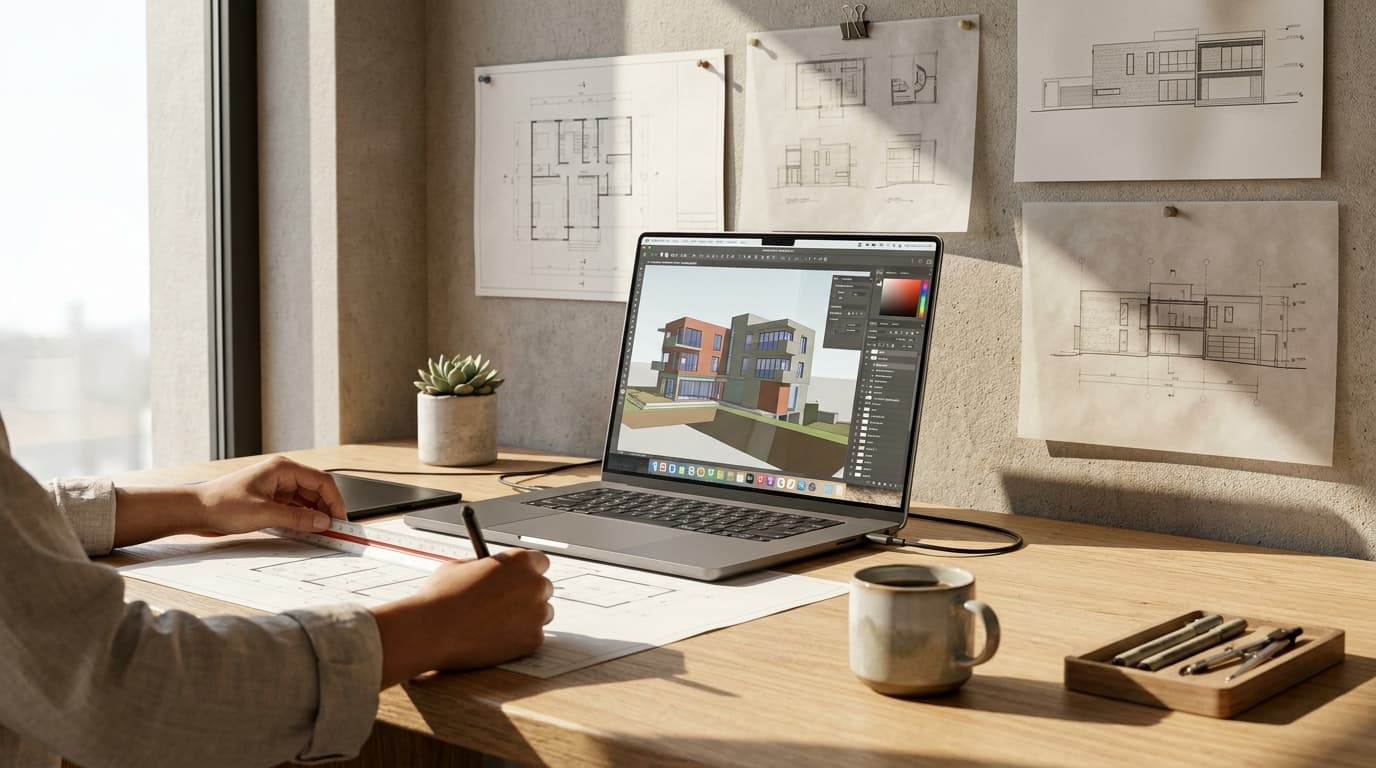
This matters enormously more if you're an archviz artist producing client-facing renders than if you're drafting floor plans eight hours a day. Line drawings don't care about colour fidelity. A V-Ray interior shot with carefully graded warm lighting absolutely does. If your monitor is rendering that scene inaccurately, you'll spend hours "correcting" a render that was never wrong in the first place, chasing a colour balance that only existed on your screen.
sRGB vs Adobe RGB: what architects actually need
Architects don't need Adobe RGB or DCI-P3 wide-gamut monitors built for video and photo grading. This is the most common overspend I see. Your final renders, PDFs, and presentation boards are almost always viewed on standard sRGB devices — client laptops, projector screens in meetings, phones. A wide-gamut monitor showing you colours outside that range is showing you information nobody else will ever see. It's a solution to a problem you don't have.
What you do need is an IPS panel, full stop. Avoid TN panels entirely — the colour shift when viewing off-axis is bad enough to distort your own judgement sat directly in front of it, let alone when a colleague leans over your shoulder. Cheap VA panels aren't much better; they're usually chosen for contrast ratio marketing numbers rather than colour consistency.
The genuine differentiator worth paying for is a factory calibration report. ASUS ships the ProArt line with an individual calibration report per unit — meaning the specific monitor you receive has been tested, not just the model in general. That's a real point of trust, not a spec-sheet gimmick.
Size and Resolution: Bigger Isn't Always Smarter
27-inch QHD (2560×1440) is the sweet spot for most architects, giving you enough screen real estate for palettes, properties panels and viewports without forcing Windows scaling above 100%. This is the setting most people get wrong before they've even opened Revit.
A 32-inch 4K monitor sounds like the obvious upgrade — more pixels, bigger screen, what's not to like. In practice, 4K at 32 inches usually needs 125–150% scaling to keep text and icons readable, and that's where things get messy. Older Rhino toolbars render at fixed pixel sizes and go blurry or oddly proportioned under Windows scaling. V-Ray's frame buffer has the same problem — I've had render previews that looked genuinely broken until I dropped scaling back to 100%, at which point the toolbar text became unreadable without leaning forward. It's a trade-off nobody puts on the box.
27-inch QHD vs 32-inch 4K: the real trade-off
QHD at 27 inches gives you a comfortable 109 pixels per inch without needing scaling adjustments at all — everything just works, out of the box, in every piece of architecture software you own. 4K at 32 inches gives you sharper text and more workspace, but only if your specific software plays nicely with scaling, and a surprising number of plugins still don't in 2026.
Ultrawide monitors for Revit and Rhino workflows
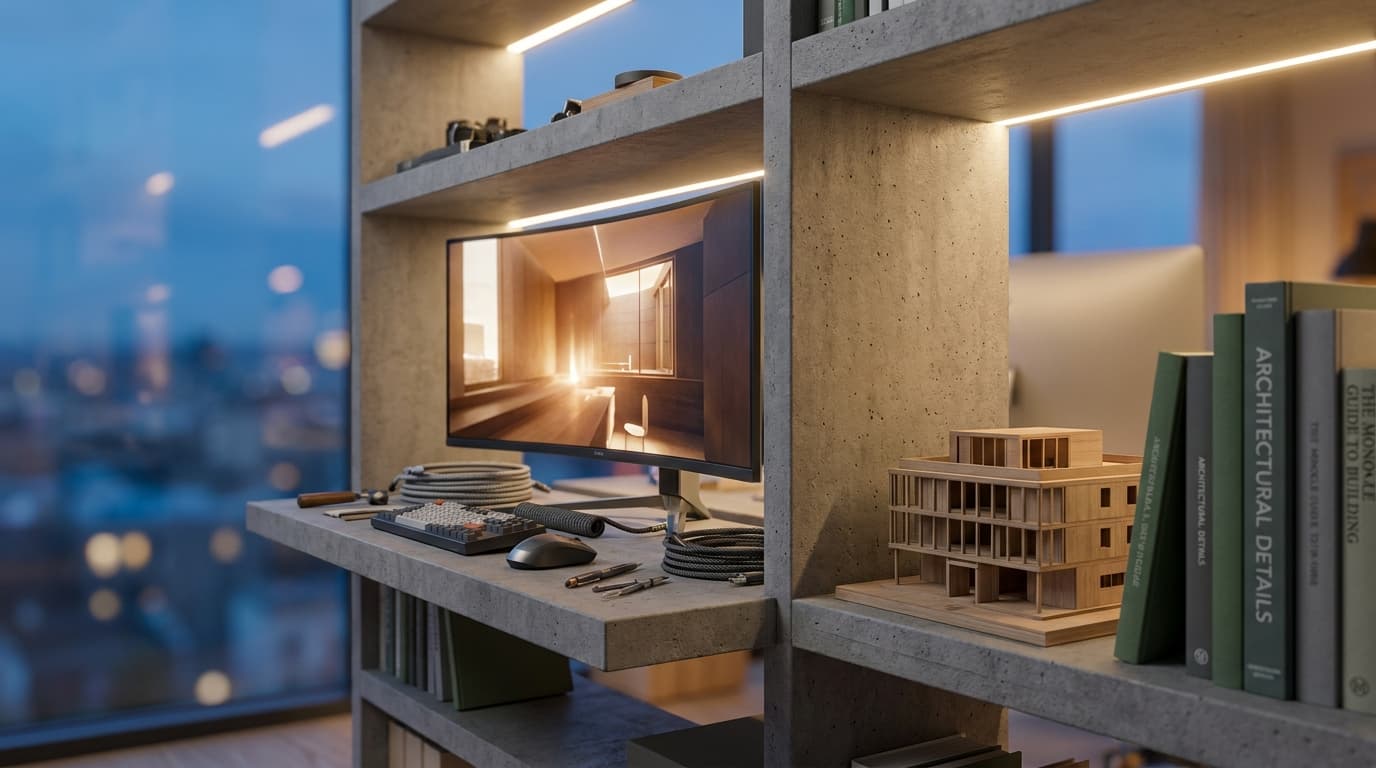
Ultrawides between 34 and 40 inches genuinely suit a different kind of work: BIM managers and project architects who need multiple palettes, schedules, and 3D views open side by side, with no bezel breaking up the canvas. This isn't a nice-to-have for that role — it changes how you actually navigate a linked model set.
The catch is desk depth. A curved 40-inch ultrawide needs a genuine 700mm of desk depth to sit at the correct viewing distance for the curve to make sense. Measure your desk before you fall for the marketing photography. A lot of studio desks — and most home-office setups — are shallower than that, and a curved ultrawide on a 600mm desk just means you're squinting at a warped edge of screen you can't actually use properly.
One Big Screen or Two Small Ones? The Multi-Monitor Debate
Dual 27-inch monitors suit architects who switch constantly between reference material and drawing — site photos on one screen, Revit or AutoCAD on the other. A single ultrawide suits architects who work within one continuous canvas, like rendering or model review, where dragging a window across a bezel gap actually costs you time.
This is a genuinely underrated decision point. If your daily workflow is reference-then-draw, reference-then-draw — checking a planning document, then updating a drawing, then checking a site photo, then adjusting a detail — the bezel between two monitors doesn't bother you because you're not dragging anything across it. Each screen does one job.
But if you're working inside Rhino with a viewport spanning your whole visual field, or reviewing a walkthrough in Enscape, that bezel becomes an actual obstruction sitting in the middle of your workspace. I've dragged Revit section views across a bezel gap more times than I'd like to admit, and it's a small but real friction that adds up across a working week.
Cost-wise, it's closer than you'd think. Two decent 27-inch monitors — say, two ProArt PA278CVs — land around £660 combined. A high-end ultrawide like the LG 40WP95C-W sits around £800–900. You're not saving huge money either way; you're choosing a workflow, not a budget.
Desk space matters too. Two monitors on independent VESA arms give you flexibility to angle each screen — useful in a small studio where you're sharing a desk or turning to show a client something. A single ultrawide is one footprint, one cable run, and considerably tidier if you're working from a home office with limited space.
The Full Line-Up: Every Monitor Worth Your Money in 2026
The ASUS ProArt PA278CV, Dell S2721DS, LG 40WP95C-W, BenQ PD3220U, and Samsung ViewFinity S8 represent the five best-value monitor options for architects in 2026, spanning student, professional, and archviz budgets. Here's how they stack up against each other on the specs that actually matter for architectural work.
Monitor
Size / Resolution
Panel
Colour Accuracy
Price (approx.)
Best For
MonitorASUS ProArt PA278CV
Size / Resolution27" QHD (2560×1440)
PanelIPS
Colour AccuracyDelta E <2, 99% sRGB, factory calibrated
Price (approx.)£330
Best ForOverall best all-rounder
MonitorDell S2721DS
Size / Resolution27" QHD (2560×1440)
PanelIPS
Colour AccuracyDelta E <3, ~99% sRGB
Price (approx.)£180
Best ForBest budget / student pick
MonitorLG 40WP95C-W
Size / Resolution40" curved ultrawide (5120×2160)
PanelNano IPS
Colour AccuracyDelta E <2, 98% DCI-P3
Price (approx.)£850
Best ForBIM managers, multi-model work
MonitorBenQ PD3220U
Size / Resolution32" 4K (3840×2160)
PanelIPS
Colour AccuracyDelta E <2, 95% DCI-P3, hardware calibration
Price (approx.)£700
Best ForArchviz artists
MonitorSamsung ViewFinity S8
Size / Resolution32" 4K (3840×2160)
PanelIPS
Colour AccuracyDelta E <2, 99% sRGB
Price (approx.)£480
Best ForProject architects, single-cable docking
A quick honest rundown of each:
ASUS ProArt PA278CV — no glaring weaknesses, which is rare. The stand is solid, the calibration is genuinely per-unit, and the price is fair. The only complaint is that it's a slightly boring-looking monitor, which has never once affected a render.
Dell S2721DS — surprisingly good colour for the price, though the stand only tilts, no height adjustment, so budget for a cheap monitor riser if you care about neck strain.
LG 40WP95C-W — transformative for multi-window BIM work, but it needs a genuinely powerful GPU to drive that resolution properly, and the desk depth requirement catches people out constantly.
BenQ PD3220U — the hardware calibration puck that ships with it is a real feature, not a gimmick, and worth pairing with proper training on how to actually use that colour range — our Rhino & V-Ray course covers exactly this kind of colour-managed render workflow.
Samsung ViewFinity S8 — the 90W USB-C power delivery is the standout feature. One cable, laptop charges, screen drives, done. Genuinely useful if you move between site, studio and home.
Best Monitor for Every Kind of Architect
The right monitor depends entirely on what you spend your day doing, not just your budget. Here's the breakdown by role.
Architecture Students: budget without regret
The best monitor for architecture students in 2026 is the Dell S2721DS, a durable 27-inch QHD panel priced around £180. It's not flashy, but it's colour-accurate enough for coursework renders, big enough to work comfortably in Revit or SketchUp, and built well enough to survive being dragged between a halls bedroom and a studio desk for five years. Don't overspend here — you'll want to upgrade the moment you're earning, and that's fine.
Junior Architects: value for money on a graduate salary
The ASUS ProArt PA278CV is the best value-for-money pick once you're working professionally. Factory calibration means your portfolio work — especially anything you're uploading to The Drawing Board — actually represents the colours you intended, rather than whatever your laptop screen happened to show you at 11pm the night before a deadline.
Archviz Artists: colour accuracy and GPU-matching performance
The best monitor for archviz artists is the BenQ PD3220U, a 32-inch 4K panel with 95% DCI-P3 coverage and hardware calibration, built to match a strong GPU output for V-Ray or Enscape work. That extra gamut headroom and the bundled calibration puck matter here in a way they don't for general practice — but only if you know how to use them. Pairing the screen with proper technique from our V-Ray for 3ds Max or Enscape Complete Guide courses is what actually turns that spec sheet into better client output.
BIM Managers: taming multiple linked models
The LG 40WP95C-W genuinely changes clash-detection workflow across linked Revit models. Having schedules, 3D views, and Navisworks reports open simultaneously without a bezel cutting through your field of view is the difference between spotting a clash and missing it because it was sitting half off-screen.
Project-Running Architects: versatility across site, studio and client meetings
The best monitor for project-running architects is the Samsung ViewFinity S8, offering 90W USB-C power delivery for single-cable laptop docking between site visits, studio work, and client presentations. You plug in once, and everything — power, display, sometimes even network — is handled. For anyone who's ever fumbled with three separate cables five minutes before a client walks in, this is worth the premium alone.
Before you buy anything, it's worth running your actual project list and software stack through the ArchAdemia Toolkit — the project tracker will tell you honestly whether you're spending most of your week rendering, coordinating models, or bouncing between site and studio, which is a far better basis for a monitor decision than a spec sheet.
What's Actually on My Desk
I run dual ASUS ProArt monitors, and it's a compromise I'd make again. One handles reference material, email, and the endless PDF review that eats half of any given day; the other runs Revit or Rhino full screen. It's not as elegant as a single ultrawide, and there is a bezel sat right where I'd sometimes like there not to be, but the flexibility of angling each screen independently — one slightly toward me, one slightly toward whoever's leaning over my shoulder — wins out for the kind of collaborative, interrupted work most practice actually involves.
The regret purchase was an early 32-inch 4K monitor I bought years back, before I understood the scaling problem properly. Beautiful screen. Constant fight with blurry toolbars in older plugins. I sold it within a year, which is a genuinely painful thing to admit about a piece of kit that cost more than my first phone.
FAQ
What is the best monitor for architects in 2026?
The ASUS ProArt PA278CV is the best monitor for architects overall in 2026. It's a 27-inch QHD panel with 99% sRGB coverage, factory calibration, and a price around £330, making it accurate enough for professional render work without the premium of a wide-gamut screen most architects don't need.
Do architects need a 4K monitor?
No, not by default. A 4K monitor above 27 inches usually requires Windows display scaling, which causes blurry toolbars and frame buffers in some Rhino plugins and V-Ray interfaces. A 27-inch QHD screen at 100% scaling avoids this problem entirely while still offering sharp, workable detail.
What Delta E value should a monitor have for architecture work?
A monitor is considered professionally colour-accurate if its Delta E value is under 2. This means colour deviation is invisible to the human eye, which matters most for archviz artists producing client-facing renders where accurate colour representation affects design decisions.
Is an ultrawide monitor good for Revit?
Yes, ultrawide monitors between 34 and 40 inches are genuinely useful for Revit users managing multiple linked models, schedules, and 3D views simultaneously. BIM managers benefit most, since the continuous canvas removes the bezel interruption of a dual-monitor setup during clash detection work.
What's the best budget monitor for architecture students?
The Dell S2721DS is the best budget monitor for architecture students in 2026, priced around £180. It's a 27-inch QHD IPS panel with roughly 99% sRGB coverage, durable enough to last through a full degree, and accurate enough for coursework renders and portfolio work.
Should architects buy Adobe RGB or DCI-P3 wide-gamut monitors?
Most architects don't need Adobe RGB or wide-gamut DCI-P3 monitors. Final renders and presentation materials are viewed on standard sRGB devices by clients and colleagues, so sRGB accuracy is the priority — wide-gamut coverage is only worthwhile for archviz artists doing colour-critical grading work.
How much desk depth do I need for a curved ultrawide monitor?
A curved ultrawide monitor, such as a 40-inch model, needs at least 700mm of desk depth to sit at the correct viewing distance for the curve to function as intended. Shallower desks will force you too close to the screen, distorting the edges of your workspace.
Is one ultrawide monitor better than two separate monitors for architects?
It depends on your workflow. Dual monitors suit architects who reference material on one screen while drawing on another, while a single ultrawide suits architects working within one continuous canvas, such as rendering or full-model review, where a bezel gap would interrupt the work.
Buy for the work you actually do, not the work you imagine yourself doing in six months. A factory-calibrated 27-inch screen will serve nine out of ten architects better than an expensive ultrawide gathering dust on a desk that's too shallow for it. Get the fundamentals — IPS panel, sub-2 Delta E, proper sRGB coverage — right first, and the rest is just picking the shape that suits your workflow.