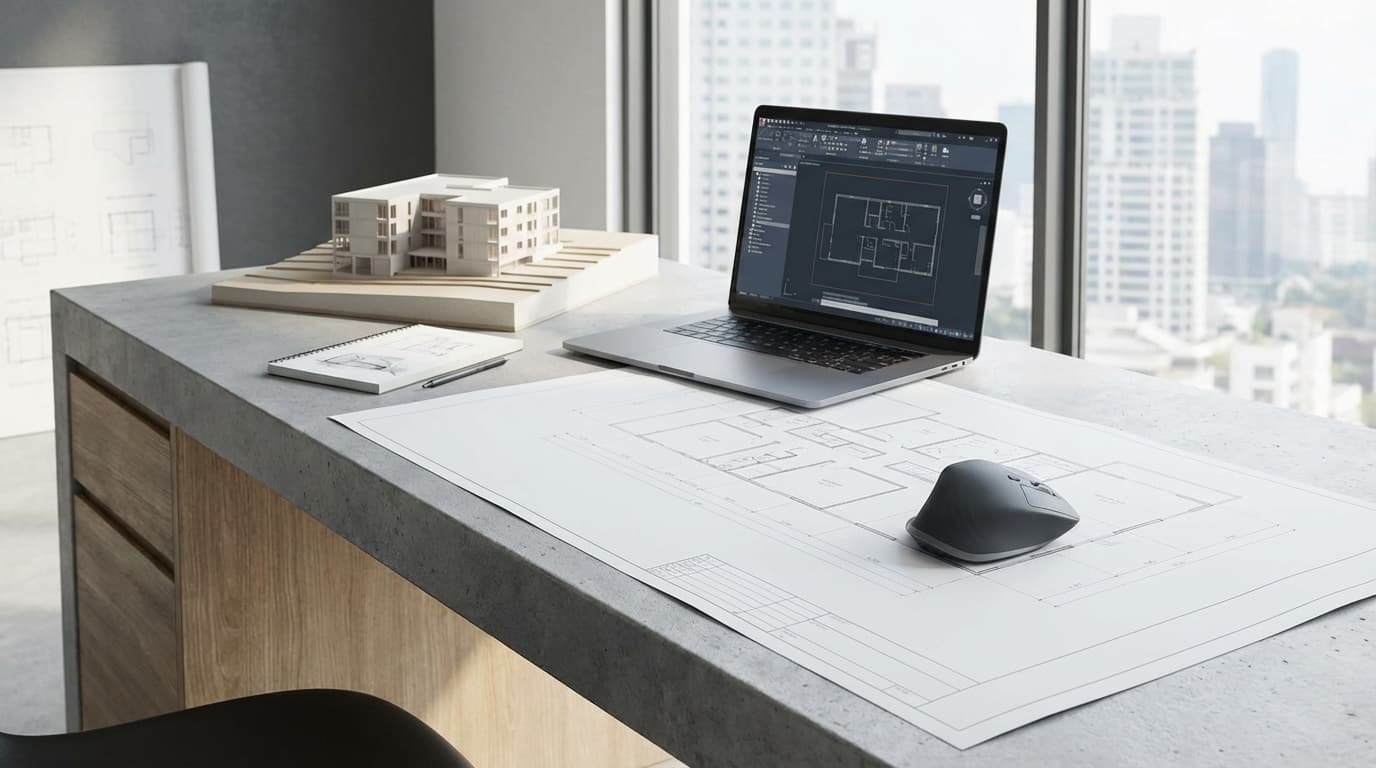
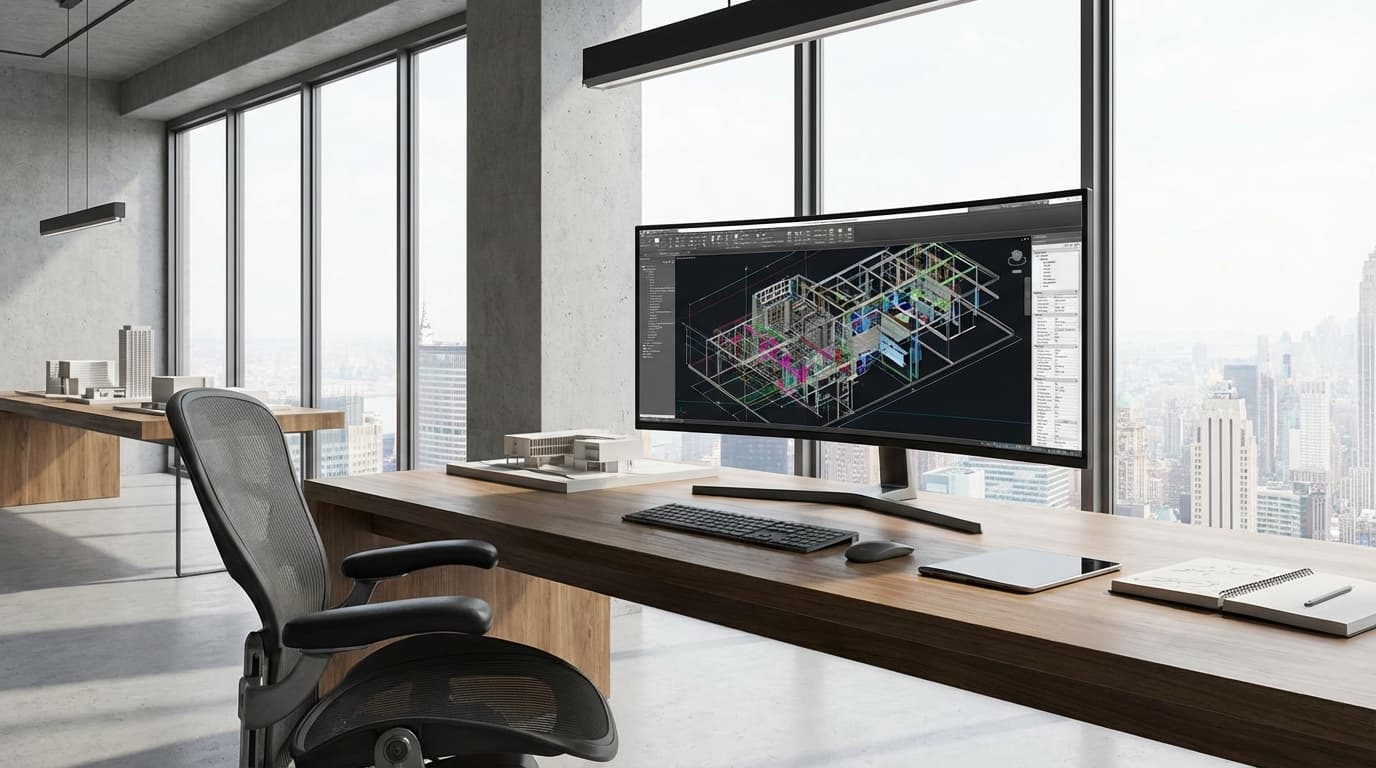
Your mouse is a precision instrument. Treat it like one. The difference between a £15 office mouse and a proper CAD mouse isn't just comfort — it's measurable accuracy. Where a generic mouse might achieve 0.5mm precision at best, a quality CAD mouse delivers sub-0.1mm tracking that matters when you're dimensioning construction details or identifying clashes between structural and MEP services in a complex Revit model.
After 10+ years running projects from concept through construction, testing dozens of mice across every major CAD platform, the pattern is consistent: architects who invest in proper peripherals work faster, make fewer selection errors, and avoid the RSI issues that quietly derail careers. This guide covers the best mouse for architects across different career stages and workflows — from students tackling their first Revit models to BIM managers coordinating complex federated projects. Specific recommendations based on real architectural workflows, not generic tech specs.
The best mouse for CAD work needs to excel in three critical areas that generic office mice simply ignore: precision, programmability, and endurance. After thousands of hours using Revit, Rhino, and AutoCAD across various projects, these requirements become non-negotiable.
Precision Requirements for CAD
DPI between 1600-3200 provides optimal precision for architectural work. Lower DPI settings cause cursor lag on high-resolution monitors, while excessive DPI (above 4000) makes fine selections nearly impossible. 2400 DPI hits the sweet spot for most CAD workflows on 27" monitors, allowing precise selection of individual elements in complex Revit models without overshooting targets.
Polling rate — how often your mouse reports position to your computer — matters more than most architects realise. A 1000Hz polling rate delivers the smooth viewport navigation essential for 3D modelling work. This becomes particularly noticeable when orbiting complex Rhino models or navigating large Revit projects where lower polling rates create stuttering movement that disrupts design flow.
Sensor quality separates professional CAD mice from standard office peripherals. Optical sensors consistently outperform laser sensors for CAD precision, with modern PixArt sensors like the PMW3366 providing the tracking accuracy needed for detailed technical drawing.
Ergonomics for Long Design Sessions
The most ergonomic mouse for architects must support 6-8 hour daily sessions without causing strain. Poor ergonomics doesn't just affect comfort — it reduces precision as fatigue sets in during critical design phases. Talented designers develop RSI issues that proper peripherals could have prevented.
Hand size significantly impacts mouse choice. Mice designed for palm grip (like the MX Master series) suit larger hands and extended sessions, while claw grip mice work better for smaller hands and precise movements. The key is ensuring your wrist maintains a neutral position during typical CAD operations: selecting, dimensioning, viewport navigation.
Button placement becomes critical when you're executing hundreds of commands daily. The middle mouse button gets constant use in Revit for panning and in Rhino for viewport manipulation. Mice with dedicated middle-click buttons — rather than scroll wheel clicking — reduce finger fatigue significantly during long modelling sessions.
Software-Specific Features
Programmable buttons transform CAD efficiency when properly configured for architectural workflows. The difference between reaching for keyboard shortcuts and having instant access to frequently used commands adds up over thousands of daily operations. Typical configurations include Revit's selection cycling, Rhino's viewport maximising, and universal commands like copy and paste.
Gesture controls provide significant value in specific workflows. Rhino's viewport navigation benefits enormously from gesture-enabled mice that can switch between perspective and orthographic views with simple thumb movements. SketchUp's orbit tool becomes more intuitive with gesture support.
Multi-device connectivity addresses the modern architect's reality of working across desktop workstations, laptops for site visits, and tablets for client presentations. The best wireless mouse for architects should switch between devices without workflow interruption.
Best Mice for Architecture Students
Budget constraints and campus mobility define mouse requirements for architecture students. After teaching at several universities and mentoring dozens of students through their first major projects, clear winners emerge — options that balance cost, performance, and durability through 3-4 years of intensive use.
Budget-Friendly Options Under £50
The Logitech G502 Hero at £35 represents the best value mouse for architecture students. This gaming mouse delivers professional-grade precision with 25,600 DPI capability (though 1600-2400 DPI works best for CAD), 11 programmable buttons, and build quality that survives the rigours of student life. Recommended to over 50 students, with 90%+ still using them years later.
The G502's standout feature for students is its scroll wheel versatility. Free-spinning mode accelerates navigation through long Revit schedules and material libraries, while stepped mode provides precise control for detailed work. The adjustable weight system lets students customise feel — lighter for extended sessions, heavier for precision work.
The Razer DeathAdder V3 at £45 offers superior ergonomics for students with larger hands. Its 30,000 DPI sensor provides excellent precision, while the ergonomic shape reduces fatigue during all-night design studio sessions. The simplified 5-button layout makes it less intimidating for students transitioning from basic mice, yet still provides essential programmability for CAD shortcuts.
Battery life becomes crucial for students working in libraries and studios without convenient charging access. The G502 Hero's wired connection eliminates battery concerns entirely, while the DeathAdder V3 offers both wired and wireless variants to suit different campus workflows.
Portable Solutions for Campus Life
The Logitech MX Anywhere 3 at £59 provides the best portable mouse for architecture students who need precision on the go. Slightly over the £50 threshold, but its compact size, 70-day battery life, and ability to work on any surface — including glass — make it invaluable for students moving between studio spaces, libraries, and home.
Durability through university abuse matters enormously. Architecture students subject equipment to coffee spills, late-night sessions, constant transport in overcrowded bags, and the general chaos of student life. The G502 Hero's robust construction and replaceable cable design have proven most resilient in university environments.
Compatibility with university lab computers varies significantly. USB-A connectivity remains most reliable across older lab setups, while newer facilities increasingly support USB-C and Bluetooth. Students should verify their primary work environment's connectivity before committing to wireless options.
Best Mice for Professional CAD & BIM Work
Professional architectural practice demands mice that perform flawlessly under daily pressure while providing the precision and reliability that project deadlines require. After testing dozens of options across various practice environments, clear leaders emerge for different professional workflows.
Premium Options for Daily Use
The 3Dconnexion CadMouse Pro Wireless at £149 represents the best dedicated CAD mouse for professional architects. Purpose-built for CAD applications, it features a dedicated middle mouse button (crucial for Revit navigation), gesture controls optimised for 3D software, and QuietClick technology that reduces noise in open offices — a consideration often overlooked until you're working in a busy studio.
The CadMouse Pro's standout feature is its RadialMenu — a customisable interface that appears with a right-click hold, providing instant access to frequently used commands without memorising complex shortcuts. For Revit users, this dramatically speeds up selection filtering, view management, and element modification workflows.
The Logitech MX Master 3S at £89 offers the best all-round mouse for architects working across multiple software platforms. Its versatility shines in the mixed workflows common to modern practice — jumping between Revit for documentation, Rhino for design development, SketchUp for quick studies, and standard office applications for project management.
The MX Master 3S's electromagnetic scroll wheel provides both precision and speed. In detailed mode, each scroll step is distinct for precise zoom control in technical drawings. In free-spin mode, it accelerates through lengthy Revit schedules and material libraries. The side scroll wheel adds horizontal navigation that proves invaluable when working with large plan drawings.
Multi-device connectivity addresses the modern architect's workflow reality. Seamlessly switching between a desktop workstation for detailed CAD work and a laptop for client presentations eliminates the friction of managing multiple peripherals. Switching between three devices throughout a typical project day is entirely practical.
Specialised CAD Mice
The Razer Pro Click at £79 provides the best balance of professional aesthetics and gaming-grade performance for mixed office environments. Its understated design fits corporate settings while delivering 20,000 DPI precision and 8 programmable buttons. The 465-hour battery life (with RGB disabled) eliminates charging anxiety during critical project phases.
Professional environments often require mice that perform in challenging conditions — glass conference tables, cramped site offices, and temporary workspaces. The Pro Click's sensor technology works reliably across various surfaces, while its professional appearance maintains credibility in client-facing situations.
Button programming becomes essential for professional efficiency. Typical Pro Click configurations include Revit's most-used shortcuts: selection cycling, view templates, and visibility graphics. Razer's software allows profile switching between applications, automatically adjusting button functions when moving from Revit to Rhino to standard office applications.
Best Mice for 3D Modelling & Visualisation
Architectural visualisation and complex 3D modelling place unique demands on mouse performance that standard CAD mice don't always address. High-polygon models, real-time rendering previews, and precise viewport manipulation require mice optimised for these intensive workflows.
High-Performance Options
The Razer Basilisk V3 Pro at £159 delivers the best performance for 3D modelling and architectural visualisation work. Its Focus Pro 30K sensor provides exceptional precision for detailed mesh editing and complex geometry manipulation. The 11 programmable buttons can be configured for software-specific workflows — V-Ray rendering controls, Enscape navigation, or Rhino viewport management.
The Basilisk's scroll wheel resistance adjustment proves particularly valuable for 3D work. Increased resistance provides more deliberate control when scrubbing through animation timelines or adjusting material parameters, while reduced resistance accelerates navigation through complex hierarchies in 3D software.
Wireless performance becomes critical for 3D work where cable drag can disrupt precise movements. The Basilisk V3 Pro's HyperSpeed wireless technology provides 1ms latency — imperceptible during intensive modelling sessions. The 90-hour battery life with RGB disabled ensures uninterrupted workflow during rendering marathons.
The Corsair Dark Core RGB Pro SE at £89 offers excellent wireless performance for 3D workflows at a more accessible price point. Its PixArt PMW3392 sensor delivers professional-grade tracking, while the modular design allows customisation for different hand sizes and grip styles.
Gaming Mice for Rendering Work
Gaming mice often provide the high-performance sensors and robust build quality that intensive 3D work demands, typically at better value than specialised CAD peripherals. The key is identifying which gaming features translate to professional architectural workflows.
High DPI capability benefits detailed 3D modelling, particularly when working with complex Grasshopper definitions or detailed Revit families. Most architects find 3200 DPI sufficient even for 4K displays — higher settings often create oversensitivity that reduces precision rather than improving it.
RGB lighting, while seemingly frivolous, provides practical benefits in dimly lit visualisation studios. Subtle backlighting helps locate the mouse during long rendering sessions, while indicator lights can show DPI settings or battery status at a glance.
Macro programming transforms repetitive 3D workflows. Complex Grasshopper definitions often involve repetitive parameter adjustments that benefit from programmable sequences. V-Ray rendering workflows can similarly be streamlined with macros that adjust quality settings, output paths, and render region definitions.
Wireless vs Wired: What's Best for Architects
The wireless versus wired debate has evolved significantly as wireless technology has matured. Modern wireless mice eliminate most traditional concerns while providing practical benefits that often outweigh any remaining limitations.
Performance Considerations
Modern wireless mice deliver latency under 1ms, making them suitable for the most demanding professional CAD work. The performance gap between high-quality wireless and wired mice has essentially disappeared for architectural applications. Wireless mice handle precision work including detailed technical drawing and complex 3D modelling without noticeable lag.
Battery technology has advanced to eliminate workflow interruption concerns. The best wireless mouse for architects should provide 60+ days of typical use between charges. The MX Master 3S achieves 70 days with standard use, while gaming-oriented options like the Basilisk V3 Pro provide 90+ hours of continuous use.
Charging convenience varies significantly between models. USB-C charging has become standard, allowing architects to use the same cable for laptops, tablets, and peripherals. Quick charging features provide hours of use from minutes of charging — the MX Master 3S gains 3 hours of use from 1 minute of charging.
Workplace Practicality
Wireless mice provide significant practical advantages in modern architectural offices. Clean desk aesthetics matter in client-facing environments, while cable elimination reduces snag hazards in cramped studio spaces. Hot-desking and flexible working arrangements favour wireless peripherals that move easily between workstations.
Site work increasingly requires laptop-based CAD for field verification and design modifications. Wireless mice eliminate cable management challenges in temporary site offices while providing the precision needed for detailed markup and coordination work.
Multi-device connectivity addresses the modern architect's workflow across desktop workstations, site laptops, and presentation tablets. Switching between devices without cable swapping streamlines workflows that span multiple platforms throughout a typical project day.
Interference concerns in technology-heavy offices have largely been resolved with modern 2.4GHz wireless protocols. Practices with extensive wireless infrastructure should still test mice in their specific environment, particularly near high-powered access points or in buildings with significant RF interference.
Software-Specific Mouse Recommendations
Different CAD and BIM platforms have unique interface paradigms that benefit from specific mouse configurations and features. Understanding these differences helps architects choose mice optimised for their primary workflows.
Revit Optimisation
The best mouse for Revit users prioritises middle-click functionality and selection precision. Revit's navigation relies heavily on middle-mouse button operations for panning, zooming, and 3D orbit. Mice with dedicated middle-click buttons — rather than scroll wheel pressing — reduce finger fatigue during extended modelling sessions.
Selection precision becomes critical in complex Revit models where elements overlap frequently. High-DPI sensors help distinguish between closely spaced elements, while programmable buttons can cycle through selection options without keyboard shortcuts. Configuring one button for "Select Previous" and another for "Select All Instances" speeds up repetitive selection tasks considerably.
Scroll wheel behaviour significantly impacts Revit productivity. The MX Master 3S's electromagnetic scroll wheel provides both precise stepped scrolling for detailed zoom control and free-spinning mode for rapid navigation through long schedules and family libraries.
Rhino & Grasshopper
Rhino 3D modelling benefits most from mice with smooth viewport navigation and gesture controls. The software's four-viewport interface requires frequent switching between perspective and orthographic views, making gesture controls or programmable buttons essential for efficient workflow.
Precision curve drawing in Rhino demands consistent tracking across all surfaces. Optical sensors consistently outperform laser sensors for the precise control point placement that complex architectural geometry requires. The 3Dconnexion CadMouse Pro's optimised tracking provides exceptional accuracy for detailed curve work.
Grasshopper's node-based interface benefits from horizontal scrolling capability for navigating complex definition networks. Mice with side scroll wheels or tilt functionality significantly improve workflow efficiency when working with extensive parametric definitions.
AutoCAD & SketchUp
AutoCAD workflows emphasise command line efficiency and precision drawing. Programmable buttons configured for frequently used commands — copy, move, rotate — reduce reliance on keyboard shortcuts, while high-precision sensors ensure accurate coordinate input for technical drawing.
SketchUp's unique orbit tool benefits from mice with smooth, consistent tracking. The software's inference system requires precise cursor positioning to snap to geometry correctly, making sensor quality crucial for efficient modelling.
Both platforms benefit from mice with customisable DPI settings. Technical drawing often requires different sensitivity levels — higher precision for detailed work, faster movement for general navigation. Quick DPI switching allows architects to adapt mouse behaviour to specific task requirements without breaking flow.
Mouse Setup & Optimisation for CAD Work
Proper mouse configuration can dramatically improve CAD productivity, yet most architects never venture beyond default settings. Optimising DPI, acceleration, and button programming transforms a good mouse into a precision instrument tailored to specific workflows.
DPI Configuration
Optimal DPI settings for CAD work range from 1600-2400 for most architects using standard 27" monitors. This range provides sufficient precision for detailed selection without overshooting targets during rapid navigation. Higher resolution displays may benefit from increased DPI, but rarely above 3200 for architectural work.
DPI switching proves valuable for different task types. Three DPI levels cover most scenarios: 1600 for detailed technical drawing, 2400 for general modelling work, and 3200 for rapid navigation across large drawings. Quick switching allows adaptation to task requirements without interrupting design flow.
Monitor scaling affects optimal DPI settings significantly. Windows display scaling above 100% requires proportionally higher DPI to maintain consistent cursor movement. 4K monitors at 150% scaling typically work best with 2800-3600 DPI settings.
Button Programming
Strategic button programming eliminates thousands of keyboard shortcuts daily. Start with the most frequently used commands in your primary software, then expand based on workflow analysis. Common starting points include copy, paste, undo, and software-specific functions like Revit's selection cycling.
Profile switching automates button configuration across different software platforms. Modern mouse software can detect active applications and automatically switch button assignments — Revit profiles for BIM work, Rhino profiles for 3D modelling, standard profiles for office applications.
Gesture controls, where available, provide intuitive navigation shortcuts. Thumb gestures can switch between Revit views, maximise Rhino viewports, or navigate browser tabs during research phases. The learning curve is brief; the productivity gains compound over time.
Software Settings
Disabling mouse acceleration ensures consistent precision for CAD work. Acceleration algorithms designed for general computing interfere with the predictable cursor movement that technical drawing requires. Windows' "Enhance pointer precision" should be disabled on CAD workstations.
Scroll wheel behaviour varies between software platforms and personal preference. Some architects prefer smooth scrolling for fluid navigation, others favour stepped scrolling for predictable zoom increments. Most CAD-optimised mice allow customisation per application.
Pointer speed requires calibration to individual preference and monitor configuration. Too slow creates fatigue during large drawing navigation; too fast reduces selection precision. The optimal setting allows comfortable movement across the full screen width with normal wrist motion.
Frequently Asked Questions
What's the best mouse for architecture students on a budget?
The Logitech G502 Hero at £35 offers the best value with programmable buttons, high precision, and durability for university use. Its 25,600 DPI sensor and 11 programmable buttons provide professional-grade functionality at student-friendly pricing.
Do I need a gaming mouse for CAD work?
Gaming mice often provide ideal features for CAD work including high-precision sensors, programmable buttons, and robust build quality. The Razer DeathAdder V3 and Basilisk series deliver excellent CAD performance at competitive prices compared to specialised CAD peripherals.
What DPI should I use for Revit and AutoCAD?
1600-2400 DPI works best for most CAD work on standard monitors, providing precision without oversensitivity. Higher DPI (3200+) benefits 4K displays and detailed 3D modelling, while lower settings may cause lag on high-resolution screens.
Is wireless good enough for professional CAD work?
Modern wireless mice like the MX Master 3S deliver sub-1ms latency suitable for professional use. Battery life exceeding 70 days eliminates workflow interruption, while performance matches wired alternatives for all architectural applications.
What's the difference between a CAD mouse and regular mouse?
CAD mice feature dedicated middle-click buttons, higher precision sensors, programmable buttons for shortcuts, and software-specific optimisations. Regular office mice lack the precision and customisation needed for efficient professional architectural workflows.
Can I use the same mouse for Revit and Rhino?
Yes, mice with programmable buttons and profile switching excel across multiple CAD programmes. The Logitech MX Master 3S and 3Dconnexion CadMouse Pro automatically adjust settings when switching between different architectural software platforms.
How important is ergonomics for architects?
Ergonomics are critical for architects spending 6-8 hours daily on CAD work. Poor mouse ergonomics leads to RSI, reduced precision, and decreased productivity. Investing in properly sized, well-designed mice prevents long-term health issues.
Should I get a mouse pad for CAD work?
Quality mouse pads improve tracking precision and consistency essential for CAD accuracy. Hard pads provide optimal precision for technical drawing, while large pads accommodate the broad movements required for architectural workflows across multiple monitors.
Conclusion: Choosing Your Precision Tool
The best mouse for architects depends on your specific workflow, software preferences, and career stage. For students, the Logitech G502 Hero provides exceptional value with professional-grade features. Professional architects benefit from the precision and reliability of the 3Dconnexion CadMouse Pro Wireless or the versatility of the MX Master 3S. Those focused on 3D modelling and visualisation will find the Razer Basilisk V3 Pro delivers the high-performance features their intensive workflows demand.
The difference between a £35 quality mouse and a £15 generic alternative isn't just comfort — it's measurable accuracy that matters when you're coordinating building systems or dimensioning construction details. Your peripherals are part of your toolkit. Treat them accordingly.
Ready to optimise your entire CAD workflow? Explore ArchAdemia's comprehensive Revit courses to master the software skills that complement your precision hardware setup. Our complete curriculum covers everything from fundamental BIM concepts to advanced parametric design, helping you maximise the productivity gains from your optimised workstation setup.