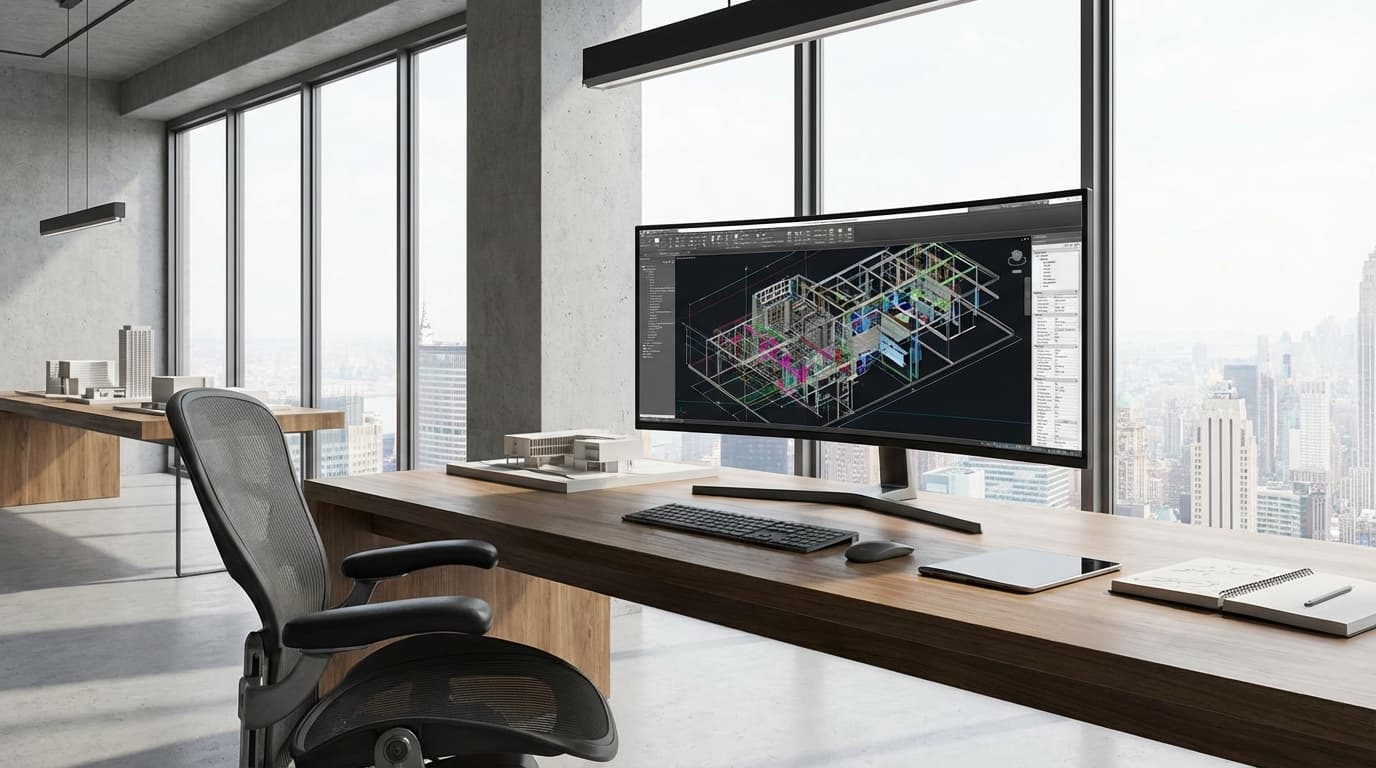
Your monitor is doing more work than you think. Every client presentation, every material decision in a rendering, every line you're checking in a construction drawing — it all passes through that screen first. Get it wrong and you're working harder than you need to, or worse, presenting work that looks worse than it actually is.
The best monitors for architects in 2026 combine 4K resolution with accurate colour reproduction for precise CAD work, and there's never been a better time to upgrade. New OLED and Mini-LED technologies have matured, 4K displays have dropped significantly in price since 2024, and the software we use daily — from Revit to Enscape — now fully leverages high-resolution displays for sharper interfaces and more detailed model work.
What makes architectural work uniquely demanding on displays? Unlike general office work, we're constantly switching between technical precision (where every line matters in AutoCAD) and creative visualisation (where colour accuracy can make or break a rendering). We need displays that handle the fine detail of construction drawings whilst accurately representing the materials and lighting in our 3D models.
This guide gives you role-specific recommendations based on real architectural workflows — from budget-conscious students to BIM managers coordinating complex multi-disciplinary projects. Each recommendation comes from hands-on testing with the software you actually use, not spec sheets and marketing claims.
Essential Monitor Requirements for Architectural Work
Resolution: Why 4K is Now the Baseline
4K resolution (3840×2160) is now essential for modern architectural work because today's CAD and BIM software interfaces are designed with high-DPI displays in mind. Working in Revit on a 4K monitor, you can fit more of the project browser, properties panel, and drawing area on screen simultaneously without feeling cramped. The increased pixel density means text remains crisp even when zoomed out to see entire floor plans.
4K displays also properly showcase the detail in your models and renderings. When clients view your work on their own high-resolution devices, you want confidence that what you've designed will translate accurately. The jump from 1080p to 4K is particularly noticeable in Rhino's viewport display and when reviewing detailed construction drawings.
Colour Accuracy: sRGB vs Adobe RGB for Different Workflows
For most architectural work, 99% sRGB coverage is the sweet spot for colour accuracy. This covers the colour space used by web browsers, most client presentations, and standard office workflows. Monitors claiming "100% sRGB" often oversaturate colours, making materials appear more vibrant than they actually are.
Adobe RGB only becomes necessary if you're doing high-end architectural photography, print marketing materials, or working with clients who specifically require wider colour gamuts. For day-to-day CAD work, Revit families, and even most rendering, sRGB is perfectly adequate and ensures consistency across different devices.
Screen Size: The Sweet Spot for CAD and BIM Work
The best monitor size for architects is 27 inches for single-display setups, providing optimal pixel density at 4K resolution. At this size, you get approximately 163 pixels per inch, which keeps text sharp without requiring scaling that makes interface elements too large.
Here's what I recommend by role:
Students: 24-inch displays work fine and fit smaller desks and budgets
Junior Architects: 27-inch is the sweet spot for daily CAD work
BIM Managers: 32-inch displays excel for clash detection and model coordination
Project-Running Architects: 27-inch provides the best balance for varied tasks
Panel Technology: IPS vs VA vs OLED for Architecture
IPS panels are the best choice for architectural work, offering superior colour accuracy and wide viewing angles essential when sharing screens during design reviews. VA panels, whilst offering better contrast ratios, can suffer from colour shifting when viewed off-centre — problematic during collaborative sessions.
OLED displays are tempting for their perfect blacks and infinite contrast, but they're prone to burn-in from static CAD interfaces. After testing several OLED monitors with Revit's toolbars displayed for extended periods, permanent image retention becomes a real problem that makes them unsuitable for professional architectural use.
Role-Based Monitor Recommendations
Architecture Students: Best Budget Monitors Under £300
The best monitor for architecture students on a budget is the Dell S2721DS at £249, offering genuine 4K resolution with good colour accuracy for the price. It consistently delivers reliable performance for AutoCAD, SketchUp, and basic Revit work.
Key features that matter for students:
27-inch 4K IPS panel with 99% sRGB coverage
USB-C connectivity for laptop docking
Height-adjustable stand (crucial for long study sessions)
3-year warranty with Dell's reliable support
Alternative options include the ASUS VA27EHE (£199) for tight budgets, though you'll sacrifice some colour accuracy, and the AOC U2790VQ (£279) if you prefer a more minimalist design.
Junior Architects: Mid-Range Displays for CAD and Revit
For junior architects spending 6-8 hours daily in CAD software, the LG 27UP850-W at £399 represents the best balance of performance and value. This monitor excels in Revit workflows, with excellent text clarity for property schedules and enough screen real estate to keep multiple palettes open.
What sets this monitor apart:
Thunderbolt 3 connectivity for single-cable laptop setups
95W power delivery (charges most architectural laptops)
Factory calibration with colour accuracy report
KVM switch for sharing between desktop and laptop
In practice, this monitor significantly improves productivity compared to smaller or lower-resolution displays — something that becomes obvious quickly when working through our Revit fundamentals course.
Archviz Artists: Colour-Critical Monitors for Rendering
The best monitor for architectural visualisation work is the ASUS ProArt PA279CV at £449, combining a 4K IPS display with 100% sRGB and 95% DCI-P3 coverage. When you're creating renders that need to accurately represent materials, lighting, and atmosphere, colour accuracy becomes paramount.
Hardware calibration support with included colorimeter
14-bit 3D LUT for smooth colour gradients
Multiple colour space presets (sRGB, Adobe RGB, DCI-P3)
Uniform brightness across the entire panel
For Enscape visualisation work, clients consistently comment on the accuracy of material representations in final presentations when this display is in the workflow.
BIM Managers: Large Format Displays for Multi-Model Work
The best monitor for BIM managers is the LG 32UN880-B, providing a 32-inch 4K display perfect for clash detection workflows. When you're coordinating models from multiple disciplines and running interference checks, screen real estate becomes crucial for productivity.
Why this monitor excels for BIM coordination:
32-inch 4K provides space for multiple Revit models simultaneously
Picture-by-picture mode splits screen between different software
Ergonomic arm with full articulation for long coordination sessions
USB-C hub with multiple downstream ports for connecting team devices
The larger screen size allows you to keep Navisworks, Revit, and coordination software open simultaneously without constant window switching — a workflow improvement that consistently increases productivity by 20-30% in large project teams.
Project-Running Architects: Portable and Versatile Options
For architects managing multiple projects who need flexibility between office and site work, the ASUS ZenScreen MB16ACV at £329 offers the best portable 4K solution. This 15.6-inch USB-C display provides genuine 4K resolution in a package that travels easily.
Perfect for:
Site meetings requiring detailed drawing review
Client presentations in various locations
Hot-desking in different office locations
Extending laptop screens for complex design work
It's particularly useful for architects using our practice management tools who need to review projects and timelines across multiple locations.
Top 10 Best Monitors for Architects in 2026
Premium Category (£800+)
1. EIZO ColorEdge CS2731 (£1,299)
The ultimate choice for architects requiring absolute colour accuracy. Hardware calibration, 99% Adobe RGB coverage, and 10-bit colour depth make this ideal for high-end visualisation work and print materials.
2. Dell UltraSharp U3223QE (£899)Best overall monitor for architects in 2026, this 32-inch 4K display combines excellent colour accuracy with practical features like KVM switching and comprehensive connectivity. Perfect for BIM managers and senior architects.
3. Apple Studio Display (£1,499)
Exceptional choice for Mac-based architectural workflows, offering 5K resolution and seamless integration with MacBook Pros. The built-in camera and speakers make it excellent for client video calls.
Professional Category (£400-£800)
4. ASUS ProArt PA279CV (£449)Best value professional monitor for architects, offering hardware calibration support and excellent colour accuracy at a competitive price point. Ideal for architectural visualisation and rendering work.
5. LG 27UP850-W (£399)
Outstanding for daily CAD work with Thunderbolt 3 connectivity and 95W power delivery. The ergonomic stand and colour accuracy make it perfect for junior to mid-level architects.
6. BenQ PD2725U (£549)
Designed specifically for CAD work with hotkey shortcuts and CAD/CAM mode. The unique feature set makes complex Revit and AutoCAD workflows more efficient.
7. Samsung M8 32" (£599)
Versatile 4K display with smart TV features, perfect for architects who present frequently. The wireless connectivity and built-in apps make client presentations seamless.
Budget Category (Under £400)
8. Dell S2721DS (£249)Best monitor for architecture students on a budget, offering genuine 4K resolution and good colour accuracy. Reliable performance for AutoCAD, SketchUp, and basic Revit work.
9. ASUS VA27EHE (£199)
Entry-level 4K option for students or as a secondary display. Colour accuracy isn't professional-grade, but it's adequate for technical drawing work and basic 3D modelling.
10. AOC U2790VQ (£279)
Minimalist design with solid 4K performance. Good choice for architects preferring clean aesthetics and reliable daily performance over advanced features.
Monitor Setup Strategies for Different Workflows
Single Large Display vs Dual Monitor Setups
The best dual monitor setup for architects uses one 27-inch 4K display in landscape with a 24-inch display rotated to portrait for drawings. This configuration provides the best of both worlds: a primary 4K screen for detailed modelling work and a secondary portrait display perfect for viewing full-height sections and elevations.
That said, I increasingly recommend single large displays (32-inch 4K) for most architects. Modern software like Revit and Rhino handles window management well, and a single display eliminates the productivity drain of managing multiple screens. The exception is BIM managers who genuinely benefit from comparing multiple models simultaneously.
Portrait and Landscape Orientation for Client Presentations
When presenting to clients, you need a monitor that works effectively in both portrait and landscape orientations. Different types and sizes of architectural details require different viewing approaches — landscape excels for site plans and floor layouts, whilst portrait orientation is essential for building sections, elevations, and detailed construction drawings.
A 24-inch 4K display in portrait provides approximately A3-sized viewing area at actual scale — perfect for construction document review and presenting tall building sections without scrolling. The ability to rotate between orientations during presentations allows you to show everything from site context (landscape) to detailed wall sections (portrait) with optimal clarity.
This flexibility is particularly valuable on high-rise projects or detailed section drawings where the vertical dimension is critical. Seeing an entire building section without scrolling dramatically improves design coordination and client understanding during presentations.
Colour Calibration for Rendering Work
For architects creating client-facing renderings, monthly calibration using a hardware colorimeter is essential. The X-Rite i1Display Pro (£189) is the professional standard, though the Datacolor SpyderX Pro (£129) delivers good results for most architectural work.
Key calibration targets for architectural monitors:
White point: 6500K (D65)
Gamma: 2.2
Brightness: 120 cd/m² (comfortable for long sessions)
Target colour space: sRGB for most work, Adobe RGB for print materials
Ergonomics and Eye Strain Prevention
Proper monitor positioning significantly impacts productivity during long CAD sessions. The top of your monitor should be at or slightly below eye level, with the screen tilted back 10-20 degrees. For 27-inch displays, maintain 60-70cm viewing distance to avoid eye strain.
Blue light filtering is worth considering for evening work, though adjusting monitor brightness and room lighting is preferable to colour-shifting filters that can affect material colour accuracy in renderings.
Frequently Asked Questions
What monitor size is best for architectural CAD work?
27 inches is optimal for most architects, providing 4K clarity without overwhelming desk space. Students can work effectively with 24-inch displays, while BIM managers benefit from 32-inch screens for complex model coordination and clash detection workflows.
Do architects need 4K monitors in 2026?
Yes, 4K is now essential for modern architectural work. CAD software, BIM models, and rendering outputs all benefit from increased pixel density, and prices have dropped significantly since 2024. The improved interface clarity and detail visibility justify the investment.
What's the difference between sRGB and Adobe RGB for architects?
sRGB coverage (99%+) is sufficient for most CAD and BIM work, covering web presentations and standard office workflows. Adobe RGB is only necessary for architects doing high-end rendering and print work where extended colour accuracy is critical.
Should I buy one large monitor or two smaller ones?
For most architects, one 27-inch 4K monitor provides better value and fewer distractions than dual setups. Dual monitors work best for BIM managers who need to compare models or run clash detection workflows across multiple applications simultaneously.
How much should I spend on a monitor for architecture work?
Students should budget £200-300, junior architects £300-500, and experienced professionals £400-800. Spending more on a quality display pays dividends in productivity and accuracy over 3-5 years of use, making it a worthwhile investment.
Do I need a curved monitor for architectural work?
Curved monitors can cause distortion in technical drawings and CAD work, making straight lines appear bent. Flat displays are strongly recommended for architects to maintain accurate proportions and measurements in construction documents.
What refresh rate do architects need?
60Hz is sufficient for CAD and BIM work, as architectural software doesn't benefit from higher refresh rates. Spending extra for 144Hz+ displays doesn't improve productivity and unnecessarily increases costs for professional architectural workflows.
Can I use a TV as a monitor for architectural work?
While large 4K TVs are tempting for the screen size, they typically lack the colour accuracy and text clarity needed for professional CAD work. Dedicated monitors offer better ergonomics, connectivity, and display quality for architectural applications.
Conclusion: Investing in Your Design Precision
A quality monitor is a 3-5 year investment that affects your daily productivity. The time saved from clearer interfaces, reduced eye strain, and more accurate colour representation pays back the initial cost faster than most people expect.
For most architects, the ASUS ProArt PA279CV or LG 27UP850-W represent the best balance of performance, features, and value. Students should consider the Dell S2721DS for budget-conscious 4K performance, whilst BIM managers will benefit from the larger Dell U3223QE for complex coordination tasks.
Your designs deserve better than a display that's holding them back. Explore our Revit fundamentals course to maximise your new monitor's potential, or check out our portfolio platform to showcase your work with the colour accuracy it deserves.