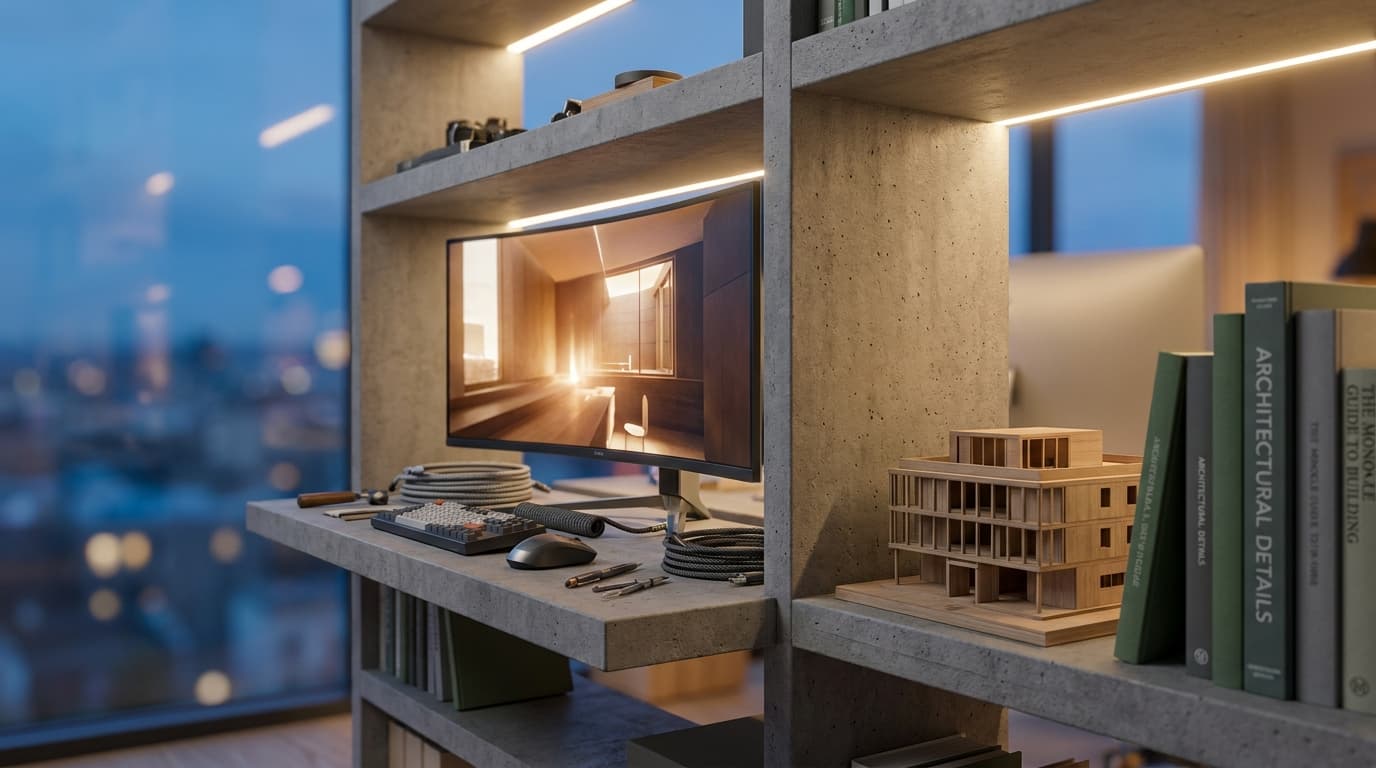
Your render looks phenomenal on your monitor and grey on your client's laptop. That gap is costing architects contracts, and almost nobody diagnoses it correctly. They blame the render settings, the GPU, the lighting rig in V-Ray. Rarely do they blame the fifty-quid panel they've been staring at for three years.
13 min read
Best Monitors for Architects Doing Colour-Critical Rendering Work
Free Lessons
Watch real ArchAdemia lessons, free
Free Lessons
Watch real ArchAdemia lessons, free
11 full lessons from paid courses — no account needed
Watch a free lessonThe Verdict: Best Monitor for Architects in 2026
The best monitor for architects doing colour-critical rendering work in 2026 is the BenQ PD2725U, a 27-inch 4K display with 98% DCI-P3 coverage and a factory calibration report included in the box. It hits the specification threshold that actually matters for architectural work — accurate colour, enough resolution to run Revit and the V-Ray Frame Buffer side by side, and a price that doesn't require signing off with your studio director.
If budget is the deciding factor, the Dell S2722QC (27-inch 4K, USB-C, around £320) is the best budget option — it covers 99% sRGB and gives students and juniors most of the accuracy for a third of the price. At the other end, the ASUS ProArt PA32UCG-K is the premium pick for professional archviz studios: Mini LED backlighting, 1600 nits of peak brightness, and 97% DCI-P3 coverage that makes HDR render previews look the way they will in the final delivered image.
Here's the logic behind all three choices. Most architects don't need a £3,000 reference monitor built for colour scientists grading feature films. You need a screen that tells the truth about your renders, comes with a calibration report so you're not guessing, and gives you enough real estate to actually work without three monitors bolted to your desk like a trading floor. Everything below is the reasoning — panel types, colour gamuts, the calibration trap that catches out even people who bought the right monitor, and specific recommendations by role. If you just want the shortlist, you have it. If you want to understand why, keep reading.
Why Your Monitor Is Lying to You
Most monitors — and nearly all laptop screens — are calibrated to look punchy in a shop display, not to represent colour accurately. That means the render you've spent six hours lighting in Enscape or V-Ray is being shown to you through a panel optimised to sell itself, not to sell your design.
This isn't a minor inconvenience. Cheap TN panels, still common in budget office monitors, cover as little as 65-70% of the sRGB colour space. That's not a rounding error — that's a third of visible colour simply missing or misrepresented. A correctly calibrated IPS panel, by contrast, covers 99-100% sRGB and, on better panels, 90%+ of the wider DCI-P3 space used in film and high-end visualisation work.
The number that actually matters here is Delta E. It's a measurement of how far a colour displayed on screen deviates from the true colour it's supposed to represent. Anything under 2 is considered accurate enough for professional colour work — the human eye struggles to detect a difference that small. Consumer monitors straight out of the box often sit at Delta E 4-6, sometimes worse. That's a visible, meaningful shift. Your concrete looks warmer than it is. Your timber cladding reads orange instead of the specified oak tone. Your sky gradient in the Enscape walkthrough banding badly enough that the client notices, even if they can't say why.
For architects specifically, this compounds. You're not just looking at renders — you're matching material samples against on-screen swatches, presenting walkthroughs live in client meetings, and often print-matching CGI packages against physical boards. A monitor with poor gamut coverage or high Delta E introduces error at every single one of those touchpoints, and it's the kind of error that erodes client confidence without ever being named directly.
Briefly, on colour space: sRGB is the standard web and most digital display colour space — fine for general use. DCI-P3 is wider, originally a cinema standard, and increasingly relevant because most modern monitors and phones can display it — if your CGI is heading to a client's iPhone or a high-end monitor, DCI-P3 coverage matters. Adobe RGB is wider still and mostly irrelevant to architects unless you're doing print-heavy work with a professional print house. Gamma should sit at 2.2 for standard use — most factory-calibrated monitors ship correctly set, but it's worth checking in the OSD menu regardless.
What Actually Matters: The Spec Sheet Decoded
The ideal monitor specification for architectural rendering is a 27-inch 4K IPS panel with at least 99% sRGB coverage, a Delta E under 2, and USB-C connectivity with 90W power delivery. Everything else on the spec sheet is negotiable. This isn't.
Panel Type: IPS Is Non-Negotiable
IPS panels are the baseline requirement for anyone doing colour-critical work. VA panels have deeper blacks but shift colour noticeably off-axis — fine for a TV in a living room, unacceptable when a client leans in from the side of your screen during a presentation and the material colour visibly changes. TN panels are worse again, and honestly shouldn't exist on an architect's desk in 2026 outside of a gaming rig used for something else entirely.
Resolution and Size: Why 27-inch 4K Is the Sweet Spot
27-inch at 4K resolution (3840x2160) gives you a pixel density of roughly 163 PPI — sharp enough that line work in Revit and AutoCAD renders cleanly without the fuzzy edges you get on 1440p panels stretched to that size. Go up to 32-inch at the same 4K resolution and pixel density drops to around 137 PPI — noticeably softer at normal desk distance unless you're deliberately scaling the OS interface, which introduces its own headaches in Revit's UI scaling. 27-inch 4K is the size where you get maximum sharpness without fighting Windows display scaling settings every time you plug into a projector for a site presentation.
Colour Gamut and Calibration
Target 99% sRGB as an absolute minimum, and 90%+ DCI-P3 if your studio does any archviz-heavy work at all — most do, whether they call it that or not. The genuinely useful feature to look for is a factory calibration report, which BenQ, ASUS and Eizo all include with their higher-end panels. This is a physical document showing the exact Delta E measurements taken on your specific unit before it left the factory. It means you're not buying blind and hoping the marketing gamut percentage is honest — you've got measured proof, and it saves buying a separate colorimeter on day one.
Connectivity: USB-C and Dual-Input for Site-to-Studio Work
USB-C with at least 90W power delivery matters more than people expect. If you're running a laptop-and-dock setup — increasingly the norm for architects splitting time between site, studio and home — a single USB-C cable that charges the laptop, carries the display signal, and handles peripherals through the monitor's hub is the difference between a two-second dock and a five-cable tangle every morning.
The Contenders: Full Comparison Table
Five monitors cover essentially every realistic architect's budget and use case in 2026, from student desk to professional archviz studio.
| Monitor | Price | Size | Resolution | Panel | Colour Gamut | Calibration | Best For |
|---|---|---|---|---|---|---|---|
| BenQ PD2725U | ~£550 | 27" | 4K | IPS | 98% DCI-P3 | Factory report included | Best all-round choice for most architects |
| ASUS ProArt PA32UCG-K | ~£2,800 | 32" | 4K | Mini LED IPS | 97% DCI-P3, 1600 nits | Factory calibrated, Calman verified | Professional archviz studios |
| Dell S2722QC | ~£320 | 27" | 4K | IPS | 99% sRGB | Factory tested | Best budget option, students |
| LG 27UP850-W | ~£380 | 27" | 4K | IPS | 98% DCI-P3 | Factory calibrated | Juniors running Revit + Enscape |
| Eizo ColorEdge CS2731 | ~£900 | 27" | QHD | IPS | 99% Adobe RGB | Built-in hardware sensor | Architects needing self-recalibration |
The BenQ PD2725U earns its top spot by refusing to make you compromise — it has a hardware KVM switch for flicking between a desktop and a laptop, a genuinely useful feature for architects running dual setups, and its calibration report means you're not trusting a marketing slide.
The ASUS ProArt PA32UCG-K is extraordinary and extraordinarily expensive. The Mini LED backlight delivers real HDR performance, so highlight blowout in a sun-drenched Enscape render actually looks the way it will on a client's HDR-capable screen. Most studios don't need this. Studios doing broadcast-quality CGI packages for developers absolutely do.
The Dell S2722QC is unglamorous and does the job. No hardware calibration report at the same depth as the BenQ, but 99% sRGB coverage at this price point is still genuinely rare, and it has USB-C with 65W delivery — enough for most ultrabooks.
The LG 27UP850-W sits in a useful gap — better DCI-P3 coverage than the Dell, still under £400, and a well-built stand with height and pivot adjustment that the Dell's stand doesn't match.
The Eizo ColorEdge CS2731 is the best monitor for architects who need built-in hardware calibration sensors, at approximately £900, though it is overkill for most studio-based colour checking. Eizo's built-in sensor recalibrates automatically on a schedule you set — brilliant for a colour-critical workflow with no time to manually run a colorimeter, unnecessary if you're mostly checking renders before client meetings rather than producing broadcast CGI daily.
Buy Like Your Role, Not Like a Magazine Review
Generic "best monitor" lists ignore the fact that a first-year student and a BIM manager running federated models have almost nothing in common. Buy for your actual job, not the spec sheet that impresses strangers on a forum.
Best for Architecture Students: Value Over Everything The Dell S2722QC at roughly £320 is the best budget monitor for architecture students. 99% sRGB coverage is more than sufficient for coursework rendering, and the 27-inch 4K resolution gives you enough screen space to run Rhino or SketchUp alongside reference images without a second monitor. If you're building a portfolio, this is also plenty accurate for prepping final boards on The Drawing Board before submission.
Best for Junior Architects: One Screen, No Excuses The LG 27UP850-W at around £380 is the best single-monitor setup for juniors running Revit and Enscape side by side without a second income stream to fund it. 98% DCI-P3 means the render preview you're showing a project architect for sign-off is honest, not flattering.
Best for Archviz Artists: Colour Accuracy Above All The ASUS ProArt PA32UCG-K is the best monitor for archviz artists doing client-facing CGI. The Mini LED backlight's 1600-nit peak brightness lets you evaluate HDR highlights — glazing reflections, direct sun on stone, interior lighting hotspots — accurately rather than guessing how they'll blow out on a client's monitor later. If you're building toward this level of output, it's worth pairing serious hardware with serious training — our V-Ray for 3ds Max and Corona Exteriors courses both go deep on lighting accuracy that a bad monitor would otherwise sabotage.
Best for BIM Managers: Multi-Monitor Coordination A dual BenQ PD2725U setup is the best configuration for BIM managers running clash detection across linked Revit models. Matched colour calibration across two identical panels matters more here than pushing for a single higher-spec screen — you need consistent colour coding for clash categories across both displays, and the combined 27-inch 4K real estate lets you run Navisworks on one screen and the source Revit model on the other without constant window-swapping.
Best for Project-Running Architects: Portability Meets Presentation If you're splitting time between site visits, studio desk work, and client meetings, a single strong 27-inch monitor at base — the BenQ PD2725U is the sensible default — paired with reliance on an accurate laptop panel when you're mobile covers both worlds without buying kit that sits idle half the week.
The Calibration Trap Nobody Tells You About
Buying an accurate monitor solves half the problem. The other half is the room you've put it in, and almost nobody accounts for this.
Ambient lighting changes how you perceive colour on screen — a monitor calibrated for daylight conditions will look different under warm studio downlights at 6pm than it did at 10am under north-facing window light. Wall colour behind your monitor matters too: a bright white or strongly coloured wall behind the screen affects your eyes' colour perception of what's displayed, which is why professional grading suites use neutral grey walls. And Windows or macOS colour profiles can silently override your monitor's factory calibration if you've installed graphics drivers that reset display settings — worth checking after every major GPU driver update.
For anyone doing paid CGI work, a hardware colorimeter is worth the investment. The Calibrite ColorChecker Display (around £130) lets you recalibrate every 2-4 weeks, which matters because panel colour output drifts slowly over months of use even on high-end monitors. Studio setup basics that cost nothing: keep the wall behind your monitor a neutral grey rather than a feature colour, maintain consistent lighting temperature around D65 (6500K, the standard daylight reference used in professional colour work), and never position your desk so direct sunlight hits the screen — it will wreck both your perceived brightness and your patience.
This is where the industry genuinely splits into two camps. The "good enough" crowd — most junior and mid-career architects, most students, most people checking renders before a client meeting rather than producing them commercially — are entirely well served by a factory-calibrated monitor with a report in the box. No colorimeter required. The "must recalibrate constantly" crowd is smaller: people producing paid CGI packages for developers, studios with a dedicated visualisation team, anyone whose output gets scrutinised at print scale on a hoarding outside a construction site. If that's not you, don't let a forum post talk you into an £900 monitor and a £130 colorimeter you'll use twice.
What's Actually on My Desk
Honestly, it's less impressive than this article might suggest it should be. I run a single BenQ-class 27-inch 4K panel at the studio desk, not a dual-monitor archviz rig with matched colour across two screens — because most days I'm moving between Revit, email, and a render viewport, not producing final CGI packages that need broadcast-level accuracy checked every hour.
The trade-off I made deliberately was skipping the premium Mini LED panel. I don't need 1600 nits of peak brightness for the work I do day to day — that's a genuine requirement for archviz specialists evaluating HDR highlights, not for an architect checking whether a walkthrough looks right before a client call. What I wasn't willing to compromise on was the factory calibration report. Knowing my Delta E is under 2 out of the box, without needing to buy a colorimeter I'd use once a quarter, was worth paying slightly more for versus a cheaper panel with no verification at all.
The honest lesson from years of studio setups, my own and other people's: the "best" monitor is never the one at the top of the spec sheet. It's the one matched to what you actually do Monday to Friday. A student buying the ASUS ProArt is wasting money. A commercial archviz studio buying the Dell S2722QC is quietly sabotaging its own output. Buy for your workflow, not for the review.
FAQ
What is the best monitor for architects doing colour-critical rendering in 2026?
The BenQ PD2725U is the best overall monitor for architects doing colour-critical rendering work in 2026, offering a 27-inch 4K IPS panel with 98% DCI-P3 coverage and an included factory calibration report. It balances accuracy, screen real estate, and price without requiring a specialist archviz budget.
Do architects need a 4K monitor?
Yes — a 27-inch 4K monitor delivers around 163 PPI, sharp enough for fine line work in Revit and AutoCAD without display scaling issues. Below 4K at this screen size, text and CAD line weights appear noticeably softer, especially at normal desk viewing distance.
What Delta E value is considered accurate for rendering work?
A Delta E value below 2 is considered accurate for professional colour work, meaning the displayed colour is close enough to the true value that the human eye can't reliably detect a difference. Many consumer monitors ship with a Delta E of 4-6 out of the box, which produces a visible colour shift in renders and material samples.
Is IPS or VA better for architectural visualisation?
IPS is better for architectural visualisation because it maintains consistent colour accuracy at wide viewing angles, which matters when clients view a screen from the side during presentations. VA panels shift colour noticeably off-axis, making them unsuitable for colour-critical work despite their deeper black levels.
Do I need a hardware colorimeter to calibrate my monitor?
Most architects checking renders before client meetings are well served by a factory-calibrated monitor with a calibration report, and don't need a separate colorimeter. Architects producing paid CGI packages for clients should invest in a hardware colorimeter such as the Calibrite ColorChecker Display (around £130) and recalibrate every 2-4 weeks.
What is the difference between sRGB and DCI-P3 for architects?
sRGB is the standard colour space for web and general digital display work, while DCI-P3 is a wider colour space originating in cinema that covers more visible colour, particularly in reds and greens. Architects producing CGI that will be viewed on modern phones, tablets, or high-end monitors benefit from DCI-P3 coverage of 90% or higher.
Is a 32-inch monitor better than 27-inch for architects?
Not necessarily — a 32-inch monitor at 4K resolution has a lower pixel density (around 137 PPI) than a 27-inch 4K monitor (around 163 PPI), making it appear softer at normal desk viewing distances. 27-inch 4K is generally the sweet spot for sharpness without requiring display scaling adjustments in Revit.
What monitor is best for architecture students on a budget?
The Dell S2722QC, priced around £320, is the best budget monitor for architecture students, offering 99% sRGB coverage and 4K resolution. It provides enough colour accuracy for coursework rendering and portfolio preparation without the price tag of professional archviz monitors.
A monitor won't make a mediocre render good. But a bad one will make a good render look mediocre in front of the one person in the room whose opinion determines whether you get paid — the client. Buy the panel that tells you the truth, calibrate it properly, and stop wondering why the boardroom version of your walkthrough never quite matches what you saw at your desk.

Written by
About the team