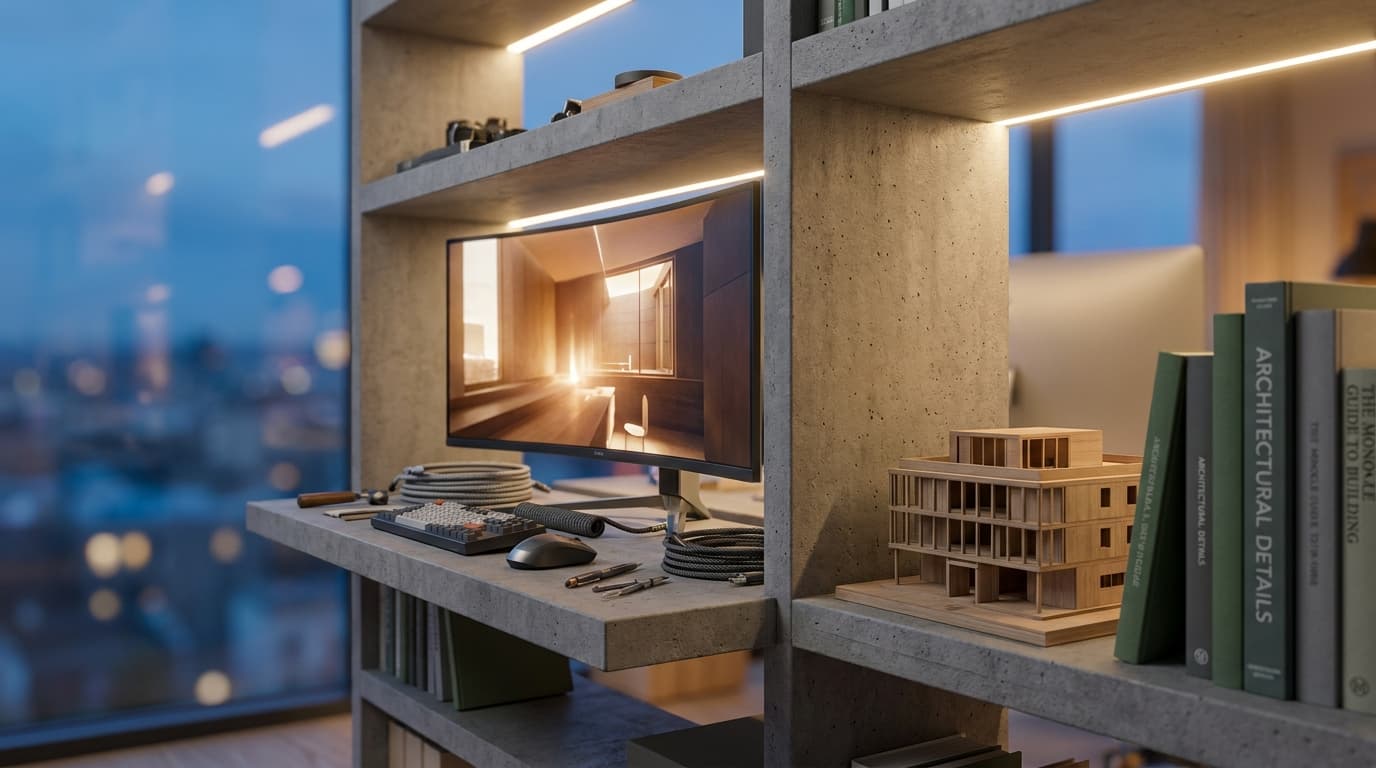
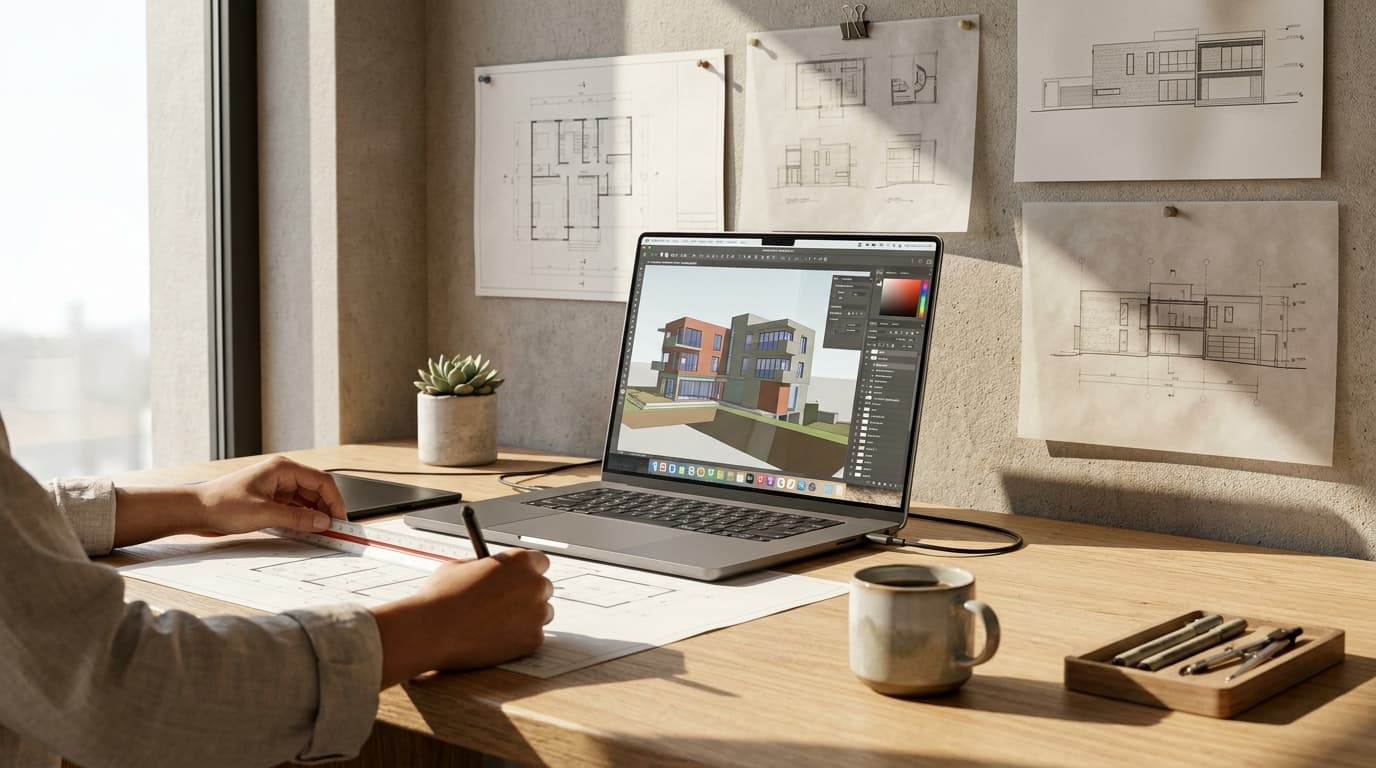
The best monitor for Revit in 2026 is a 27-inch 4K IPS display with at least 99% sRGB coverage, such as the Dell UltraSharp U2723QE. It gives you enough screen real estate to stop Revit's ribbon and palettes eating half your workspace, and enough colour accuracy that when you flick over to review a V-Ray render, you're not misjudging materials because your panel is lying to you.
That's the headline. Here's the nuance, because monitors are one of those purchases where the spec sheet actively misleads people.
Three things matter for architects choosing a monitor, and none of them are what monitor marketing wants you to focus on. First: screen real estate, because Revit's UI is dense — Properties palette, Project Browser, ribbon, view tabs, and a model view all fighting for space. Second: colour accuracy, because if you're rendering in V-Ray, Enscape, or Lumion, a poorly calibrated panel will make you second-guess material choices that were actually fine. Third: diminishing returns, because past a certain price point you're paying for gaming features — high refresh rates, curved panels, RGB lighting — that do precisely nothing for BIM work.
This isn't a gaming monitor list. Nobody needs 240Hz to draw a wall. If you're working purely in Revit without rendering, a 32-inch 1440p monitor is actually the better value pick over 4K — Revit's interface doesn't need pixel density, it needs physical space. If you render, 4K earns its keep. Ultrawide, despite how good it looks in studio photos, is a trap for most architects doing daily modelling work. We'll get into why.
Architects overwhelmingly buy monitors based on resolution alone, checking 4K off a list without ever looking at panel type or colour gamut — and it's the single most common expensive mistake in a home office setup. A 4K monitor with a mediocre panel will make your renders look wrong, your material palette shift, and your client presentations undersell work that's actually good.
Resolution Isn't the Flex You Think It Is
Pixel count is the easiest spec to market and the easiest one to misunderstand. A 4K panel gives you more pixels to work with, which is genuinely useful for reviewing render detail or fitting more of Revit's UI on screen without scaling. But resolution alone tells you nothing about how those pixels render colour, and colour is where cheap monitors fall apart.
Here's the part nobody checks: Delta-E. It's a measurement of colour accuracy — roughly, how far a displayed colour deviates from the "true" reference colour. A Delta-E under 2 is considered accurate enough for professional colour work; anything above 4 and you're looking at visible, meaningful colour shift. Most budget monitors don't publish this number because it isn't flattering.
Then there's gamut coverage — the percentage of the sRGB or AdobeRGB colour space a panel can actually display. A monitor sitting at only 72% sRGB coverage — common on budget office panels — can shift render colours enough that you misjudge material tones during V-Ray review. That warm oak timber cladding you spent an hour lighting correctly? On a bad panel it reads flat and grey-brown. You'll "fix" a material that was never broken, because your screen told you it looked wrong.
Colour Accuracy Is the One Nobody Checks
TN panels are a poor choice for V-Ray colour review, and it's not close. TN (twisted nematic) panels typically cover only 60-70% of the sRGB gamut, next to 99-100% on a decent IPS panel. TN panels are cheap to manufacture and can hit high refresh rates, which is why they dominate budget "gaming" monitors — but high refresh rate is irrelevant to you and the colour compromise absolutely isn't.
IPS panels are the baseline for anyone doing render review. OLED is emerging as an option for archviz work in 2026 thanks to genuinely exceptional contrast and colour, but burn-in risk with Revit's static UI elements (ribbons, palettes sitting in the same place for eight hours a day) makes it a worse fit for BIM work than for pure rendering displays.
There's also a scaling trap specific to smaller 4K panels. Anything under 27 inches at 4K resolution causes Windows UI scaling headaches inside Revit — toolbars shrink, dimension text blurs at 100% scale, and you end up running 150% scaling just to read anything, which defeats the point of buying 4K in the first place. If you're going 4K, 27 inches is the practical minimum, and 32 inches is more comfortable still.
The Full Comparison Table
No single monitor wins on every axis, which is exactly why this table exists — pick based on your actual workflow, not the biggest number on the box.
Monitor
Price (approx)
Resolution
Panel
sRGB Coverage
Size
Refresh Rate
Best For
MonitorLG 27QN600
Price (approx)£180
Resolution1440p
PanelIPS
sRGB Coverage99%
Size27"
Refresh Rate75Hz
Best ForStudents, budget builds
MonitorDell UltraSharp U2723QE
Price (approx)£480
Resolution4K
PanelIPS Black
sRGB Coverage100%
Size27"
Refresh Rate60Hz
Best ForAll-round Revit + V-Ray workhorse
MonitorBenQ PD2725U
Price (approx)£650
Resolution4K
PanelIPS
sRGB Coverage99% (95% DCI-P3)
Size27"
Refresh Rate60Hz
Best ForArchviz colour accuracy on a budget
MonitorEizo ColorEdge CS2731
Price (approx)£900
Resolution1440p
PanelIPS
sRGB Coverage99% (98% AdobeRGB)
Size27"
Refresh Rate60Hz
Best ForHardware-calibrated colour work
MonitorLG 34WN80C Ultrawide
Price (approx)£430
Resolution1440p (UWQHD)
PanelIPS
sRGB Coverage98%
Size34"
Refresh Rate60Hz
Best ForPresentations, not daily modelling
MonitorASUS ProArt PA278CV
Price (approx)£280
Resolution1440p
PanelIPS
sRGB Coverage100%
Size27"
Refresh Rate75Hz
Best ForBudget archviz / colour-conscious juniors
MonitorSamsung ViewFinity S9
Price (approx)£1,100
Resolution5K
PanelIPS
sRGB Coverage99%
Size27"
Refresh Rate60Hz
Best ForPhotoshop-heavy post-production
The BenQ PD2725U is the best monitor for archviz artists needing hardware calibration under £700, offering 95% DCI-P3 coverage and a colourimeter-compatible profiling system that most competitors at this price point simply don't include.
Do You Actually Need 4K? The Honest Answer
No — not if you're doing pure Revit modelling and documentation without rendering. A 27 to 32-inch 1440p monitor is genuinely sufficient for that work, because text clarity and multi-window layout space matter more than raw pixel count when you're drawing walls and scheduling doors, not reviewing render detail.
When 1440p Is the Smarter Buy
If your day is Revit, Bluebeam, and email, 1440p at 27-32 inches gives you crisp text, comfortable multi-window layouts, and doesn't ask you to fiddle with Windows scaling settings. You'll fit sheets, families, and schedules side by side without strain. Buying 4K for this workflow is spending money on a spec that solves a problem you don't have.
When 4K Actually Earns Its Keep
4K becomes genuinely worth it the moment V-Ray, Enscape, or any rendering pipeline enters your workflow. Reviewing render output at native resolution, checking texture seams, judging anti-aliasing quality, doing post-production in Photoshop — all of it benefits from more pixels because you're evaluating fine visual detail, not reading dimension strings.
Refresh rate, meanwhile, is a total non-issue. 60Hz is fine for Revit and V-Ray. Neither application benefits from high frame rates the way gaming or motion graphics work does — Revit isn't rendering 144 frames a second of anything, and V-Ray's viewport preview is bottlenecked by your GPU long before refresh rate becomes relevant. If a monitor's marketing leads with refresh rate, that monitor was designed for a different customer than you.
Practical test: if you don't render and don't do image post-production, don't spend the 4K premium on resolution. Put that money into a second monitor instead. You'll get more daily value from two screens than one expensive one — which is exactly the argument in the next section.
If you're still building your Revit fundamentals before any of this monitor spec matters, our Revit Beginner course and Intermediate Guide will get you productive faster than any hardware upgrade will.
One Big Monitor or Two Small Ones? The Dual-Screen Case
Two 27-inch 1440p monitors are generally a better investment than one 34-inch ultrawide for Revit work. Revit's docked palettes and dialogue boxes don't stretch gracefully across an ultrawide's curved aspect ratio — you end up with the Project Browser pinned awkwardly to one edge and acres of dead space in the middle where nothing useful lives.
The workflow case for dual screens is straightforward: Revit model live on one screen, Dynamo graph or schedules or your render queue on the other. You're not constantly alt-tabbing or resizing windows to fit two things you need simultaneously. For anyone running Dynamo scripts, coordinating linked models, or waiting on render batches while still modelling, this isn't a luxury — it's a genuine productivity difference you'll feel within the first day.
Cost-wise, two decent 1440p IPS monitors (think two LG 27QN600s at roughly £180 each, £360 total) land in similar territory to one premium 4K panel, but you get more flexibility: independent positioning, the ability to dedicate one screen entirely to reference material or client email, and no compromise from a curved panel warping straight architectural lines at the edges of your view.
Ultrawide does have a place — it's genuinely strong for presentations and portfolio walkthroughs, where the cinematic aspect ratio and lack of a bezel down the middle make client-facing content look polished. Just don't mistake a great presentation tool for a great daily modelling setup. They're different jobs.
Best Monitor by Role: What You Should Actually Buy
There's no single "best" monitor because there's no single architect — a student, a BIM manager, and an archviz freelancer have completely different constraints, and buying against the wrong profile wastes money in both directions.
The Student on a Budget
The best monitor for architecture students in 2026 is a 27-inch 1440p IPS panel under £200, such as the LG 27QN600, because student budgets rarely justify a 4K colour-critical display before you've even qualified. Pair it with your laptop's built-in screen for a functional two-monitor setup without spending on a second full panel. If you're deciding what to prioritise before Part 1 or Part 2, our Studio Setup guide covers the whole desk, not just the monitor.
The Junior Architect Grinding Revit
The Dell UltraSharp U2723QE is the workhorse pick here — 4K, 100% sRGB, 27 inches, sitting around £480. It's the monitor that does everything competently: sharp enough for documentation, accurate enough for the odd render review, and it won't need replacing when you inevitably get pulled into V-Ray work six months into the job.
The Archviz Artist Chasing Colour Accuracy
This is where the BenQ PD2725U or Eizo ColorEdge CS2731 justify their price. Colour accuracy is genuinely part of the deliverable when render quality is your product — a Delta-E under 2 and 95%+ DCI-P3 coverage means what you see on screen is what your client sees in the final image, not an approximation you're compensating for by eye. If you're building out a rendering pipeline properly, our Rhino & V-Ray and V-Ray for 3ds Max courses are worth pairing with the hardware upgrade — a good monitor doesn't fix bad lighting technique.
The BIM Manager Running Multiple Linked Models
The best monitor setup for BIM managers coordinating linked Revit models is a dual or triple 27-inch arrangement, prioritising total screen real estate over single-panel resolution. Clash detection and multi-discipline coordination benefit far more from having Navisworks open alongside a live Revit model than from any amount of pixel density on a single screen. If clash detection is a regular part of your week, our Navisworks course and Revit BIM Collaboration course are the natural next step alongside the hardware.
The Project Architect Bouncing Between Site, Studio and Client
Portability wins over colour precision here. A good laptop panel plus a portable USB-C monitor (something like the ASUS ZenScreen range, sub-£200) covers site visits, client meetings, and studio hot-desking without hauling a 27-inch panel around. Colour accuracy is nice to have but secondary — you're not reviewing render fidelity in a client meeting, you're walking them through a plan.
What's Actually on My Desk
My setup is a dual 27-inch arrangement — one 4K IPS panel for rendering and detail review, one 1440p panel for reference material, email, and anything I don't need pin-sharp. It's not the most expensive setup I could justify, and that's deliberate.
If I were buying today in 2026, the only change I'd make is swapping the 1440p secondary panel for something with a slightly better stand — cable management and monitor arms make more day-to-day difference than another 10% of colour gamut you'll never consciously notice. Prices on 4K IPS panels have also dropped enough that the U2723QE-tier monitor is now sensible as a primary screen for most juniors, not just a luxury upgrade.
The core argument holds regardless of what's currently on sale: spec chasing is a trap. Buy for the actual task in front of you — documentation, coordination, or rendering — not for the number that looks most impressive on a product page.
FAQ
What is the best monitor for Revit in 2026?
The best monitor for Revit in 2026 is a 27-inch 4K IPS display with at least 99% sRGB coverage, such as the Dell UltraSharp U2723QE. It balances the screen space Revit's dense UI needs with colour accuracy good enough for reviewing V-Ray renders on the same screen.
Do I need a 4K monitor for Revit if I don't render?
No. A 27 to 32-inch 1440p IPS monitor is sufficient for pure Revit modelling and documentation work, since text clarity and screen space matter more than pixel density when you're not reviewing rendered image detail.
Is an ultrawide monitor good for architects?
Ultrawide monitors work well for client presentations and portfolio walkthroughs but perform poorly as a primary Revit workstation, because Revit's docked palettes and dialogue boxes don't stretch cleanly across a curved ultrawide aspect ratio.
Are TN panel monitors suitable for V-Ray render review?
No. TN panels typically cover only 60-70% of the sRGB gamut, compared to 99-100% on a good IPS panel, which is enough colour deviation to misjudge material tones and lighting decisions during render review.
Is two monitors better than one for architecture work?
For most Revit workflows, yes. Two 27-inch 1440p monitors typically cost similarly to one premium 4K panel but offer more flexibility, letting you run the model on one screen and schedules, Dynamo, or a render queue on the other.
Does refresh rate matter for Revit or V-Ray?
No. 60Hz is entirely sufficient for both applications, since neither Revit nor V-Ray produces the kind of high-frame-rate motion that benefits from a 144Hz or 240Hz panel the way gaming does.
What's the best budget monitor for architecture students?
The LG 27QN600, a 27-inch 1440p IPS panel priced under £200, is the best budget option for students, offering 99% sRGB coverage and enough screen space for Revit without the added cost of 4K resolution most student workflows don't need yet.
Why does a monitor with 72% sRGB coverage matter for rendering?
A monitor limited to 72% sRGB coverage can shift how render colours appear on screen enough that architects misjudge material tones, lighting warmth, or texture accuracy during V-Ray review — leading to unnecessary "corrections" to materials that were never actually wrong.
The honest position is this: buy the monitor that matches the work you're actually doing, not the one that photographs best on a desk tour. Get the colour accuracy right if you render, get the screen space right if you don't, and spend whatever's left on a second panel rather than chasing pixels you won't use.