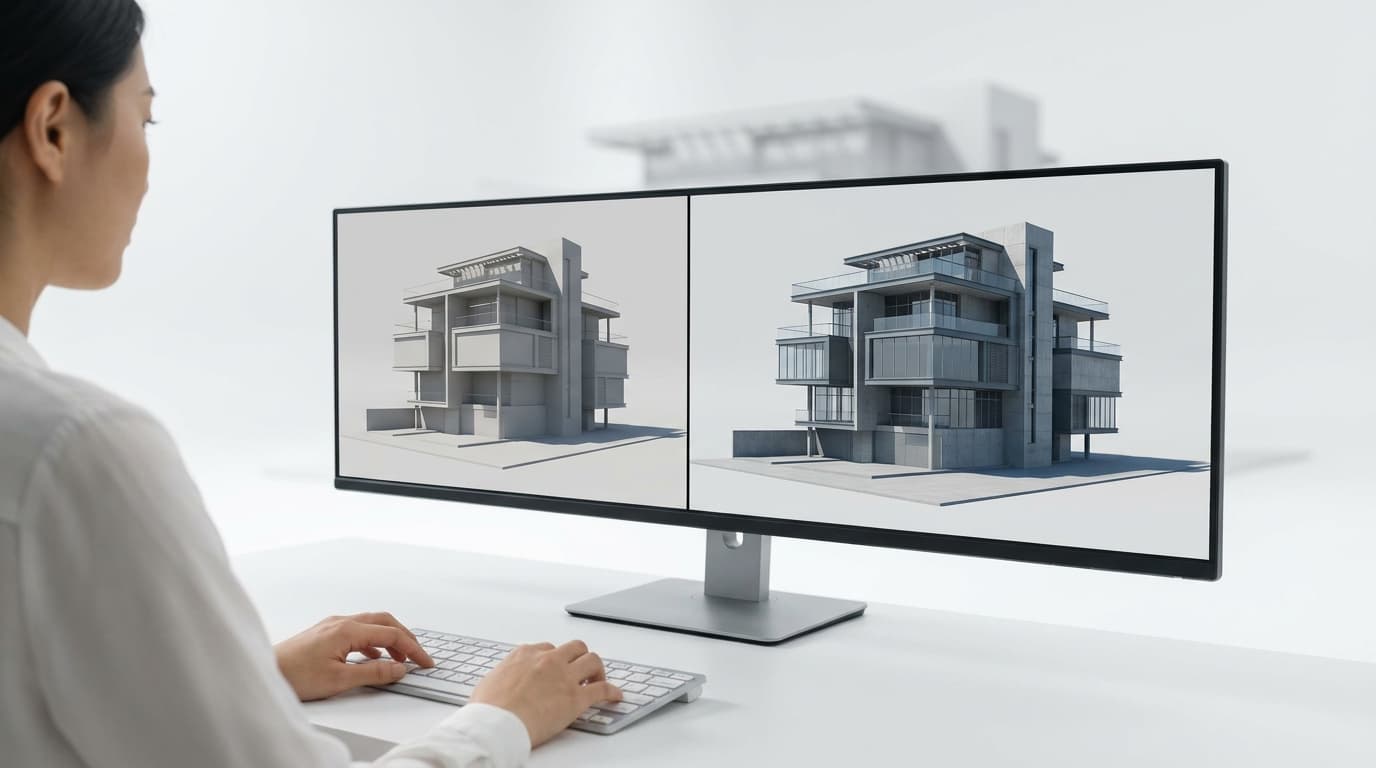
Look at the test render on your screen. A white box floating in a blue-grey haze, every surface reading the same value, grass like bathroom carpet, glass behaving like a sticker, and a sky so bright it has eaten the top third of the parapet. Nothing in the foreground. Nothing in shadow. It looks like a 3D model of a building rather than a photograph of one.
That image has four causes, and they stack. Sun and sky left on whatever D5 opened with. Exposure untouched, so the software is averaging your scene into grey. Materials that came across from SketchUp or Revit as colour-only, with no roughness variation, which is exactly what "plastic" means. And a camera standing at human height in the middle of an empty site with nothing between it and the building. Fix them in that order and you will have something presentable before you need a second coffee.
You cannot judge lighting through a camera that keeps wandering. Every decision below — where the shadows fall, whether the sky is blowing out, which materials actually matter — is a decision about one frame, and if the frame moves, you re-make all of them.
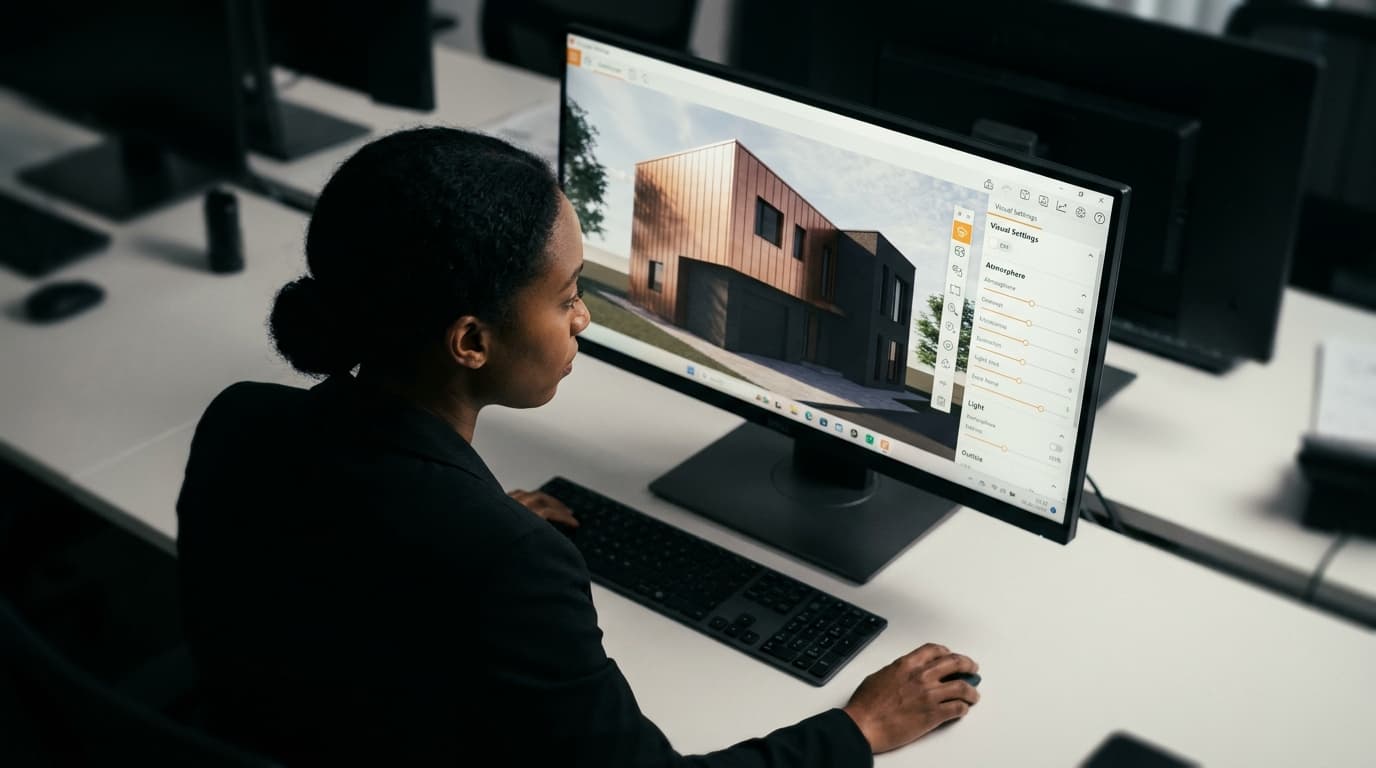
D5's advanced camera tool lives in file, preferences, widgets. Turn it on. It isn't on by default, which is why plenty of people never find it and carry on using the old scene-plus-aspect-ratio method that just crops the viewport rather than giving you a true aspect. With the widget on, you can add a camera from the current view, set a real aspect ratio, dial a focal length, and click between saved cameras as you work. In the D5 course we set up six of them before touching a single material — three exteriors, three interiors — because flicking between fixed views is how you spot that a change which flattered one shot has ruined another.
Pick your hero exterior. Three by four or sixteen by nine, your call. Then leave it alone.
The sun is your only real light, and it's standing in the wrong place
Default sun positions are almost always too high. High sun means short shadows, means every vertical surface gets roughly the same amount of light, means no modelling. That is the single biggest contributor to the flat look, and it's the quickest thing to fix: drag the sun until the shadows are long enough to read across the ground plane and one main elevation falls into shade.
As a rule of thumb we work the sun low and slightly behind the camera's shoulder — not dead behind it, which kills all shadow in frame, and not straight into the lens unless you're deliberately chasing a silhouette. You want one bright elevation, one elevation in shade, and a shadow doing something interesting on the ground.
Then the sky. D5's environment panel gives you sun intensity and sky intensity as separate controls, and the washed-out look is usually sky intensity doing too much work. Sky light is diffuse by definition; crank it and it fills every shadow you just created. Pull it down until the shaded elevation goes properly dark, then bring it back up only until you can read detail in there.
Clouds earn their keep here, and most people skip them. A clear preset sky is a flat gradient — it gives you nothing in reflections, nothing in the top of frame, and no reason for the eye to believe in a real day. Cloud cover with some structure to it changes the glass immediately, because glass is mostly a mirror and a mirror pointed at a gradient shows you a gradient.
Before: everything evenly lit, short shadows, grey-white sky. After: one bright face, one dark face, a long shadow, something happening overhead. You have not touched a material yet and the image is already half fixed.
Auto exposure is averaging your beautiful contrast back out again
Here's the bit that catches people coming from Enscape: you can do everything above and the image will barely change, because auto exposure watched you darken the scene and quietly brightened it back up.
Turn it off. Set exposure manually. Once it's manual, the sliders behave predictably and you can actually learn what a given value looks like, which is impossible while the software is second-guessing you between frames.
Expose for the building, not the sky. A slightly hot sky is normal — photographers accept it every day of the week — while a crushed, muddy elevation is not. If you expose for the sky, the façade goes dull and you end up compensating with more light, which is the loop that produces the washed-out HDR look in the first place.
Then white balance. Default-neutral daylight reads cold and clinical on most building materials, especially concrete and render. Warming it slightly is the cheapest realism in the whole programme. Not sepia. Just enough that the lit elevation looks like it's being lit by a star rather than a fluorescent tube.
If your build of D5 gives you a tone-mapping or filmic option, use it rather than the linear default. Filmic response curves roll off the highlights instead of clipping them flat white, which is precisely the difference between a sky that glows and a sky that's a hole in the image.
Before: correct lighting, invisible. After: the contrast you set actually survives to the render.
"Plastic" is a roughness problem, and your importer caused it
This is the one nobody writes about. When a model comes in from SketchUp, Revit or Rhino, what reliably survives is colour and texture image. What does not survive is everything that makes a surface behave like a material — roughness, bump, reflectivity, scale. D5 assigns something sensible-ish and moves on, and the result is twenty different materials that all share one surface behaviour: uniformly smooth, uniformly reflective, uniformly fake.
Your eye reads that instantly, even if you can't name it. Real brick is rough and slightly uneven. Real glass is smooth but imperfect. Real metal is smooth and anisotropic. Real timber is somewhere between, and varies along the grain. Give every one of them the same glossiness and the brain files the whole image under "rendering".
You do not need to fix every material. Fix the ones occupying the most pixels in your locked camera — usually four or five. For each:
Set roughness deliberately. Masonry and render high, glass low, metal low with a tint, timber mid. Varied values matter more than correct ones.
Add bump or normal depth to anything that should have texture. Brick and stone without relief are wallpaper.
Check the texture scale against something you know. A brick that scans as 600mm long is the fastest way to make a building look like a toy.
Swap at least one imported material for a D5 library material. The library ones arrive with their channels already set up properly, and they give you a reference for how far off the imported ones are.
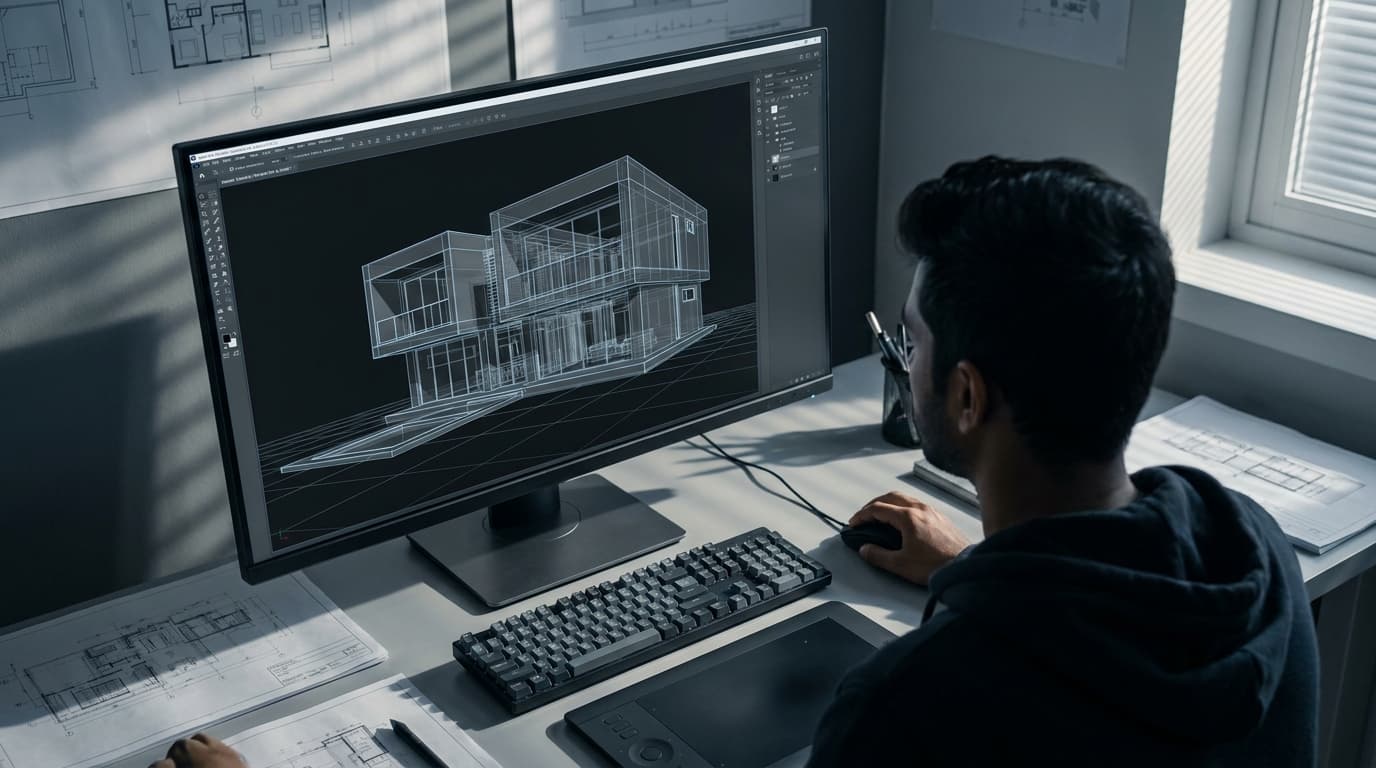
One thing worth doing while you're in there: grouping by material in the host model before export. The SketchUp model we use in the course was re-grouped by material precisely because it makes this stage fast rather than miserable. Ten minutes in SketchUp saves forty in D5.
Before: a building made of one substance in several colours. After: surfaces that disagree with each other, which is what real ones do.
Nothing is near the camera, so the eye has no depth to measure
An empty site photographed at eye level from thirty metres away gives you one plane of information. Add something — anything — in the foreground and the image acquires depth, because the brain compares near to far and concludes it is looking at space.
Branches intruding at the top of frame. A planter, a wall, a bench half-cropped at the edge. People at a plausible distance, not scattered evenly like chess pieces. D5's asset library and the Megascans integration make this quick, and the course spends a full lesson on populating the scene for exactly this reason — the assets aren't decoration, they're depth cues.
Three specific moves that punch above their weight on exteriors:
Crop with vegetation. Put foliage partly out of frame at the near edge. The viewer reads it as the camera being in a real place rather than hovering on a void.
Shallow depth of field, used sparingly. Focus the building, let the very foreground go soft. Overdo it and you get a model railway.
Populate behind the glass. Dark windows read as dead. D5's parallax interiors give you convincing depth behind a window from a wide range of angles, and on anything with repeated glazing they transform the façade for about thirty seconds of work.
Before: a building on a plate. After: a photograph taken from somewhere.
Finish inside D5, not in Photoshop
You'll see plenty of tutorials that render something mediocre and claim Photoshop rescued it. Post can lift a good image; it cannot invent lighting that isn't there. And D5's own effects panel will do most of what those videos are doing anyway — contrast, highlight and shadow recovery, bloom, vignette, LUTs and colour grading — live, on the scene, before you commit to a render.
The advantage of grading in D5 is that you see it in context and it applies to every camera. Grade the hero, flick to your other cameras, check it hasn't wrecked them. A slight vignette and a touch of contrast is usually the whole job. If you're reaching for curves to fix a muddy shadow, go back and fix the lighting instead; you're treating a symptom.
The honest call on D5 versus Enscape
D5 wins on the image. The asset and material libraries are better, the sky and weather system is better, and the gap between the viewport and the final render is small enough that what you're tuning is what you're getting. For a one-sitting presentation still, a competition board or anything a client will stare at for more than five seconds, that's the argument.
Enscape wins on the loop. It lives inside Revit or SketchUp, so when the design changes at four o'clock you press one button. D5's sync is good, but it's still a second application with its own file, its own materials and its own state to maintain. If you're rendering twelve times a day during design development, that friction compounds — and if your whole team is already in Enscape, your scene files need to open on their machines too. Worth saying: the flat-render diagnosis above is largely the same in Enscape, and if that's where you're staying, we've written the Enscape version of this fix list.
What we've found in practice: Enscape for the working week, D5 when the image has to carry weight. Nobody is giving you a prize for using one renderer.
And if your D5 test image still looks washed out after all of that — go back to exposure. It's almost always exposure.