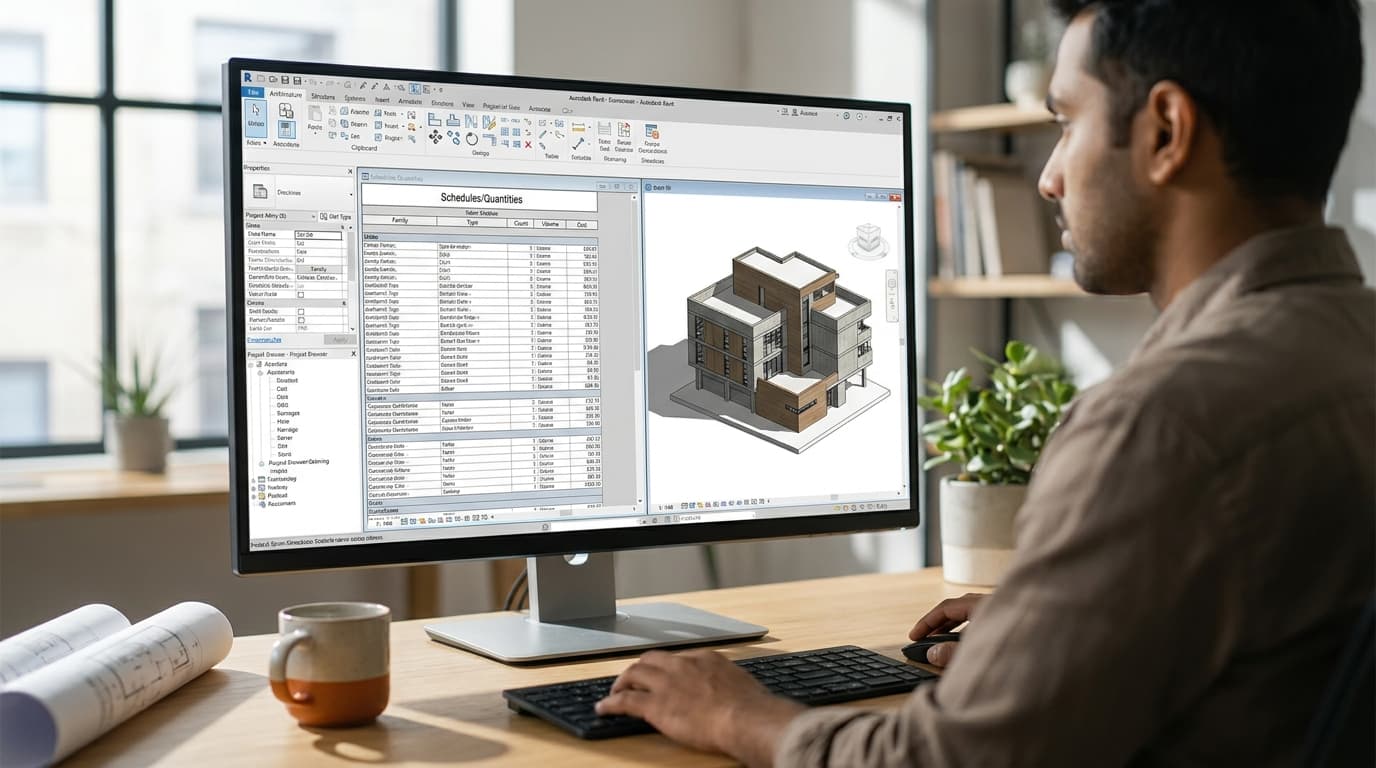
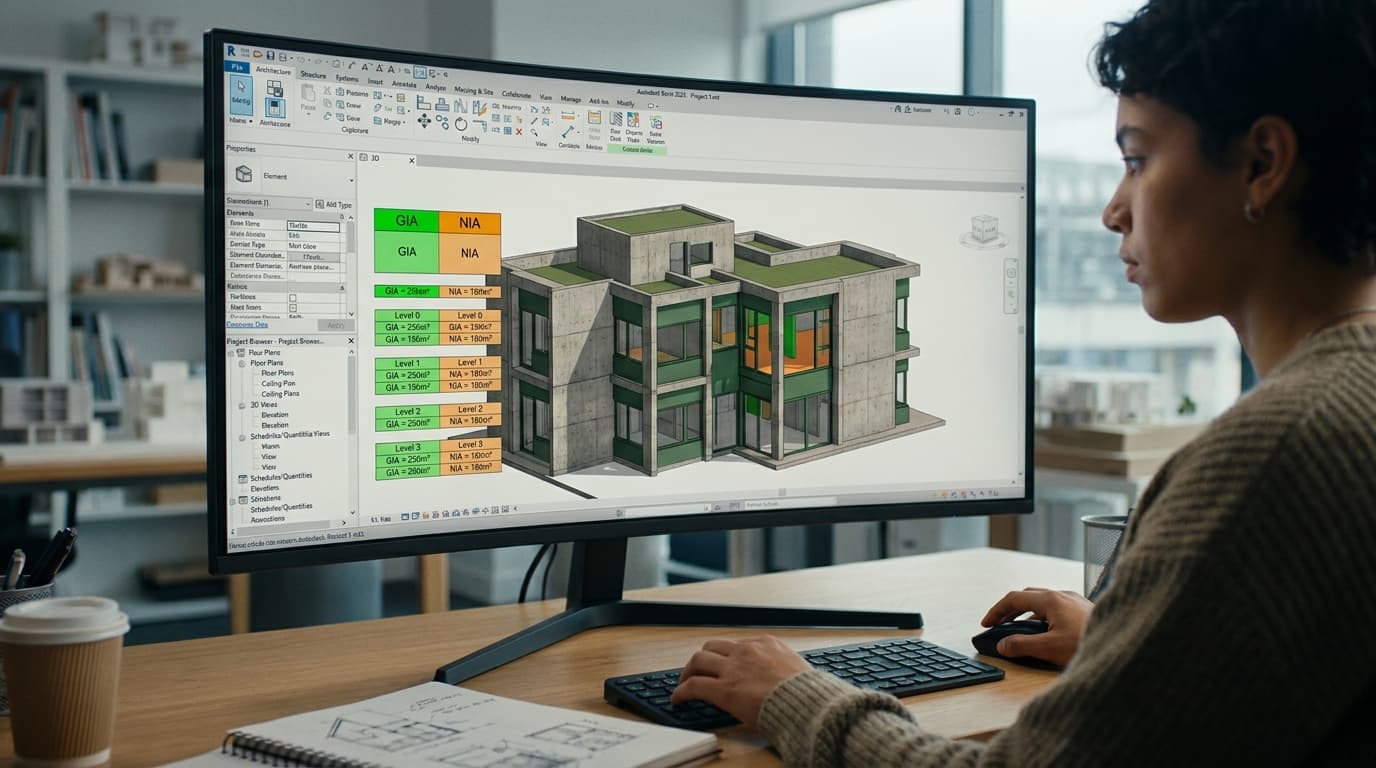
A package that prints inconsistently was never a sheet problem. It's a parameter problem, a view template problem and a print setup problem, and all three are solvable once, at the start, rather than forty times at eleven at night on the day of issue.
The mismatched scales, the view titles that sit at different lengths, the revision that silently appeared on six sheets nobody touched, the linework that's hairline on one drawing and fat on the next — none of those are sheet faults. They're the visible symptoms of information stored in the wrong place. Fix the storage and the symptoms stop. Here's where each one actually lives.
Every Inconsistency Is a Value Living at the Wrong Level
This is the one nobody resolves properly, so we'll start here.
A Revit title block is a family, and labels in that family point at parameters. The question that decides whether your package behaves is: what is that parameter attached to? There are three answers and they behave completely differently.
Family type parameters belong to the title block type. Change one and every sheet using that type changes. This is the classic trap — somebody adds a "Revision" or "Drawn By" field as a type parameter in the family, and then discovers that setting it on one sheet sets it on all ninety. Correct behaviour, wrong tool.
Sheet instance parameters belong to the individual sheet. Sheet Number, Sheet Name, Drawn By, Checked By, Sheet Issue Date — these ship with Revit and vary per sheet because the sheet is the instance. Any field that must differ from drawing to drawing has to be one of these, or a project parameter you bind to the Sheets category yourself.
Project Information parameters belong to the file. Project Name, Project Number, Client Name, Project Address. One value, every sheet, changed in one dialog. This is where the practice address, the project number and the job name should live — never typed per sheet.
So the decision for every field in your title block is simply: does this change per sheet, or per project? Per sheet, it's a sheet instance parameter. Per project, it's Project Information. The moment you get this mapping right, the sheet-by-sheet corrections stop, because there is nothing left to correct sheet by sheet.
One detail worth knowing: the Sheet category has a built-in Scale parameter. Put a label on it and Revit reports the view scale of the views placed on that sheet — or "As indicated" when they differ. It's the cheapest quality check in the software. If a sheet that should read 1:100 reads "As indicated", somebody has dropped a view on at the wrong scale and the title block has just told you so before the client did.
The Shared Parameter File Is the Office, Not the Project
If your title block needs fields Revit doesn't provide — Drawing Status, Suitability Code, Originator, Volume, Revision Description, BIM Coordinator — those have to be shared parameters, because a label in a family can only report a parameter the family knows about, and only shared parameters cross the family boundary and get scheduled.
The part that matters for a whole office: a shared parameter has a GUID, and the GUID is what Revit matches on, not the name. Two people creating a parameter called "Suitability" in two different shared parameter files have created two unrelated parameters that will never speak to each other. Your sheet list schedule will show one column blank. Your title block will show nothing.
So one shared parameter file, read-only, on the server, referenced by every template and every title block family in the practice. Not a copy on each person's C: drive. We teach it this way because the alternative only reveals itself eighteen months later when two project teams try to combine a federated issue sheet and discover their "Revision" fields are strangers.
One Family With a Type Catalogue, Not Six Families
A1, A0, A3, portrait, landscape. You can do this as separate families per size, and plenty of offices do. Don't.
When the practice rebrands, or the client hands you their template, or someone finally notices the CDM note is out of date, a single family with types for each sheet size means you edit once, reload once, and every sheet in the project updates in place. Separate families means you edit six, reload six, and miss one — usually the A3 that only appears in the appendix.
The trade-off is real and worth naming. One family with parametric extents is harder to build, because the title block panel, the revision table and the logo block all have to behave at 841 × 594 and at 420 × 297. A type catalogue keeps that manageable by driving the sheet dimensions from a text file rather than cluttering the family with types. But the maintenance maths only ever gets better with one family, and worse with six. In practice, every hour you spend making the single family flex is paid back the first time a standard changes mid-project.
View Templates: Assigned, Not Applied
Here's the distinction that quietly wrecks packages. Right-clicking a view and choosing Apply Template Properties is a one-off paste. The view takes the settings and then forgets where they came from, which means it drifts the instant somebody toggles a category off to see something.
Assigning a template in the view's properties is different. The view is now governed by the template. The controlled parameters grey out, and changing the template changes every view assigned to it. That's the whole mechanism. Scale, detail level, visibility and graphics overrides, discipline, view range, annotation crop — all of it, propagated.
Which means: your 1:100 general arrangement plans are not twelve views you set up twelve times. They're one template assigned twelve times. Same for your 1:50 enlarged plans, your sections, your elevations, your demolition drawings. If the line weights look different across the set, the views aren't sharing a template — they can't be, because a template can't produce two answers.
Two companions to this:
Object Styles sets the project-wide line weight for every category. View templates override it per view type. If both are inconsistent you'll chase the problem forever, so settle Object Styles in the template file first and treat view-level overrides as the exception.
Viewport types control the view title — which title family, whether the extension line draws, and how long it is. A package with view titles that look subtly different is almost always a package where three viewport types are in play. Pick one, select all viewports, set them to it.
And the one that trips everyone up at least once: Thin Lines is a screen toggle. It changes nothing about what prints. Turn it off before you judge your line weights, or you'll spend an afternoon fixing a problem that doesn't exist.
Revisions Are a Project Sequence, Not a Text Field
If your revision data is wrong on issue, it's usually because somebody typed it into a label instead of using the revision system.
Revit holds revisions in Sheet Issues/Revisions — a numbered project-wide sequence with a date, description and issued-to/issued-by. The revision table in your title block reads that list. A revision appears on a given sheet for exactly two reasons: a revision cloud assigned to that revision sits on a view placed on that sheet, or you've ticked it on manually in the sheet's Revisions on Sheet dialog.
That second route is why revisions "silently appear" on drawings nobody edited. Someone sets a revision to show on all sheets, or clouds something in a view that's placed on three sheets rather than one. The cloud is the carrier. Put the cloud in the view that only lives on the drawing being revised, or accept that it rides along everywhere that view goes.
The discipline that makes this work: when an issue goes out, tick Issued. It locks the revision — no more clouds can be assigned, the description can't be edited, and the historical record stops moving. Without that lock, your rev table is a document that quietly rewrites its own past.
Your Sheet List Is the Drawing Issue Register
There is no reason for the issue register to live in a spreadsheet. Revit has a Sheet List schedule, it reads every sheet parameter including the shared ones you created, and it updates itself.
Bind your project parameters to the Sheets category — status, suitability code, scale, originator, revision — and the sheet list becomes the register. Add it to a sheet and it issues with the package. Group by discipline or by volume, sort by sheet number, filter out the working sheets you don't issue by using a yes/no parameter called something like "Include in Issue".
On numbering: get the convention agreed before the first sheet exists, because renumbering a package later means every view reference and every cross-section callout in the model updates with it, and you will find the ones you missed by printing them. UK practices working to ISO 19650 will be naming information containers with the field structure that standard sets out — project, originator, volume or system, level, type, role, number — and the UK BIM Framework's guidance on implementing it is where to check the detail rather than a forum post. The practical point is that the fields are separated by delimiters for a reason: when the architectural, structural and services sets are combined by the client, the originator field is the only thing stopping two sheets called 01-100 colliding.
The Print Setup That Stops the PDF Lying
Finally, the settings that cause the classic PDF faults. Save these as a named print setup in the project template so nobody invents their own.
Zoom: 100% size. Not Fit to Page. Fit to Page rescales the drawing to the printable area, which means your 1:100 plan is no longer at 1:100 and anybody who scales off it is working from fiction.
Paper size matched exactly to the title block, and orientation matched too. An A1 title block printed to A1 at 100% with a driver that insists on a non-printable margin will clip or shrink. Offset from corner set to no margin, centred, is the usual fix.
Hidden Line Views: Vector Processing. Raster gets forced on you when a view uses shadows, sketchy lines, silhouette edges or transparency — which is a good argument for keeping those out of the drawing set and in the presentation views. In my experience vector output is what keeps hairlines crisp at A3 reductions; raster softens them unpredictably.
Colours: pick one — black and white, greyscale or colour — and apply it to the whole set. A package where half the drawings have grey halftone and half don't is a package printed by two people with two setups.
Options: tick hide crop boundaries, hide scope boxes, hide unreferenced view tags and hide reference/work planes. Every stray rectangle you've ever seen on an issued PDF came from leaving one of these off.
Range: Selected views/sheets, with a saved set. Name the set after the issue. It's repeatable, it's auditable, and it means the package you print in six weeks contains exactly the drawings this one did, plus whatever you deliberately added.
If you're using Revit's own PDF export rather than a print driver, the equivalents live in the export dialog along with a file naming rule — build the name from sheet number and sheet name parameters so the filenames match the register automatically. Typed filenames are how a set ends up with "Section AA final FINAL v2" in it.
All of this is a morning's work at project setup and an afternoon's work if you leave it until the first issue. Leave it until the fourth issue and it becomes a job nobody will ever be given time to do, which is how practices end up with drawing sets that are corrected by hand, forever, by whoever is most junior. Build the template. Let the sheets inherit from it. Then spend the night before issue checking the drawings rather than the title blocks.